Name Your Subscription
background-image

style
blue-purple-gradient, background-image-narrow, text-light, text-large
Assign a custom name to your subscription to make it easier to identify and manage in the JMP Store, especially when managing multiple subscriptions.
Please follow these steps to name your subscription(s):
1. Log in to the JMP Store.
Sign in using the email address associated with your subscription(s).
2. Navigate to My Subscriptions.
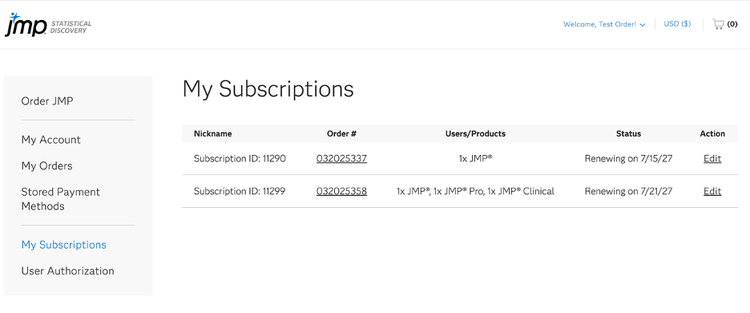
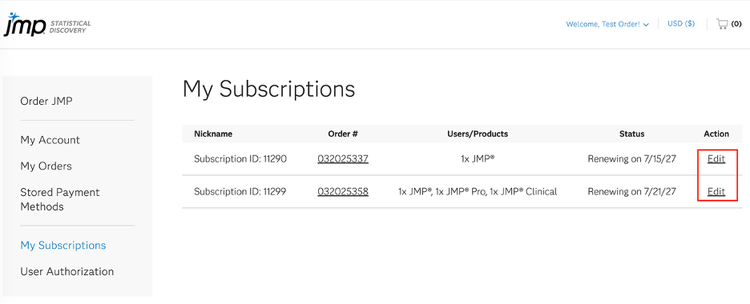
3. Locate the subscription you want to rename and click Edit in the Action column.
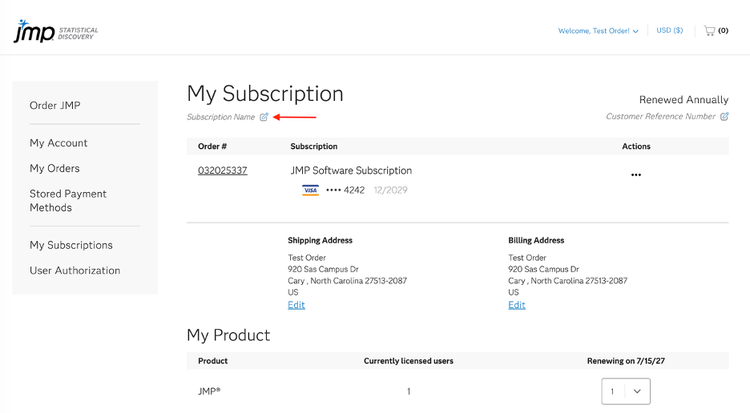
4. After selecting the subscription, locate the Subscription Name field and click edit icon.
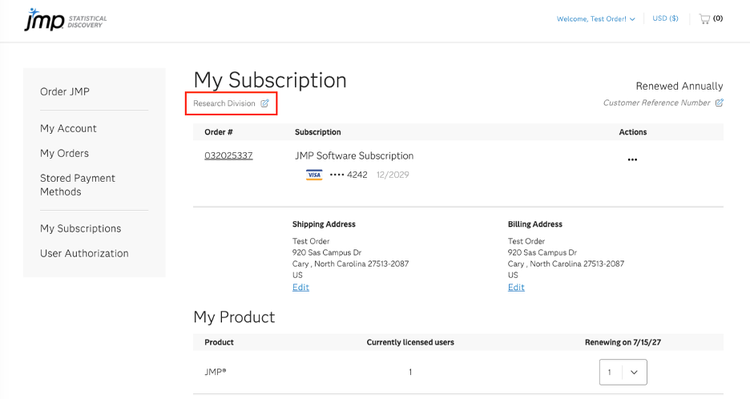
5. Enter a new subscription name (up to 64 characters), then click the green check mark to save your changes.
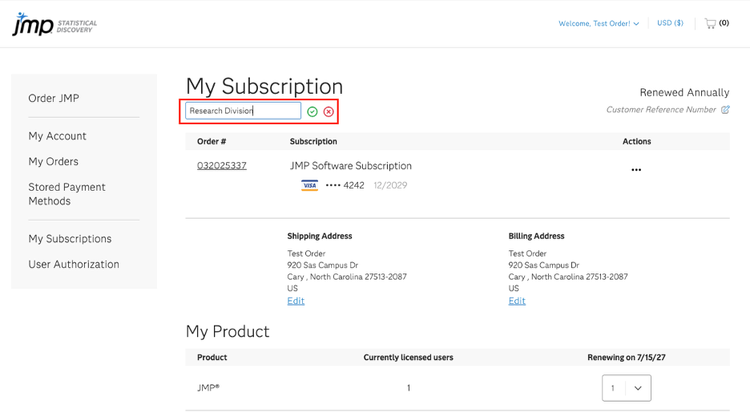
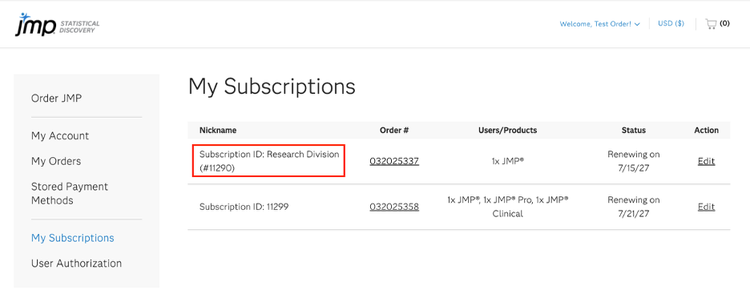
After saving, the subscription name will be displayed on both the individual My Subscription page and the My Subscriptions page, making it easier to identify the subscription.