Add Notes
Use the Add Notes icon ( ) to open a window where you can take notes from any JMP Clinical report and store these notes in a central location. Note: You must have write access to the Notes folder to see this button.
See /user/clinical/notes for the default location of the Notes folder.
The specific behavior of this button varies depending on whether any subjects are selected:
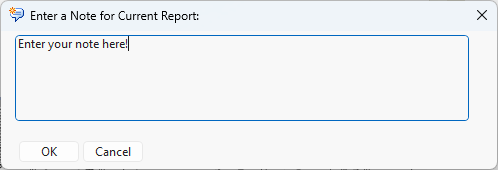
| • | If no subject is selected, a window titled “Enter a Note for the Current Report:” is launched. Enter text into the field and click . A single note (record) is added to the notes data set with the current date-time, the report name, the study name, snapshot number, and your user ID. Notes at the report level lack a subject ID. |
| • | If one or more subjects are selected, a window titled “Enter a Note for Selected Subjects:” is launched. Enter text into the field and click . A note (record) is added to the notes data set for each selected subject with the current date-time, the report name, the study name, snapshot number, and your user ID. |
Click the View Notes icon ( ) to read these notes. See View Notes for more information.