JMP Clinical Configuration Qualification Tool
This add-in enables you to inspect the active configuration’s paths and verify whether they are correct for the current user.
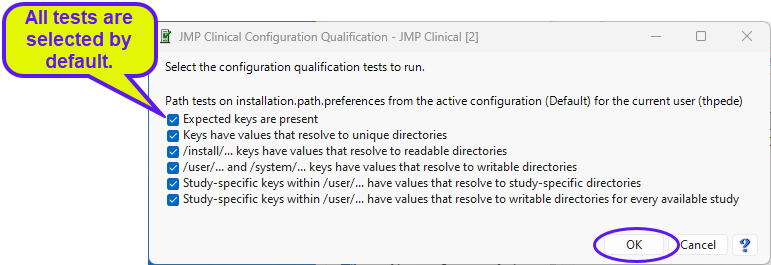
The Configuration Qualification tool tests six different configuration factors:
|
1
|
Are the expected keys present? |
|
2
|
Do the keys have values and do those values map to unique directories on the user's hard drive? |
|
3
|
Do the non-writable folders laid down by the JMP Clinical installer map to readable locations within the /install/ directory? |
|
4
|
Do the writable folders, created when JMP Clinical is first opened, map to writable locations within the /user/ directory? |
|
5
|
Do the study-specific files/folders exist and map to study-specific directories? |
|
6
|
Do the study-specific files/folders for all available studies exist and map to writable directories specific to their respective studies? |
Installing the JMP Clinical Configuration Qualification add-in
This add-in is included in JMP Clinical. You must, however, install the add-in before you can use it.
|
8
|
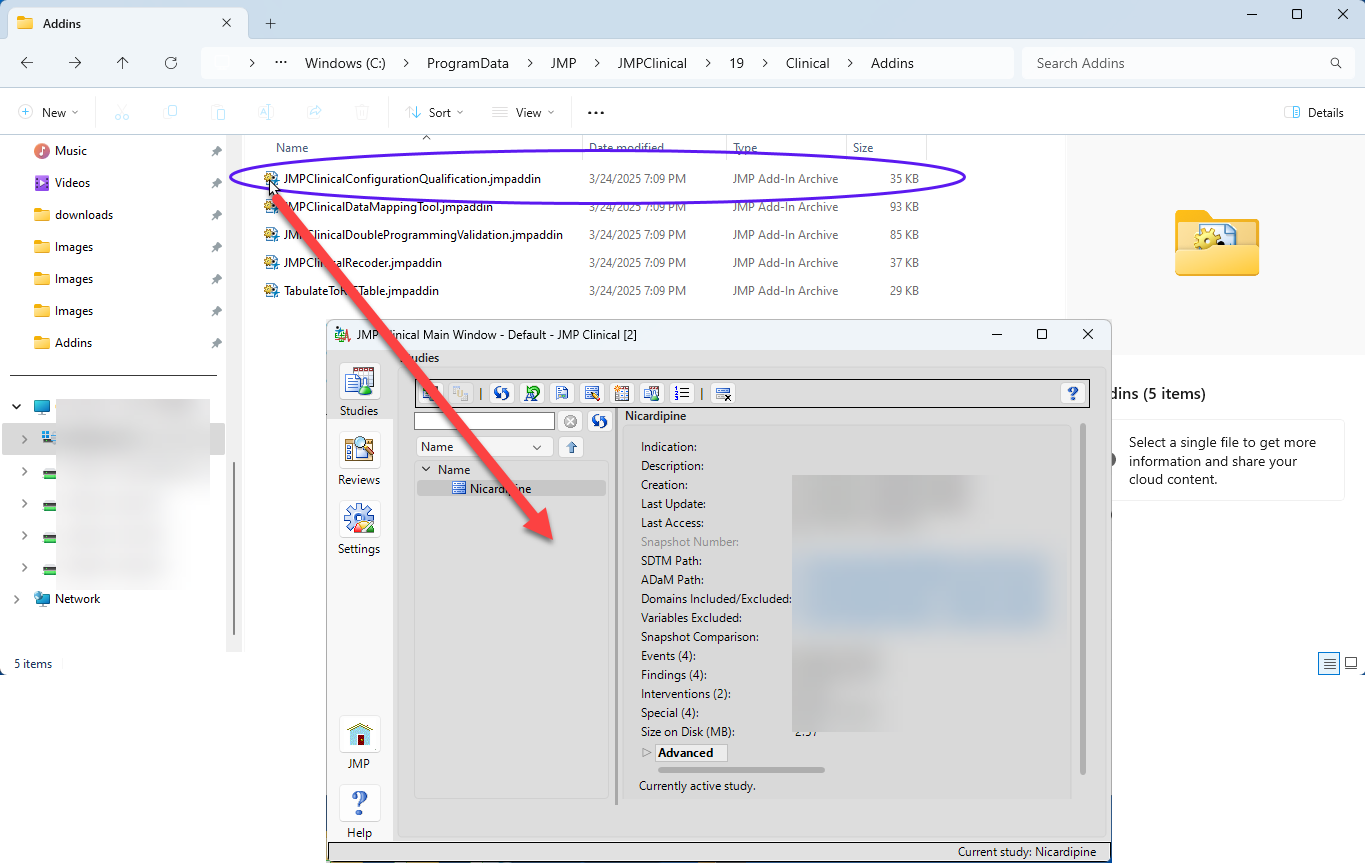
Navigate into the Addins folder (C:\ProgramData\JMP\JMPClinical\19\Clinical\Addins). |
|
8
|
Locate the JMPClinicalConfigurationQualification.jmpaddin file and drag it onto an open JMP Clinical window. |
|
8
|
When prompted to install the add-in, click OK. |
The add-in installs automatically.
Using the JMP Clinical Configuration Qualification Tool
|
8
|
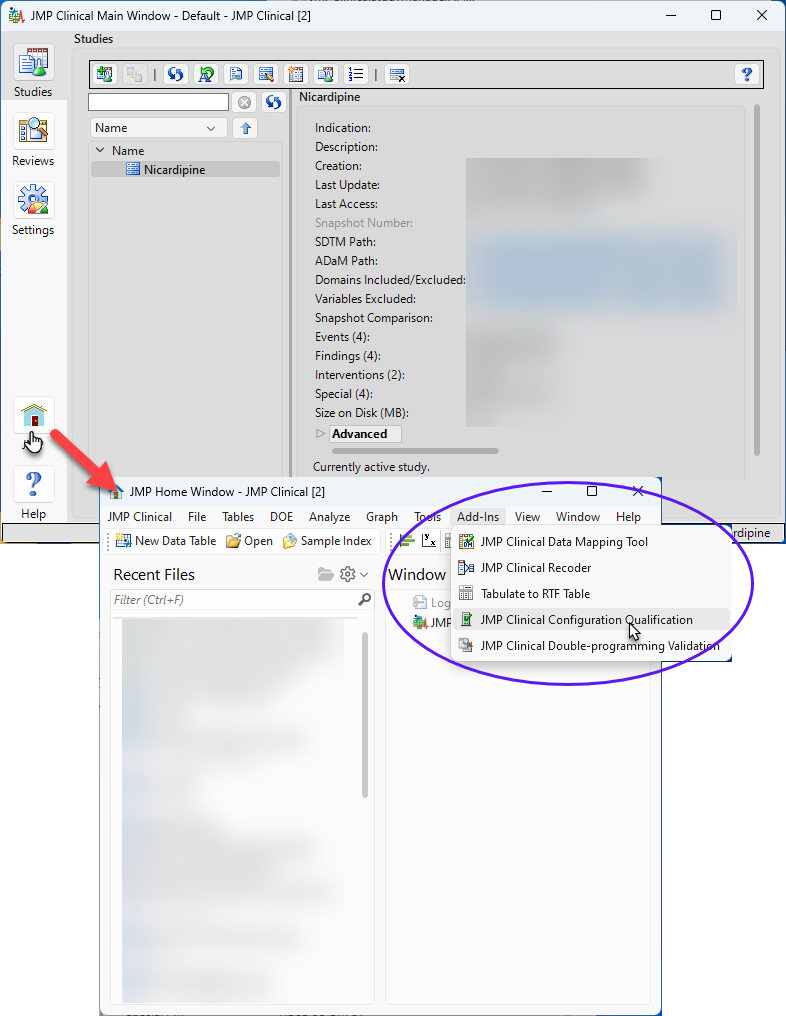
To access this tool, click  on the JMP Clinical Main Window to open the JMP Home Window. on the JMP Clinical Main Window to open the JMP Home Window. |
|
8
|
Click Add-Ins > JMP Clinical Configuration Qualification to open the tool. |
|
8
|
All 6 tests are selected by default. Click the appropriate check box to deselect undesired tests. |
|
8
|
Click to run the tests. |
Configuration Qualification Results
When you click , the tool runs the selected tests and generates a results window.

Note that the current configuration passes all qualifying tests for the selected study.