JMP Clinical Double-programming Validation Tool
This Add-In is used to validate selected JMP Clinical reports by comparing data tables generated by these reports with those generated using independent programming. Perfect matches are taken as evidence for validation of results generated by the JMP Clinical reports.
The Add-In currently does validation checks on Adverse Events Distribution, Adverse Events Multiple Occurrences Distribution, Hy's Law, Findings Laboratories Box Plots, Findings Vital Signs Box Plots, and Demographics Distribution using the Nicardipine sample data.
Installing the JMP Clinical Double-programming Validation Add-in
This Add-In is included in JMP Clinical. You must, however, install the add-in before you can use it.
| 8 | Navigate into the Addins folder (C:\ProgramData\JMP\JMPClinical\19\Clinical\Addins). |
| 8 | Find the JMPClinicalDoubleProgrammingValidation.jmpaddin file and drag the file onto an open JMP Clinical window. |
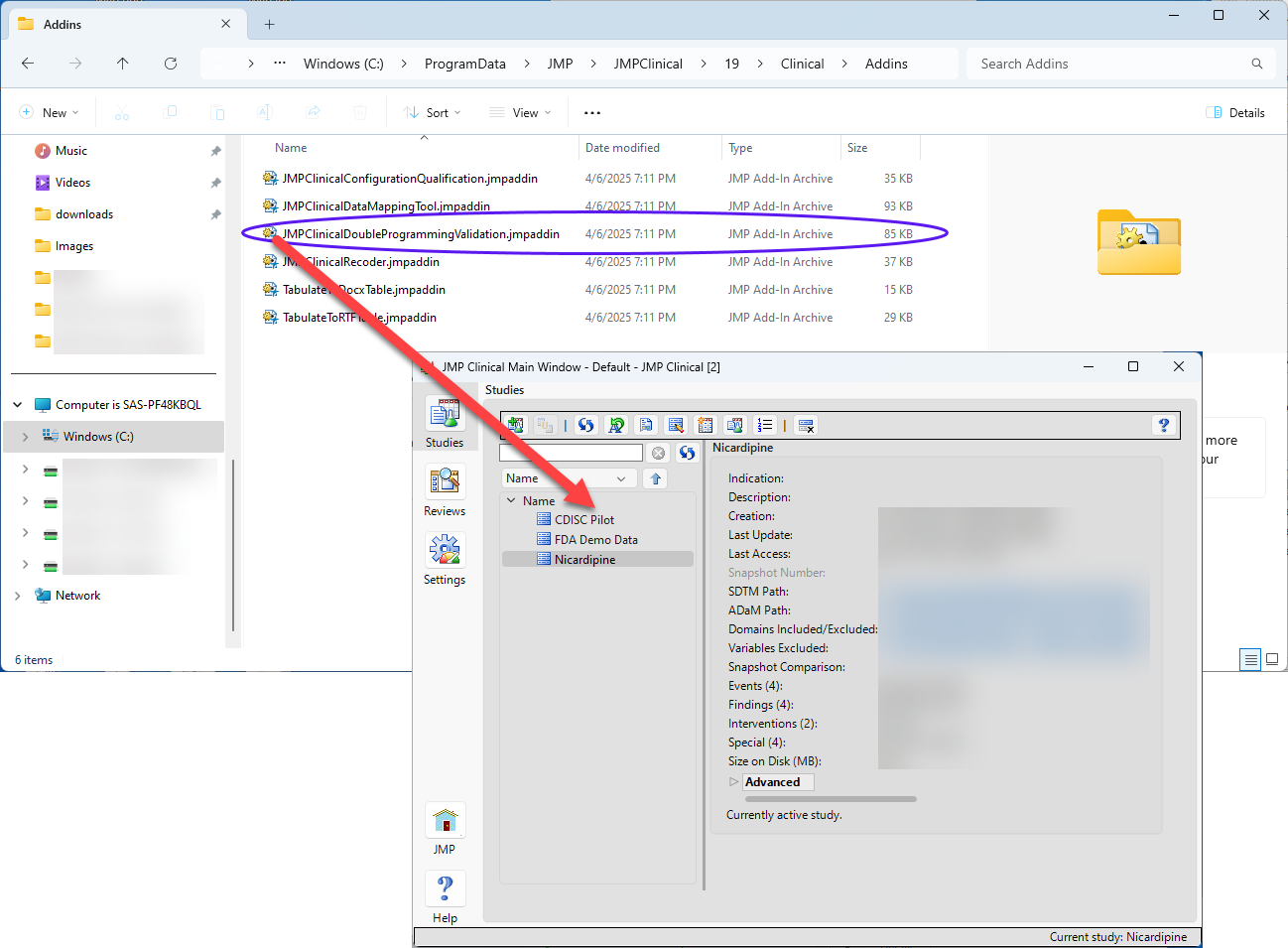
| 8 | When prompted to install the add-in, click OK. |
The add-in installs automatically.
Using the JMP Clinical Double-programming Validation Tool
| 8 | To access this tool, click  on the JMP Clinical Main Window to open the JMP Home Window. on the JMP Clinical Main Window to open the JMP Home Window. |
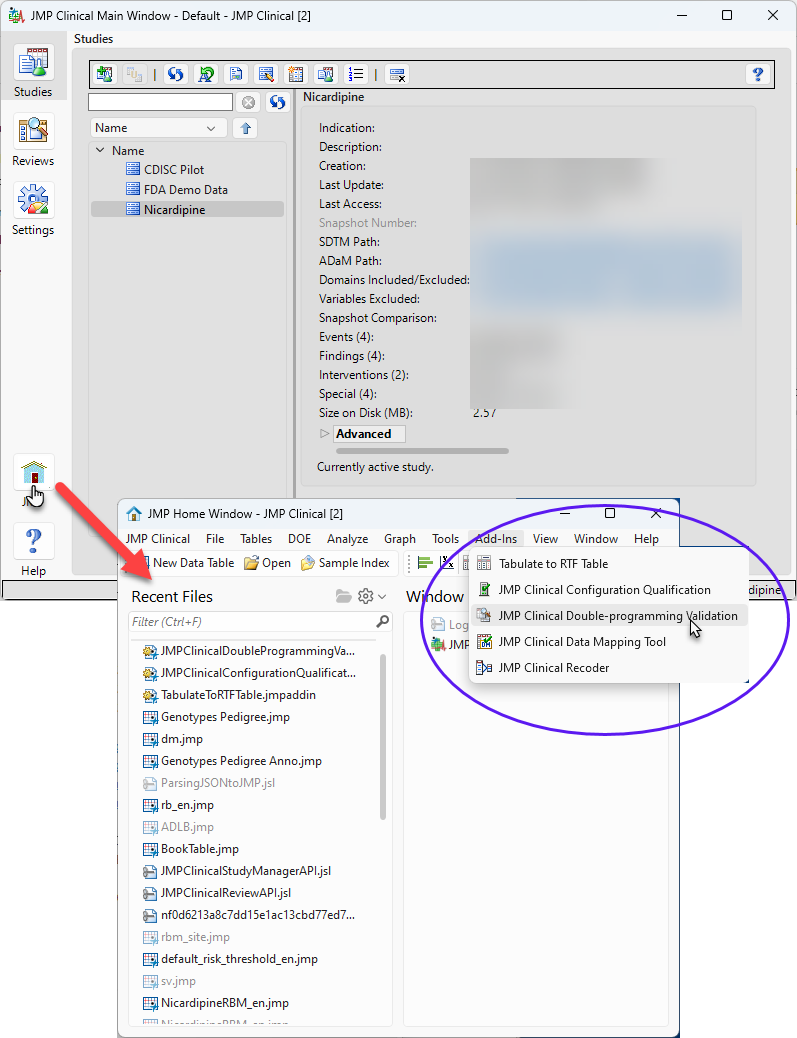
| 8 | Click Add-Ins > JMP Clinical Double-programming Validation to open the tool. |
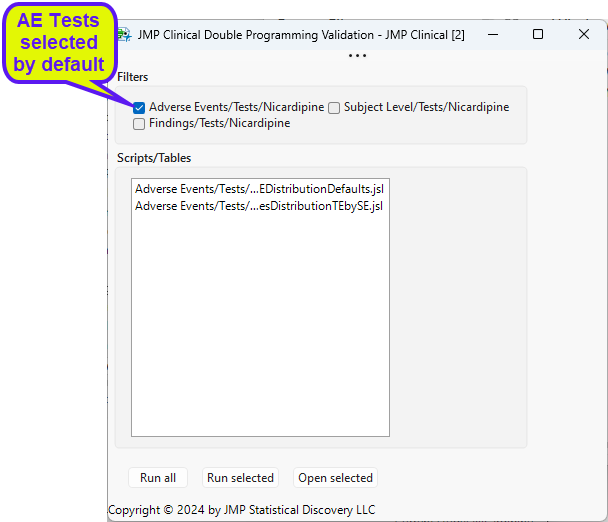
| 8 | The first two tests (Adverse Events, AE) are selected by default and listed in the Scripts/Tables pane. Checking either the Subject Level or Findings boxes selects these tests and adds them to the list in the Scripts/Tables pane. Click the appropriate check box again to select additional tests or deselect undesired tests and remove them from the Scripts/Tables pane. |
| 8 | Click to validate all of the listed tests. |
| 8 | Click on one or more listed tests and click to run only the selected subset of tests. |
| 8 | Click to open the JMP script for validating the selected test. |
| 8 | In this example, let's run just the default AE tests. Make no additional selections. Click . |
As the tests run, the selected reports will open, run, and then close sequentially in the order they are listed in the Scripts/Tables pane. When the validation is finished, the following window is surfaced.
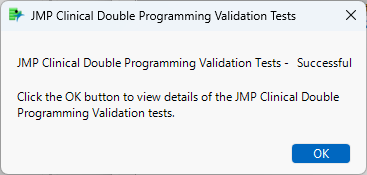
| 8 | Click to view the results |
JMP Clinical Double-programming Validation Results
| 8 | Click to show the results window. |
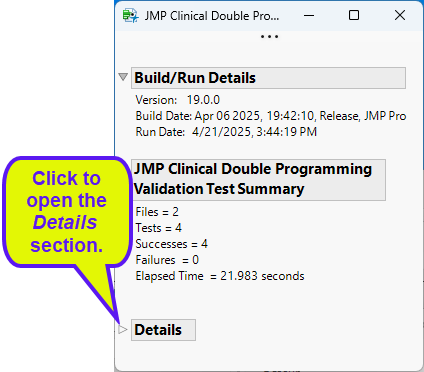
This window shows that 2 files were generated and 4 tests were run, all of which successfully validated the selected reports.
| 8 | Open the Details section. |
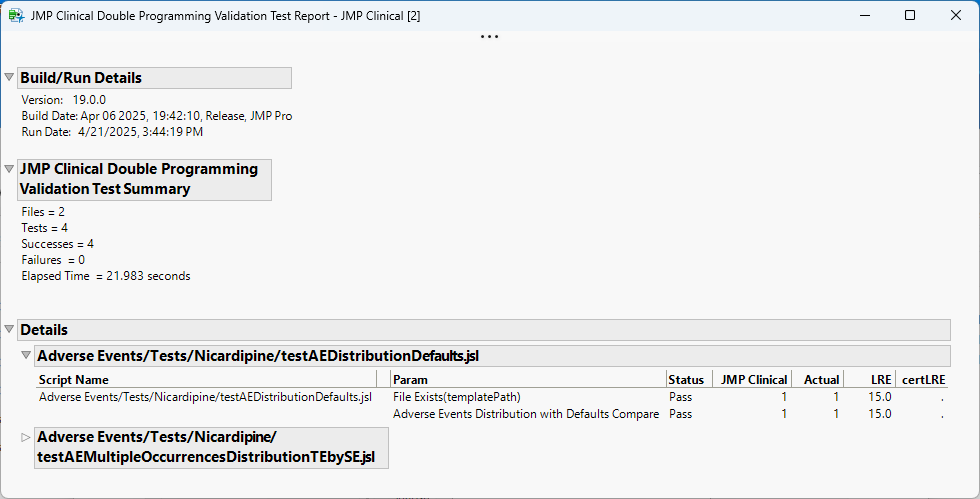
The details section provides more details on the tests run and their outcome.