Update Site Details for Risk Based Monitoring
This feature enables users to add or modify additional information about the study sites compared to what is captured through the eCRFs. Additional information is captured from an input Site Details data table which may contain the following optional fields.
Data Fields
| Field | Description | Currently Used by RBM? | Notes |
|---|---|---|---|
| Site ID | Study site identifier | Yes | Automatically populated using the values from the DM/ADSL Siteid column. |
| Country | Country of study site | Yes | Capture country here if it is not available from ADSL/DM. |
| City | City of the study site | No | Reserved for future mapping. |
| State/Province | State or Province of the study site | No | Reserved for future mapping. |
| Five Digit Zip Code | Postal code of the study site | No | Reserved for future mapping. |
| Latitude | Geographic latitude of the study site | No | Reserved for future mapping. |
| Longitude | Geographic longitude of the study site | No | Reserved for future mapping. |
| Site Active Date | Date the site became active | Yes |
Used to calculate enrollment rate indicators. |
| Monitor | Monitor name or ID | Yes | Enable monitor level outputs. |
| Site Category | Grouping label (i.e. Novice, Experienced, Veteran) | Yes | Enables category filter in RBM. |
| Vendor | Vendor name or ID | Yes | Enables vendor-level outputs. |
Note: The Site Details data file is optional. The Risk Based Monitoring (RBM) report can be run without it. However, certain options within the RBM report are not available unless this data table is present. For example, if users wish to run analysis at the Monitor and Vendor level or if they want risk indicators concerning enrollment rates, then this file needs to have the appropriate fields populated.
How the Fields Affect RBM Output
If Country, Monitor, or Vendor are provided, RBM creates results aggregated at those levels. If Site Category is provided, RBM analysis can be restricted to sites having a particular label (for example, Novice sites). When Site Active Date is present, RBM calculates indicators related to enrollment rates.
Note: City, State/Province, Zip Code, Latitude, and Longitude information are not currently used by RBM.
To Update the Site Details Data
| 8 | Open the Studies window and highlight the study you want to update. |
| 8 | Click  to open a Site Details table. to open a Site Details table. |
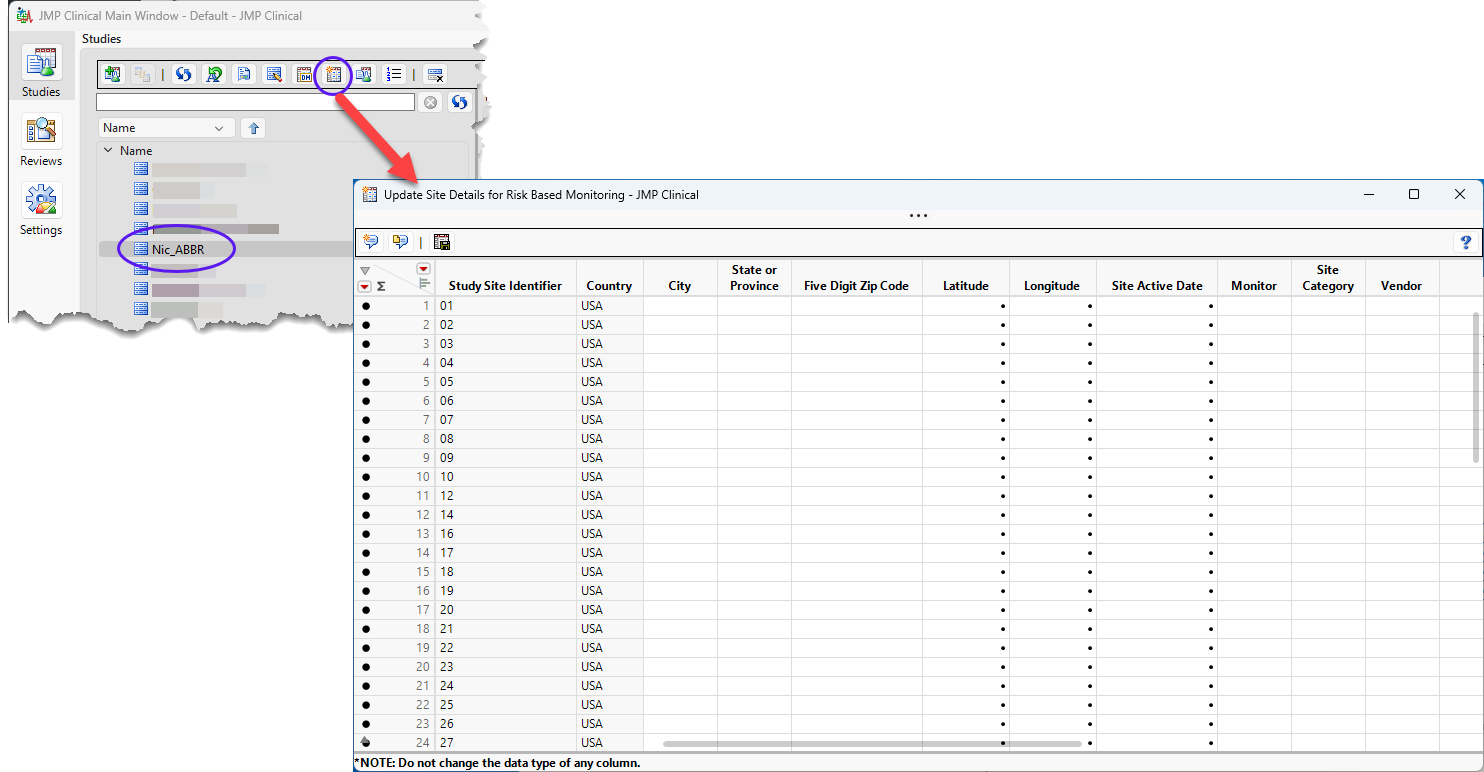
| 8 | Enter the details in the relevant columns. Note: You should not change the data type of the columns from their specified type. |
| 8 | Once you are finished, click  to save the table. to save the table. |
Example: Site Details for the Nicardipine Study
The Site Details data set for the included Nicardipine sample data is already populated and is shown below.
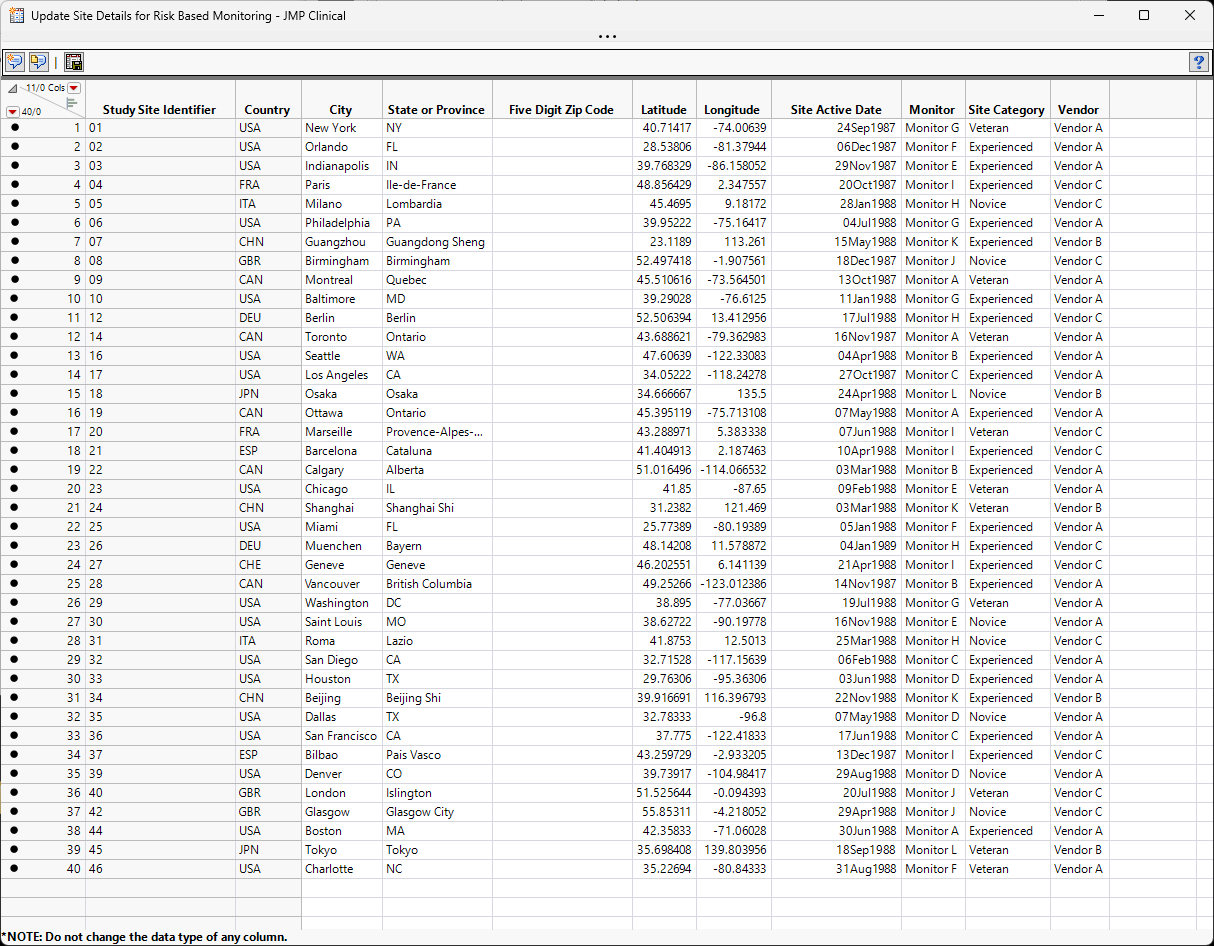
The Site Details data table for the Nicardipine example data (shown above) is included with JMP Clinical. This file can be found in the Notes directory of the Nicardipine study, if Nicardipine is registered in JMP Clinical (C:\Users\username\Documents\JMPClinicalversion\Configurations\Default\Notes\Nicardipine on Windows and in /Users/username/Documents/JMPClinicalversion/Configurations/Default on Macs) or in the installation folder (C:\ProgramData\JMP\JMPClinical\version\Clinical\Sample Data\Nicardipine on Windows and /Library/Application Support/JMP/JMPClinical/version/Clinical/Sample Data/Nicardipine on Macs).
The name of the shipped files for each language is shown in the table below:
| Name | Language |
|---|---|
| NicardipineRBM_en | English |
| NicardipineRBM_zh | Chinese |
| NicardipineRBM_ja | Japanese |