
|
•
|
Select Rows > Row Selection > Select Matching Cells
|
|
•
|
Right-click one of the highlighted row numbers and select Select Matching Cells.
|
|
•
|
Select Rows > Row Selection > Select All Matching Cells. The rows that contain the same values as the selected ones are highlighted.
|
|
1.
|
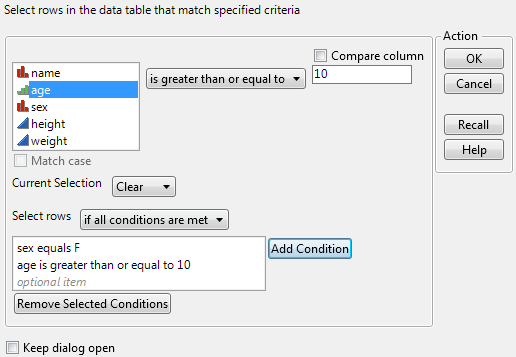
Select Rows > Row Selection > Select Where.
|
Figure 3.17 Specify Criteria for Selecting Rows
|
3.
|
|
5.
|
Click OK.
|
|
•
|
To compare the values of two columns, click the Compare column check box. Select from the list of columns for comparison.
|
|
•
|
|
•
|
Click an option under Current Selection to tell JMP how to handle that current selection:
|
|
–
|
Clear removes the highlight from currently selected rows and selects all rows that contain the specified value.
|
|
–
|
Extend keeps the currently selected rows selected and also selects the rows in which the specified value has been found.
|
|
–
|
Restrict selects the rows in the currently selected array that contain the specified values.
|
|
•
|
Click Add Condition to add a condition to the list.
|
|
•
|
To add more conditions to the search, repeat the previous steps. Click the appropriate item in the Select Rows area to specify if you would like JMP to select rows conditionally: if all conditions are met, or if any of the conditions are met.
|
|
•
|