 Additional Example of the Bayesian Optimization Platform with Factor Constraints
This example shows how to modify constraints and factor bounds within the profiler while using the Bayesian Optimization platform. You can use these settings to generate candidate sets where all runs conform to the specified settings.
Launch the Bayesian Optimization Platform
1. Select Help > Sample Data Folder and open Tiretread.jmp.
2. Select Analyze > Specialized Modeling > Bayesian Optimization.
3. Select ABRASION, MODULUS, ELONG, and HARDNESS and click Y.
4. Select SILICA, SILANE, and SULFUR and click X.
5. Click OK.
Add Linear Constraints to Factors
6. Click the Batch Selection tab.
7. Click the gray triangle next to Bayesian Optimization Batch Customizer.
8. Click the red triangle next to Augmented Acquisition Functions Profiler and select Optimization and Desirability > Optimization Control Panel.
9. In the Optimization section, click the Factors tab.
10. In the Factors tab, click the gray triangle next to Linear Constraints.
11. In the Linear Constraints section, click Add Linear Constraint.
12. Enter the following constraint: 1*SILICA + 1*SULFUR ≤ 3.
13. Click the gray triangle next to Factor Bound Constraints.
14. Type 50 in the box for the lower bound for SILANE.
15. Click Apply Changes.
Figure 18.6 Augmented Acquisition Functions Profiler with Constraints
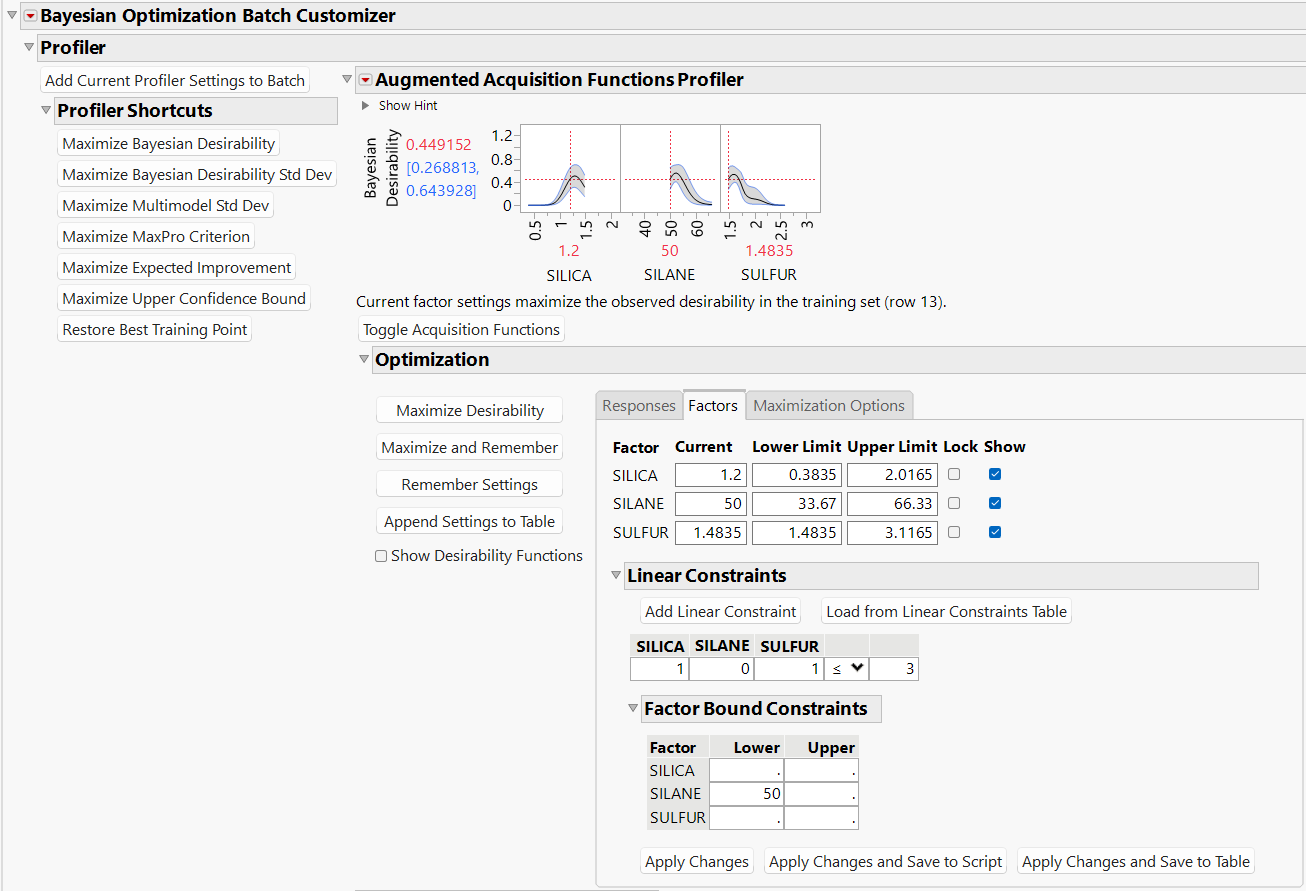
Note that the linear constraint and the factor bound constraint are reflected in the Augmented Acquisition Functions Profiler.
Generate Candidate Set and Select Batch
16. Click the red triangle next to Bayesian Optimization Batch Customizer and select Generate Candidate Set from Profiler Settings.
17. Click OK to accept the default number of candidate set runs.
The default candidate set is replaced by a new candidate set that is generated from the profiler settings. The new candidate set respects the constraints that you specified earlier. You can confirm this by showing the factor settings in the candidate set table.
18. Click the Candidate Set red triangle and select the Select Table Columns option.
19. Select Show Factor Settings and click OK.
All of the factor settings in the candidate set table conform to the constraints that are defined in the profiler. You can now select runs for the next batch.
20. In the Candidate Set report, click Autoselect Rows.
21. Type 10 next to Number of Points to Propose. Check that the selected Augmentation Method is Refine Model.
22. Click Select Rows.
Figure 18.7 Selected Batch of Runs
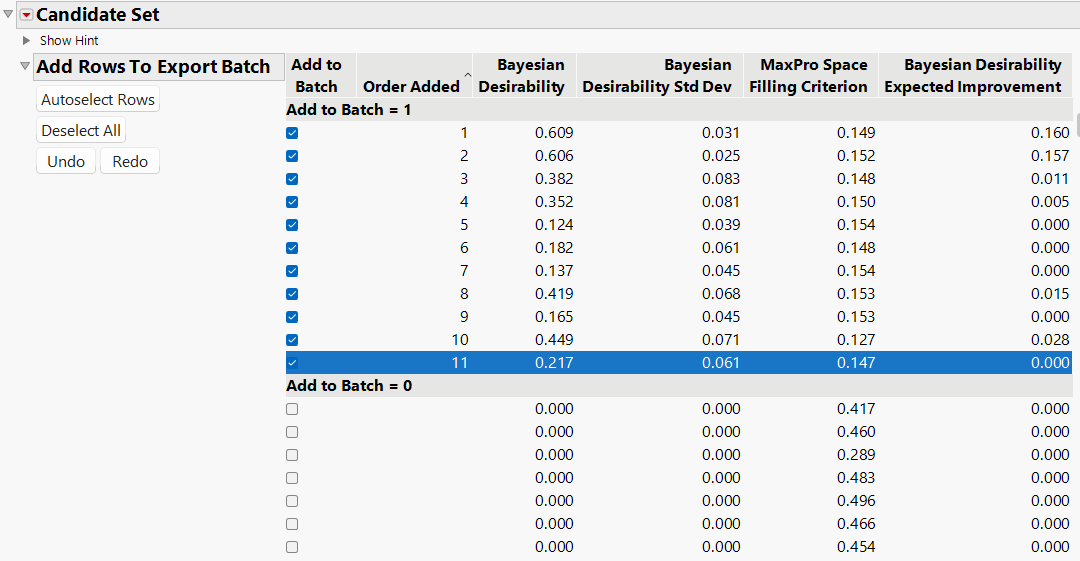
Additional runs are added to the top section of the candidate set table. This indicates that they are to be included in the next batch.
Note: In general, your results might vary due to the random nature of fitting Gaussian Process models.
23. At the bottom of the report window, click Make Table.
The batch of new experimental runs has been added to your existing data table. Click the data table icon in the lower right corner of the report window to view the data table.