Change Display Box Properties in a JMP Report
For each display box in a JMP report, you can change properties such as the font, text color, padding, and alignment. Your changes are included when you save the report as a script, a graphic, or a journal.
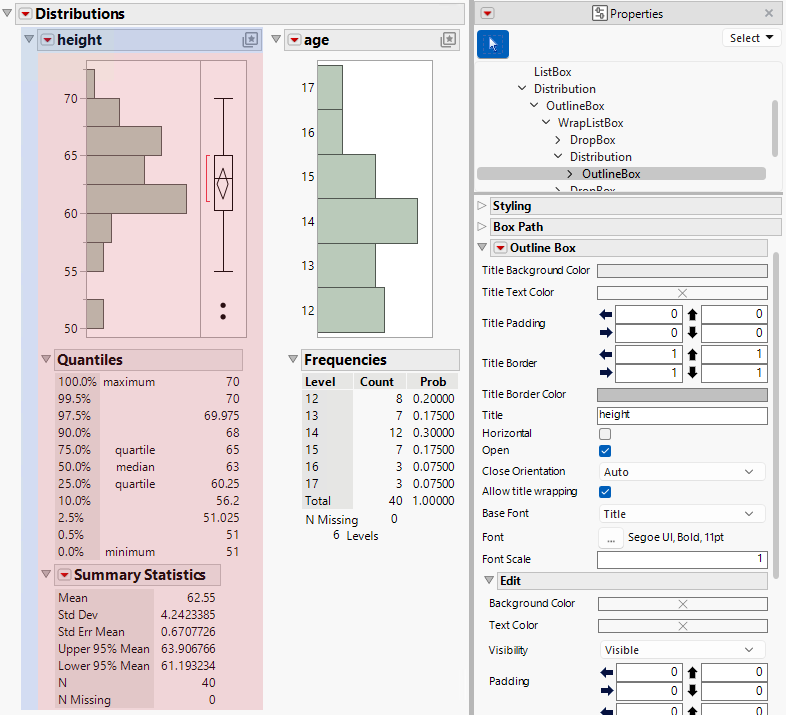
To change display box properties, follow these steps:
1. Right-click the disclosure icon next to the report and select Show Properties.
The Properties panel appears.
2. Modify the report properties.
3. Changes to properties will appear automatically in the report.
Figure 9.24 Show Properties Panel
Tips:
• In the Properties panel, use the arrow buttons to navigate among display boxes in the display tree.
• After you open the Properties panel, select a specific report and change its properties.
Change the Format of Numeric Columns
In the Show Properties panel, you can change the appearance of a JMP report, including changing the format of selected numeric columns. For example, you might want to specify two decimal places for all numeric columns. Your changes are included when you save the report as a script, a graphic, or a journal.
To change the numeric formats, follow these steps:
1. Right-click the disclosure icon next to the report and select Show Properties.
The Properties panel appears.
2. Press Shift and select the columns whose format you want to change.
3. From the Format list in the Properties panel, select the Format properties.
Tips:
• To select all display boxes of a specific type (for example, all NumberColBoxes), select one of the boxes in the report. From the Select list in the Properties panel, select Boxes of type ‘NumberColBox’.
• To select all columns that have a specific format, select one of the boxes in the report. From the Select list in the Properties panel, select Columns with matching format.