Common Options in the Import from PI Server Wizard
Figure 3.62 Import from PI Server
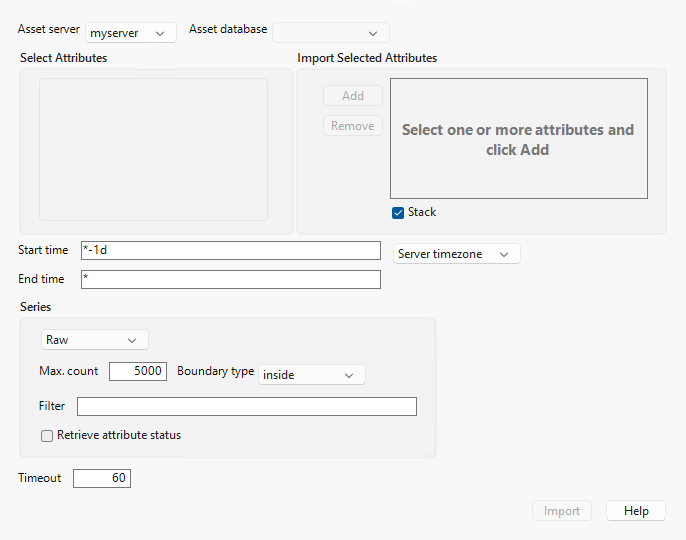
Select and specify the following information, in the order in which it is listed:
Asset server
Select an asset server from the list of deployed servers.
Asset database
Select a database from the list of configured databases.
Select Attributes
Select an attribute. Attributes can be top level or nested. Nested attributes contain a vertical bar.
Import Selected Attributes
Display the selected attributes in the Select Attributes box.
Add
Add an attribute to the selection to import.
Remove
Remove an attribute from the selection to import.
Stack
Reshape the imported data by stacking columns with the same name. This typically results in a data table that has fewer columns but more rows.
Start time
(Optional) Specify the start of the time period during which you want to import data. This is specified by using the OSIsoft PI syntax. The default start time is “*-1d”, which means one day prior.
End time
(Optional) Specify the end of the time period during which you want to import data. This is specified by using the OSIsoft PI syntax. The default end time is represented by an asterisk (*), which means the current day.
Server timezone
Select either the server timezone or Coordinated Universal Time (UTC). By default, this is set to server timezone.
Series
Select the type of series to import as Raw data, Plot data, or Interpolated data. Raw data is data that was collected from the sensors as it came in. This is the default value. Plot data is data that is optimized for plotting. Interpolated data is data that is optimized for aligning with defined time intervals.
Import Raw Data from a PI Server
The following fields are specific to raw data:
Max. count
Specify the maximum number of values to retrieve from the data. You can use this option as a measure to avoid unintentionally collecting large amounts of data.
Boundary type
Select the behavior of data retrieval at the end points of the specified time range. The possible values are inside, outside, and interpolated. The default value is inside.
Filter
(Optional) Specify an expression to filter the data that is imported. Use OSIsoft’s filter expression syntax.
Retrieve Attributes
Select to create additional columns to indicate the good, questionable, substitution, and annotation status of each value.
Timeout
Specify how long the server waits for client communication. The default setting is 60 seconds.
Import Plot Data from a PI Server
Plot data is optimized for graphing the results. The following field is specific to plot data:
No. of intervals
Specify the number of intervals to fetch. You can have up to five values per interval. This value indicates how much data is imported.
Timeout
Specify how long the server should wait for client communication. The default setting is 60 seconds.
Import Interpolated Data from a PI Server
Interpolated data is optimized for aligning data from various sources where it is important that they all have a common time stamp.
Interval
Specify the sampling interval. The default interval is 1h (one hour). When the interval is set to one hour, data is interpolated to a value at the start of each hour.
Sync Time
(Optional) Specify the absolute date and time from which to calculate an even set of intervals in a periodic operation.
Sync Time Boundary Type
Select the behavior of data retrieval at the end points of the specified time range. The possible values are inside and outside. The default value is inside.
Filter
(Optional) Specify an expression to filter the data that is imported. Use OSIsoft’s filter expression syntax.
Timeout
Specify how long the server should wait for client communication. The default setting is 60 seconds.