Create Formula Columns for Multiple Columns
Formula columns can be created for one or more columns quickly by using the Formula Editor. This is especially useful for manipulating data in data sets that have large amounts of columns. For information about using the Formula Editor, see “Create Formulas in JMP”.
The following example shows how to open the Formula Editor for one or more columns:
1. Select the columns that you want to transform and right-click in their column header.
2. Select New Formula Column > Formula
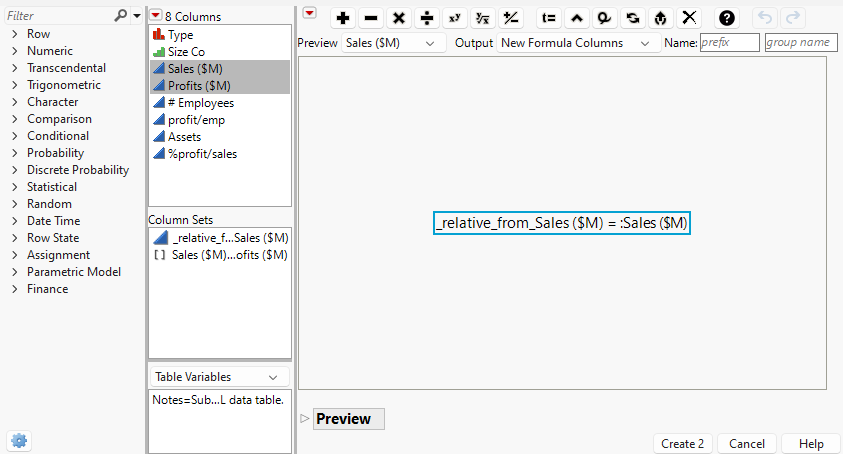
The Formula Editor appears for the selected columns.
Figure 4.46 Creating Formula Columns with the Formula Editor
Column Sets
Use the Column Sets panel to work with sets of columns. This panel is available by selecting multiple columns and opening the Formula Editor. Use these sets as formula elements with functions that operate columnwise, like Sum and Median.
Two initial sets are available when working with multiple columns.
The first set option, the floating column reference, is represented by the data type of the columns and prefixed by “_relative_from_”. This option treats each element of the set individually.
The second option, represented by the list icon ( ), is a list of the entire group. This option treats all elements of the set as one list.
Create a New Column Set
You can create new column sets relative to the initial set. Both the created and initial sets can then be used as formula elements.
1. With a data table open, select two or more columns that you want to transform and right-click in their column header.
2. Select New Formula Column > Formula.
The Formula Editor appears.
3. In the Columns panel, right-click a column,and select Create Floating Column Reference.
A column set that contains the selected column and subsequent columns appears as a set in the Column Sets panel.
Sets that are created by using Create Floating Column Reference contain the same number of columns as the initial set that was selected in step 1.
Options
Preview
Specifies which columns were used to create the provided preview when creating formula columns for multiple columns.
Output
Specifies whether to add new columns after the data table’s final column or to replace the selected columns.
New Formula Columns
Adds the newly created formula columns to the data table after the final column. These can be further modified by using the Formula Editor.
New Data Columns
Adds the new data columns to the data table after the final column.
In Place Formula
Replaces the selected columns with the newly created formula columns. These can be further modified by using the Formula Editor.
In Place Data
Replaces the selected columns with the newly created data columns replace the selected columns.
Name
Specifies the name of the new columns. For multiple columns, the Name field specifies the prefix that is used.
Group Name
Specifies the name of the created group for multiple columns. The columns are not grouped if this field is left blank.