Customize Toolbars on Apple macOS
On Apple macOS, you can set up toolbars to display only the buttons that you need. Buttons are available based on the type of window. For example, in a script window, buttons for options such as reformatting, encrypting, and running the script are available. Table buttons are available for data table toolbars only.
You can specify whether the icon, icon and icon name, or just the name appear on the toolbar. Displaying small buttons is also an option.
To add, remove, or rearrange toolbar buttons
1. Open the type of window whose toolbar you want to customize.
2. Select View > Customize Toolbar.
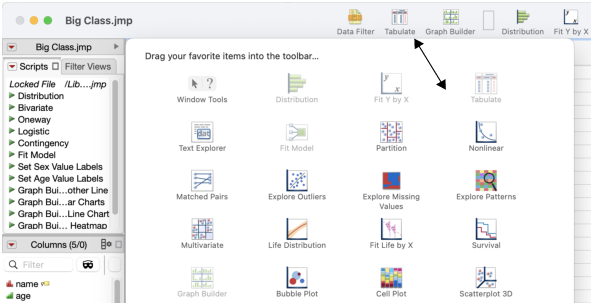
A window appears that shows buttons that are relevant to the current type of window.
3. Perform any of the following actions:
– To add an icon to the toolbar, drag the icon from the window onto the toolbar.
– To move an icon on the toolbar, drag the icon to its new location onto the toolbar.
– To remove an icon from the toolbar, drag the icon from the toolbar onto the window.
Your changes are applied to the current window and all open windows of the same type.
Figure 14.5 Add, Rearrange, and Remove Toolbar Buttons on Apple macOS
4. Click Done.
When a toolbar is too wide to display completely, click the right arrows on the toolbar to show and then select other buttons. Alternatively, you can click and drag the window until the entire toolbar appears.
Note: To display the original set of toolbar buttons, drag the default set from the bottom of the toolbar customization window to the toolbar.
To change the appearance of toolbar buttons
1. Open the type of window whose toolbar you want to customize.
2. Select View > Customize Toolbar.
A window that contains toolbar buttons appears.
3. At the bottom of the window, select one of the following options from the Show list:
– To display only an icon, select Icon Only.
– To display an icon and its name, select Icon and Text.
– To display only the icon name, select Text Only.
4. To toggle between small and standard buttons, select or deselect Use small size.
Your changes are applied to the current window and all open windows of the same type.
5. Click Done.