Customize Toolbars
JMP includes toolbars that you can add new buttons to, or you can create your own toolbars. By default, the JMP window type determines which bars appear. For example, the File_Edit toolbar is in all windows. In data tables, the Data Tables toolbar also appears.
Getting Started
Shows buttons for the Getting Started menu.

Project
Shows buttons for projects.

File_Edit
Shows buttons for options found in the File and Edit menus.

Analyze
Shows buttons for common options found in the Analyze menu.

Graph
Shows buttons for options found in the Graph menu.

Tools
Shows buttons of tools that you can click and use as your cursor. In some windows, the toolbar is hidden, and a blue line appears instead. Hover over the blue line to show the toolbar.

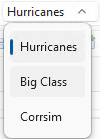
Data Table List
Shows a list of open data tables. You select a data table in this list to make it the current table. Note that the current table is not necessarily the front window. To bring a table (or any window) to the front, select its name from the list in the Window menu.
Tables
Shows buttons for options in the Tables menu.

DOE
Shows buttons for options in the DOE menu.

Application Builder
Shows buttons for options in Application Builder.

Home
Shows frequently used buttons from the File menu.
Data Table
Shows buttons for performing common tasks in a data table, such as opening the Data Filter, Fit Model, and Recode windows.

Script Editor
Shows buttons for running, debugging, and reformatting scripts.

Report
Shows buttons for opening the Local Data Filter, Column Switcher, and saving a script to the data table.

You can create your own toolbars for frequently used options that are not included in the default toolbars. You assign an option to the button and can add other properties such as shortcut keys, buttons, and JSL scripts.
When you want to create a toolbar that is based on an existing toolbar, make a copy of the existing toolbar and then change the settings as necessary. See Copy and Paste Menus, Menu Items, Toolbars, and Buttons.
Step 1: Create the Toolbar
1. Select View > Customize > Menus and Toolbars.
The Toolbars list appears on the left side of the window.
2. (Optional) Change the customization set to control which users see your customizations.
See Customization Set Options.
3. With the Menu Editor still open, right-click one of the toolbars, such as File_Edit.
Select any toolbar, because all new toolbars appear at the end of the Toolbars list.
4. Select New Toolbar.
The toolbar is inserted at the end of the list. The toolbar includes an untitled button because all toolbars must have at least one button.
Step 2: Specify the Caption and Internal Name
Toolbars have several basic properties:
• The caption appears in the View > Toolbars list, which lets you show or hide the toolbar. Give each toolbar a unique name. JMP merges toolbars with the same name after you close and reopen the Menu Editor.
• The internal name, which is case insensitive. JMP identifies the location of an item by its internal name rather than its caption.
To specify these toolbar properties, follow these steps:
1. With the Menu Editor still open, select the toolbar.
The General properties appear on the right side of the window.
2. Enter the internal name next to Internal name.
3. Enter a unique name for the toolbar or button in the Caption box.
4. (Optional) To specify the translation for the caption, perform the following actions:
– Click the Localize button for the item that you want to customize.
– Select the language.
– Enter the translation next to Text.
– Click OK.
5. (Optional) Click Hidden to keep the toolbar hidden after creation.
6. Customize the untitled button as described in Create Menu Items and Toolbar Buttons.
7. Click Save to save your changes.