Edit Cells in Data Tables
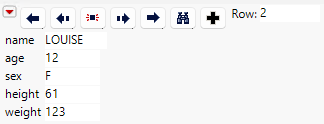
Use the Row Editor to browse or edit cells one row at a time. Open the Row Editor in one of the following ways:
• Select Rows > Row Editor.
• In a data table, double-click in the row number area. The row that you use is the row that first appears in the Row Editor.
• In a report window, right-click in a plot or graph and select Row Editor.
Figure 4.21 Row Editor
Note the following tips:
• If you have a report window open, and you want edited data to be automatically reflected there, make sure that Automatic Recalc is turned on. See “Automatic Recalc”.
• If your data table contains value labels, the Row Editor displays the label, and when the cell is highlighted for editing, it shows the actual value. See ““SPSS Label, Long Name, and SAS Label””.
Row Editor Buttons
Click the arrow buttons to browse through selected rows or the entire data set if no rows are selected.
 Shows the previous row.
 Shows the previously selected row.
 Makes the row blink in graphs.
 Shows the next selected row.
 Shows the next row.
 Searches for a row. See Select Rows That Contain Specific Values.
 Creates a new row at the end of the data table.
Note: Changes made to a row by using the Row Editor are written to the data table when you change fields in the Row Editor. You still must save the changes to the data table.
Row Editor Options
The red triangle menu in the Row Editor contains the following options:
Next Selected
Displays information for the selected row that is located after the current one.
Prev Selected
Displays information for the selected row that is located before the current one.
Next
Displays information for the row that is located after the current one, regardless of whether the row is selected.
Prev
Displays information for the row that is located before the current one, regardless of whether the row is selected.
Save
Saves the data table and any changes that you made to it through the Row Editor.
New Row
Creates a new row in the data table.
Find
Displays the same window as if you had selected Rows > Row Selection > Select Where. Select one of the options from the Current Selection menu, and then highlight the column whose rows you want to select. Enter the value for which you want JMP to search. See Select Rows That Contain Specific Values.
Blink
Causes the current row’s highlight to flash at a rapid rate.
Note: Text in a locked column or a locked data table cannot be edited. See “Lock” and Lock Data Tables.
The Data Grid Edit Pane
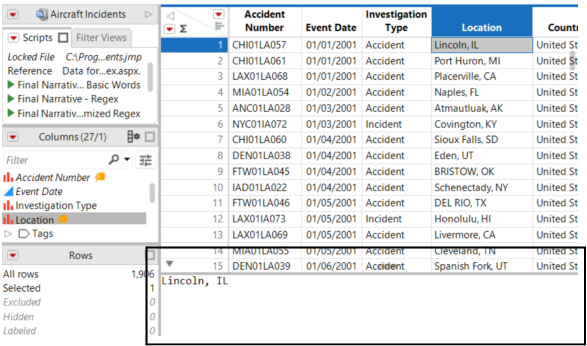
The Data Grid Edit pane lets you edit any cell’s value in a dedicated panel, making it easier to work with all kinds of data. Use the Data Grid Edit pane to isolate a cell’s value to modify it without interfering with other cells in the data table.
Click the Open Edit Pane button ( ) in the lower left corner of a data table to open the Data Grid Edit pane.
Figure 4.22 The Opened Data Grid Edit Pane
Example of Editing a Long Text Value with the Data Grid Edit Pane
In this example, the data table has a column of narratives describing aircraft incidents that were reported to the National Transportation Safety Board. Cells with long text values like these narratives can be difficult to edit within a data table, so you use the Data Grid Edit pane to edit the text values more easily.
1. Select Help > Sample Data Folder and open Aircraft Incidents.jmp.
2. Scroll to the right-most side of the data table.
3. Select cell 6 of the column Narrative Cause.
4. Click the Open Edit Pane button in the lower left corner of the data table.
The Data Grid Edit Pane opens.
Figure 4.23 Displaying a Long Text Value in the Data Grid Edit Pane
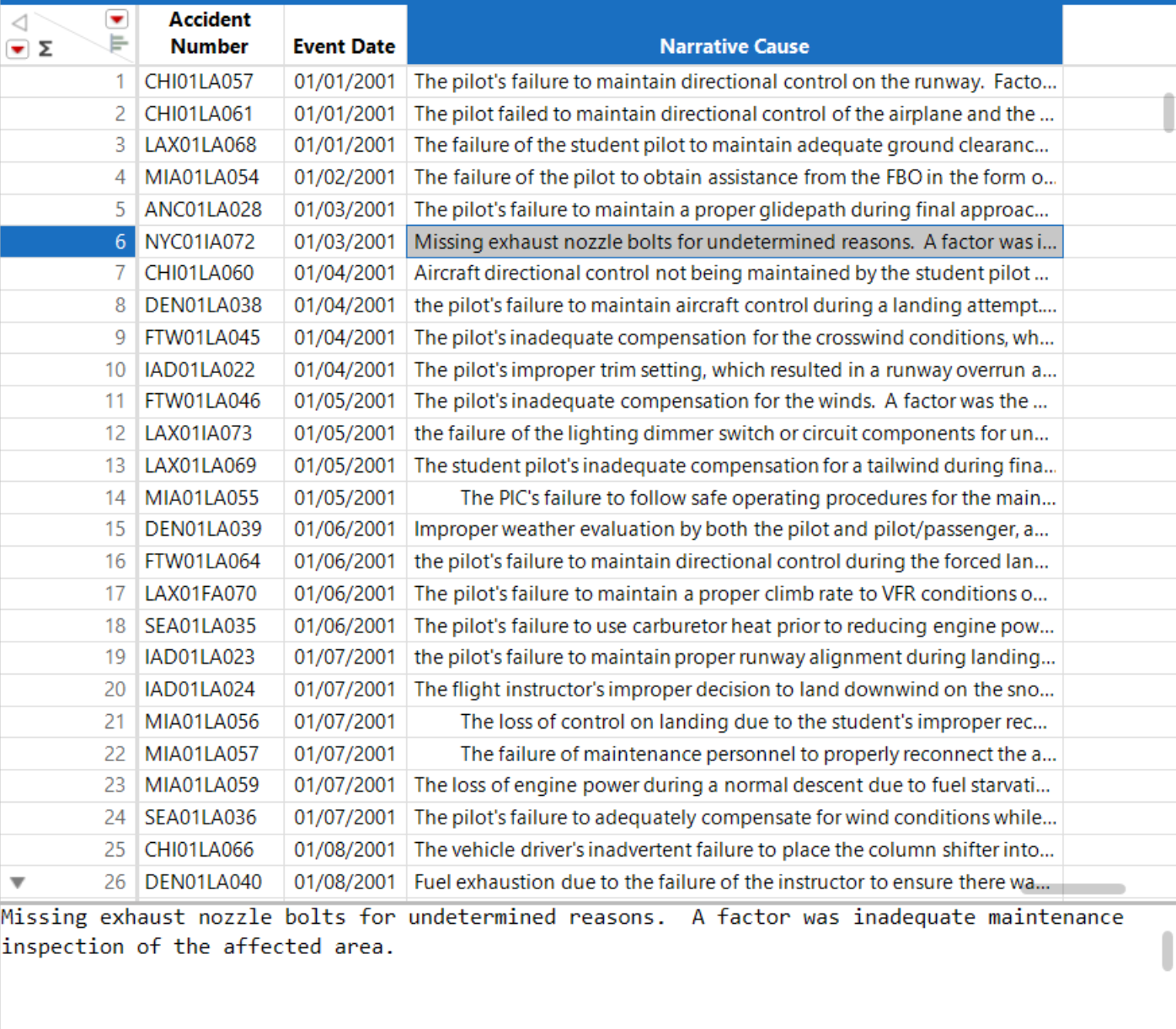
5. In the Data Grid Edit Pane, delete the word “maintenance” from the text value.
6. Select any area back within the data table.
7. To confirm the change, select cell 6 of the column Narrative Cause again.