Example: Build, Save, and Apply a Platform Preset
This example does the following tasks:
• runs an analysis on a data table, producing a report
• applies red triangle options and format settings to create a customized report
• saves the applied settings as a new Platform Preset
• applies that Platform Preset to another report
Build the Platform Preset
1. Select Help > Sample Data Folder and open Cereal.jmp.
2. Select Analyze > Multivariate Methods > Multivariate.
3. Select the columns from Calories through Potassium, click Y, Columns, and then click OK.
Figure 10.3 The Initial Multivariate Report Window
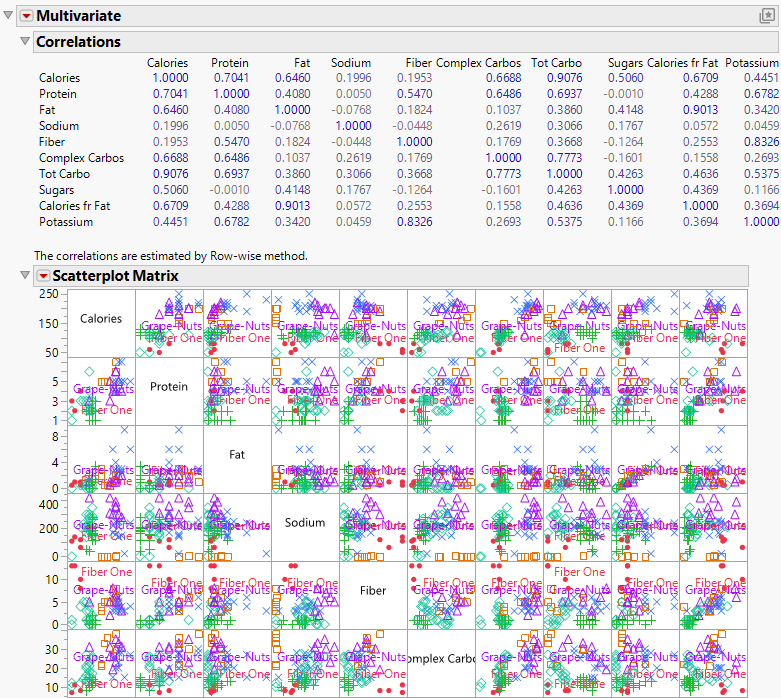
4. Click the Multivariate red triangle and select Color Maps > Color Map on Spearman’s ρ.
5. Click the Multivariate red triangle and deselect Correlations Multivariate and Scatterplot Matrix.
6. Double-click the X Axis to open X Axis Settings and click the Font button.
7. Set the Size to 14 and click OK.
8. In X Axis Settings, click OK to apply your changes.
Figure 10.4 The Customized Report Window
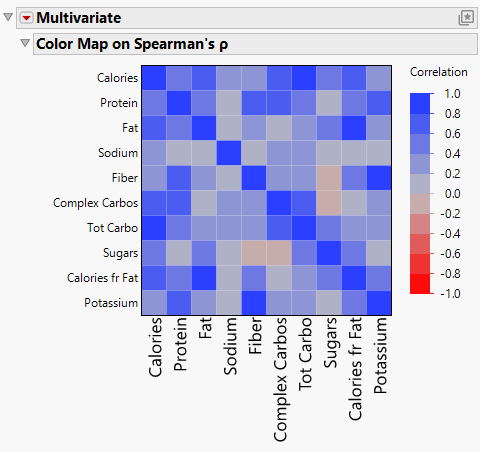
9. Click the Platform Presets button ( ) in the Multivariate menu bar and then click Save Preset As.
10. In the Name field, enter Nonparametric Color Map and click OK.
Apply the Saved Preset
You can now apply the saved preset to another report.
1. Select Help > Sample Data Folder and open Candy Bars.jmp.
2. Select Analyze > Multivariate Methods > Multivariate.
3. Select the columns from Serving/pkg through Protein g, click Y, Columns, and then click OK.
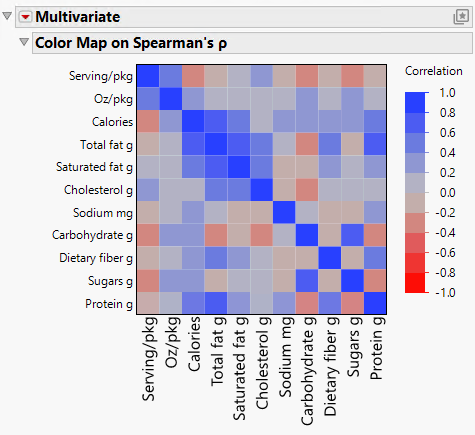
4. In the Multivariate menu bar, click the Platform Presets button () and then select My Presets > Nonparametric Color Map.
Figure 10.5 The Report Window with the New Platform Preset Applied