 Example of Bayesian Optimization
Use the Bayesian Optimization platform to generate a set of new factor combinations for use in an experiment.
1. Select Help > Sample Data Folder and open Tiretread.jmp.
2. Select Analyze > Specialized Modeling > Bayesian Optimization.
3. Select ABRASION, MODULUS, ELONG, and HARDNESS and click Y.
4. Select SILICA, SILANE, and SULFUR and click X.
5. Type 10 next to Number of Batch Runs to Autoselect.
After you click OK, the platform automatically generates a candidate set and then selects 10 runs (factor combinations) from that set.
6. Click the gray triangle next to Advanced Options.
7. Type 0.5 next to Model Based Augmentation RSquare Threshold.
8. Click OK.
Figure 18.2 Diagnostics Summary
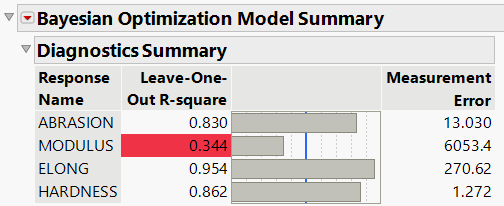
The Model Summary tab contains a report that includes a table of diagnostic summaries for each response model. The response MODULUS is highlighted in red because the Leave-One-Out RSquare value is lower than the threshold that you specified in the launch window. Because one of the individual models has a RSquare value that is lower than the threshold, the platform uses the Space Filling Exploration method by default to select batch runs.
Note: In general, your results might vary due to the random nature of fitting Gaussian Process models.
9. Click the Batch Selection tab.
Figure 18.3 Batch of Runs Auto Selected by Space Filling Exploration
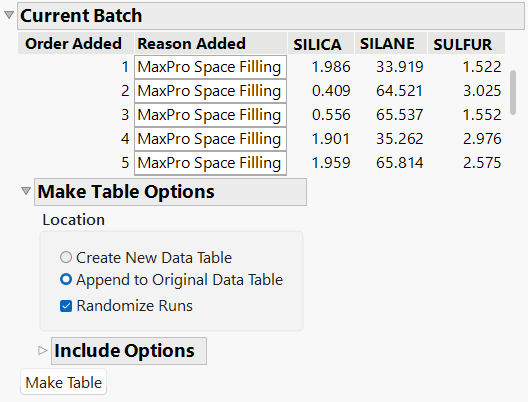
The table in the Current Batch section contains the runs that were automatically selected by using the Space Filling Exploration algorithm. There are 10 runs, as you specified in the launch window.
10. Click Make Table.
After you click Make Table, the batch of 10 runs is added to the original data table. Also added to the data table are an Iteration column, a Reason Added column, and a start-up script. After you collect responses for the 10 runs, enter the data into your data table, and then use the BO Start Up Script for Batch 1 to return to the analysis. Continue in an iterative manner by collecting new data as needed until your responses are optimized.