Example of Creating a New Project
In this example, you create a project, import data, generate an analysis and dock the report in the project window, create a subset table, and then save, close, and reopen the project.
1. Select File > New > Project (Windows) or File > New > New Project (Apple macOS).
2. From the project window, select File > Open.
3. Open the Sandwiches.xlsx file, located here by default:
C:\Program Files\JMP\JMPPRO\19\Samples\Import Data
Tip: At the lower right of the window, you might need to change All JMP Files to Excel Files.
4. Click Open.
5. In the Excel Import Wizard, click Import.
6. Select File > Save.
7. Make sure Project Contents is selected.
8. Change the file name to Sandwiches.jmp and click Save.
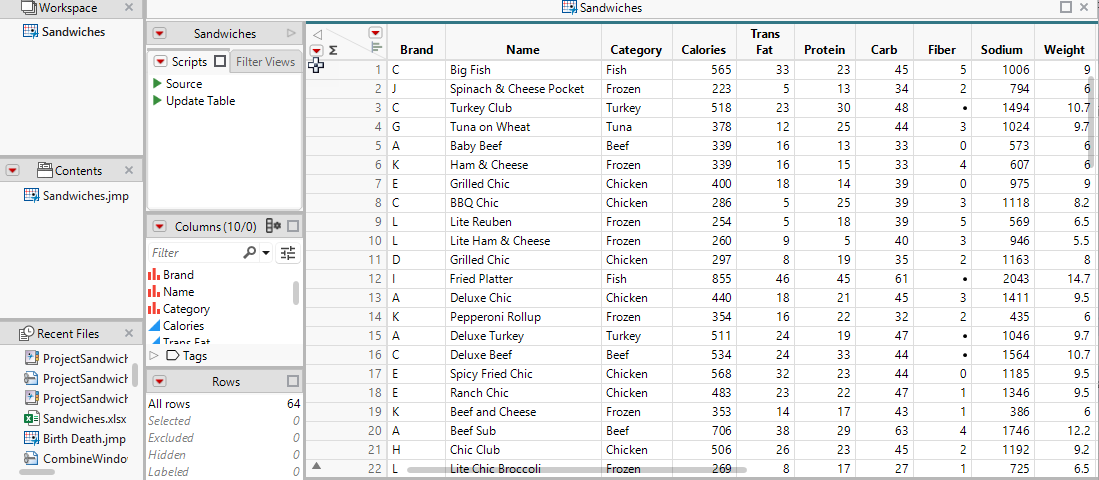
Figure 11.27 Project with Sandwiches Data Imported
9. Select Analyze > Fit Y by X.
10. Select Calories and click Y, Response.
11. Select Weight and click X, Factor.
12. Click OK.
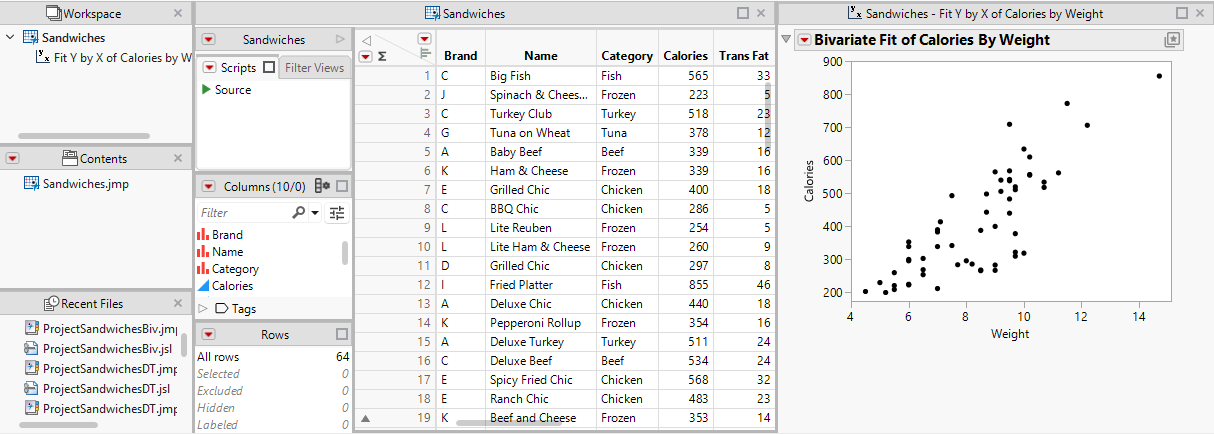
13. Drag the Sandwiches - Fit Y by X tab to the right and drop it into the Dock right zone.
Tip: To show the entire report, you can drag the line between the data table and the report.
Figure 11.28 Fit Y by X (Bivariate) Report Docked at Right
14. Select Tables > Subset.
15. Under Rows, select Random: sampling rate 0.5.
16. Click OK.
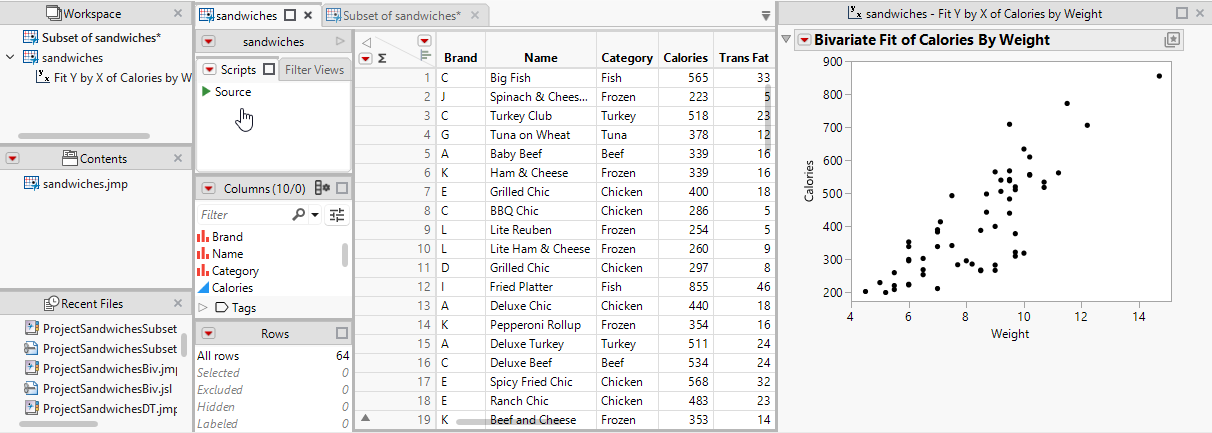
Figure 11.29 Project with Unsaved Subset Table
17. Select File > Save Project.
18. Navigate to the folder where you want to save your project, name the project file, and click Save.
19. Close the project.
20. Select File > Open and open your project file.
Tip: At the lower right of the window, you might need to change Excel Files to JMP Projects.
Notice that the subset table that you did not save has been saved automatically to the project file.