Example of Presummarized Charts
This example creates presummarized charts in two different ways using Control Chart Builder.
Direct Presummarized Charts
You can create presummarized charts directly by using the IMR on Means Control Chart launch window.
1. Select Help > Sample Data Folder and open Quality Control/Coating.jmp.
2. Select Analyze > Quality and Process > Control Chart > IMR on Means Control Chart.
3. Select Weight and click Y.
4. Select Sample and click Subgroup.
5. Select both Individual on Group Means and Moving Range on Group Means. Both options are automatically selected when you open the launch window.
6. Click OK.
7. Click the Control Chart Builder red triangle and select Limits > Show Limit Labels.
Figure 3.39 Example of Charting Presummarized Data
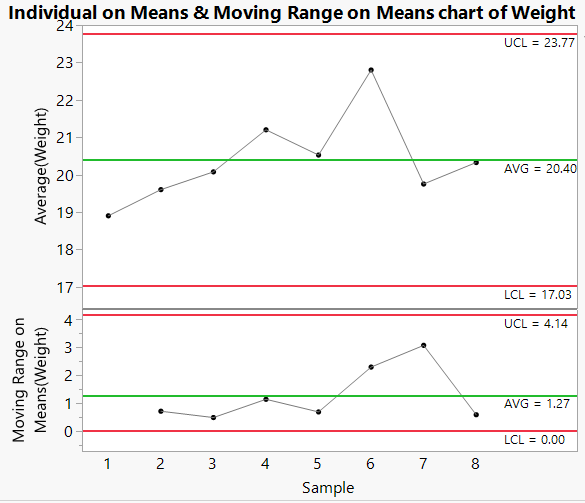
Although the points for XBar and S charts are the same as the Individual on Group Means and Individual on Group Std Devs charts, the limits are different because they are computed as Individual charts.
Indirect Presummarized Charts
You can also create presummarized charts indirectly by manually creating a summary table and then launching an IMR control chart.
1. Choose Tables > Summary.
2. Select Sample and click Group.
3. Select Weight, and then click Statistics > Mean and Statistics > Std Dev.
4. Click OK.
5. Select Analyze > Quality and Process > Control Chart > IMR Control Chart.
6. Select Mean(Weight) and click Y.
7. Click OK.
The resulting charts match the presummarized charts.