Example of Saving and Running a Script
Create a Report
1. Select Help > Sample Data Folder and open Companies.jmp.
2. Select Analyze > Distribution.
3. Select Type and profit/emp and click Y, Columns.
4. Click OK.
5. Click the Type red triangle and select these options:
– Histogram Options > Show Counts
– Confidence Interval > 0.95
6. Click the profit/emp red triangle and select these options:
– Outlier Box Plot, to remove the outlier box plot
– CDF Plot
7. Click the Distributions red triangle and select Stack.
Save the Script to the Data Table and Run It
1. To save this analysis, click the Distributions red triangle and select Save Script > To Data Table.
The new script appears in the Table panel.
Figure 7.6 Distribution Script

2. Close the Distribution report window.
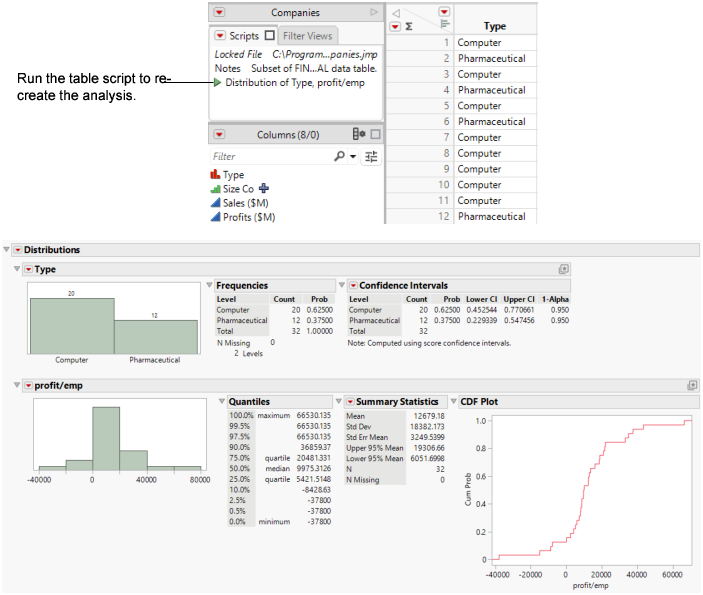
3. To re-create the analysis, click the green triangle next to the Distribution script.
Figure 7.7 Running the Distribution Script
Tip: Right-click the table script to view more options.