Filter Views
Filter views enable you to apply a filter in a table and see a live subset. As you change the filter, the subset changes. You can launch analyses based on that subset. You can also name a filter view and save it with the table.
Filter views are available in tables in the Sample Index. The sample Lipid Data.jmp table has been updated to include filter views. To view that table, select Help > Sample Index, and then enter “Lipid” in the search field.
Create a Filter View
There are two ways to create a filter view.
The first way is by hovering the mouse pointer over the upper right corner of a data table column name until the filter icon appears.
Figure 9.14 Filter on a Column
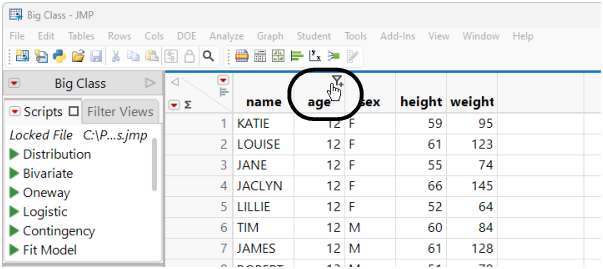
Click the filter icon to create a filter view with a filter on that column and then choose the filter criteria.
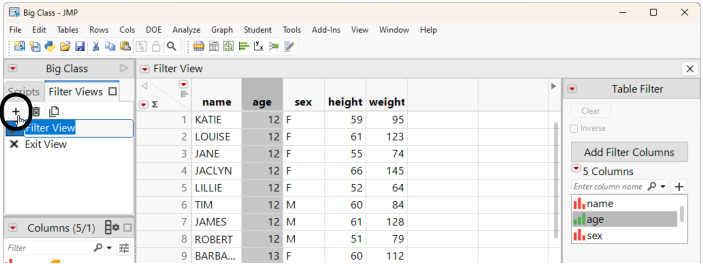
The second way to create a filter view is to click the Filter View tab and then click the New Filter View button ( ). A filter view is created, and the Table Filter criteria are displayed to the right of the table.
Figure 9.15 Create a Filter View from the Filter Views Tab
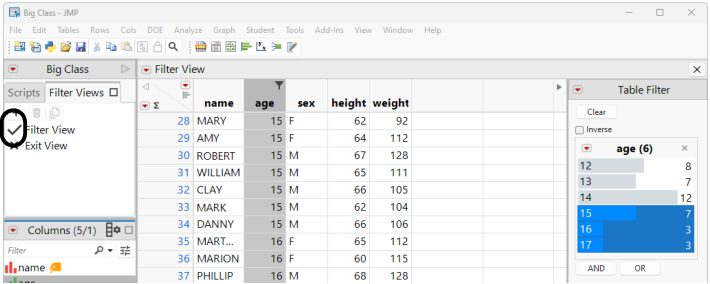
The active filter (the filter that is currently applied or being edited) has a check mark in the Filter Views tab.
Figure 9.16 The Active Filter View
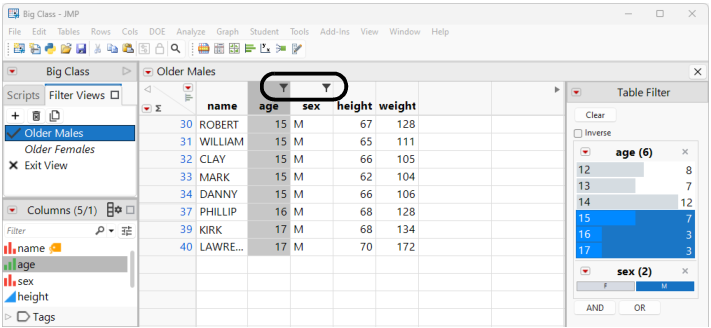
Columns that are used in a filter view display the filter icon.
Figure 9.17 Marked Filter View Columns
Save a Filter View
Filter views are temporary unless you save them to the table.
Filter views that are created from the Filter Views tab have a default name and can be saved to the table by selecting File > Save.
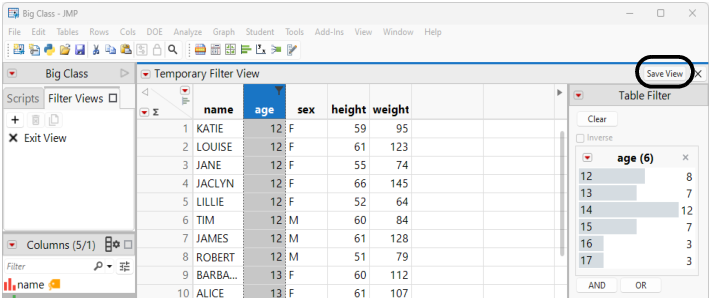
If the filter view was created by initially filtering on a column, click Save View to name the view on the Filter Views tab, and then select File > Save to save it to the table.
Figure 9.18 Save View
Edit a Filter View
To edit an existing filter view, select the filter view from the Filter Views tab and make changes. You cannot edit locked filter views.
Rename a Filter View
From the Filter Views tab, double-click a filter view name and enter a new name. You cannot rename a locked filter view.
Delete a Filter View
From the Filter Views tab, select the filter view and click the delete icon.
Figure 9.19 Delete a Filter View
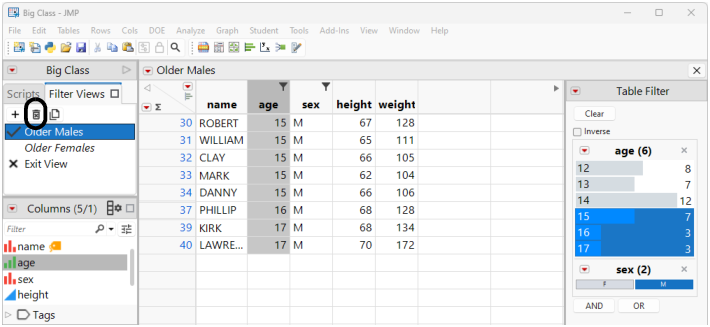
To restore a deleted filter view, use Edit > Undo.
Create a Subset from a Filter View
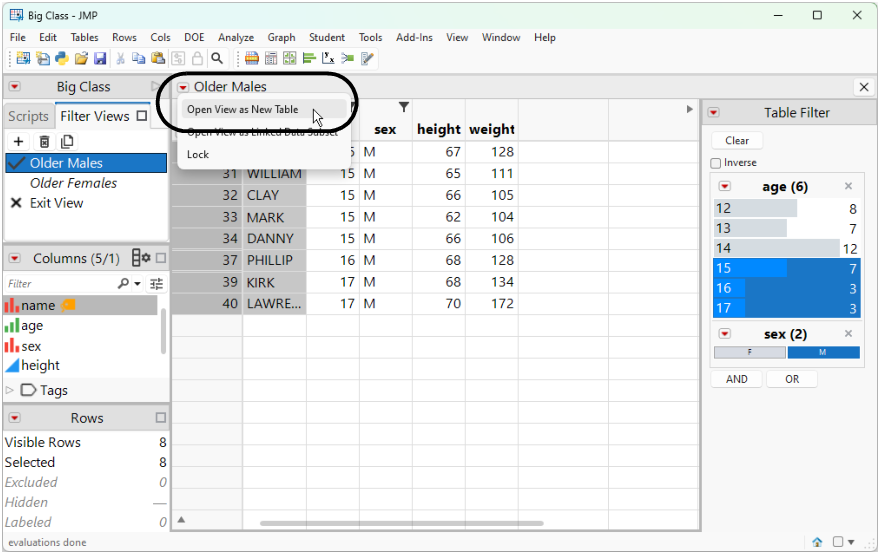
To create a new table that is based on the active filter view, click the filter view menu and select Open View as New Table.
Figure 9.20 Open a Filter View as a New Table
Lock a Filter View
To lock the active filter view, click the filter view menu and select Lock.
Figure 9.21 Lock a Filter View
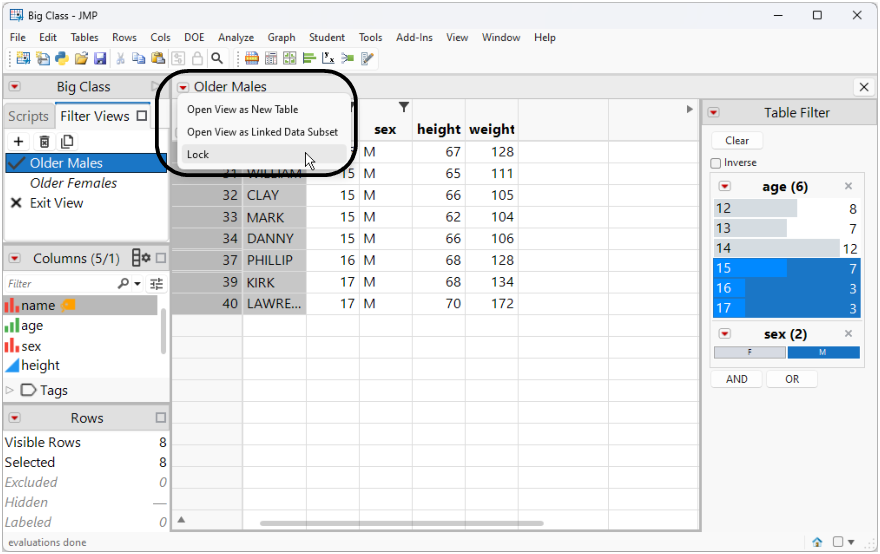
Locked filter view names are displayed in italics.
You can rename a locked filter view, but you cannot edit the filter criteria.
Open and Close the Filter Pane
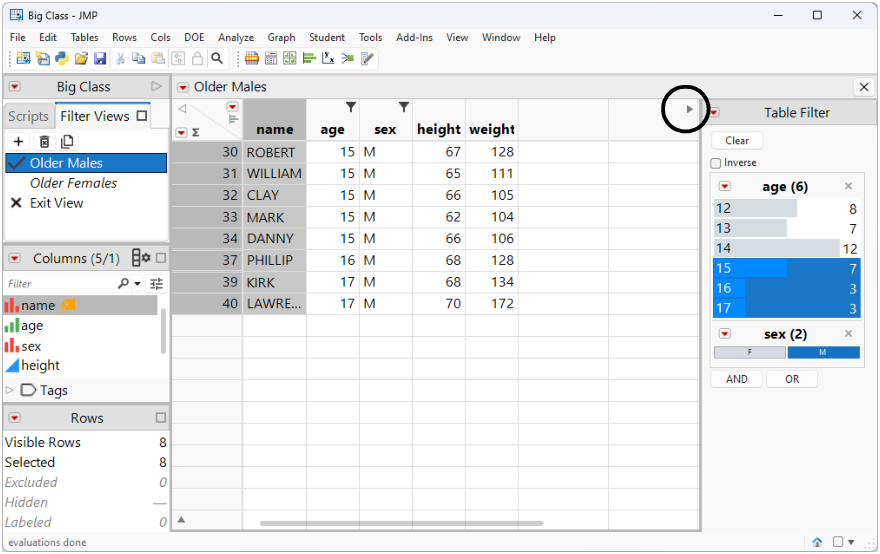
If a Filter View is in effect, you can toggle the display of the Filter Views pane
Figure 9.22 Filter Pane Toggle
Exit Filter View
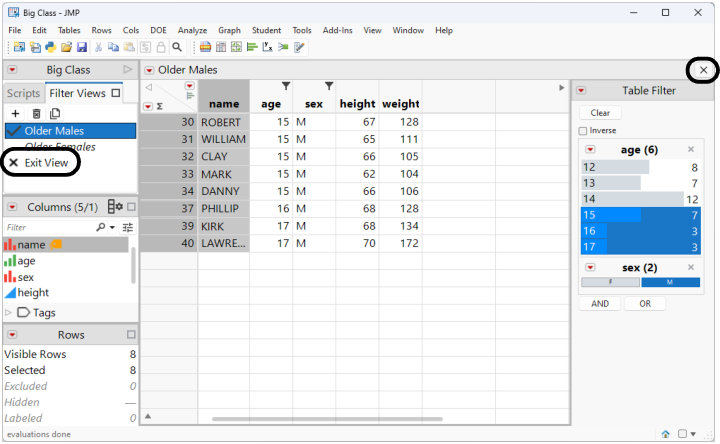
To return to an unfiltered view, click Exit View in the Filter Views tab, or “X” in the filter view banner.
Figure 9.23 Return to an Unfiltered View
Red Triangle Options for the Table Filter
The Table Filter red triangle options are the same as those for the Data Filter. See Red Triangle Options for the Data Filter.
Scripting Filter Views
There is a full JSL interface for creating and manipulating filter views. See the Scripting Index Data Table > Filter Views for details.
The following JSL script creates a filter view and returns the name of the active filter view:
Names Default To Here( 1 );
dt = Open( "$SAMPLE_DATA/Penguins.jmp" );
dt << New Filter View(
"Dream",
Data Filter(
Add Filter( Columns( :Island ), Where( :Island == "Dream" ) )
)
);
fvActive = dt << Get Active Filter View;
Show( fvActive << Get Name );
Set Name cannot rename a locked filter view.
If you use New Filter View to create a filter view with a name that already exists, JMP increments and appends a number to the name. For example, if “FilterName” already exists, creating two new filters results in “FilterName 2” and “FilterName 3”.