Line
In Graph Builder, the Line element ( ) uses line segments to connect summary statistic values (or raw values) of the variable that are plotted on the response axis across the values or categories of another variable.
For an example that combines a line chart with an area plot to emphasize a line, see “Example of an Area and Line Chart”.
Note: If any of the rows that are used in calculating a point on the plot are hidden and not excluded, the point is not shown, but the position that it would occupy remains. The line segment connects the adjoining points.
Tips:
• To label a line, right-click on the line element in the legend.
• To change the style of a line, right-click on the graph and select Customize, select Line,and then select Line Style.
Figure 3.30 Line Options
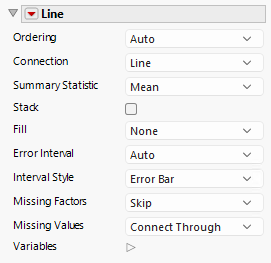
Ordering
Connects points with line segments. Choose from the following values:
Auto
Depends on the number of X and Y variables (typically, Summarized). This value is the default.
Row Order
Allows one vertex per row and is connected in row order.
Summarized
Allows one vertex per factor level and is connected in factor level order.
Within Row
Allows one vertex per row and is connected across pairs of variables.
Connection
Changes the connection type to a line, arrow, curve, step, centered step, horizontal, or vertical line. If you select a curve, you can also change the smoothness.
Smoothness
Changes the smoothness of a Curve connection. To use this option, select Curve for the Connection type.
Summary Statistic
Specifies the statistic that is plotted. The statistic is computed for observations at each distinct value of the variable in the X zone (or the Y zone, if X is specified as the response axis). For more information about Summary Statistics, see “Explanation of Summary Statistics” in Using JMP.
Stack
(Available for multiple Y variables) Accumulates, or stacks, the Y values. Use to build an area chart.
Fill
Specify how to fill the area below or between the lines.
Error Interval
Adds or removes the specified error interval in the graph.
Interval Style
Draws error bars, error bands, or hash bands for the selected error interval.
Missing Factors
Provides options for connections when all values are missing for a setting of the variable on the X axis:
Skip
Skips over the missing factor value, connecting the previous factor to the next factor.
Treat as Missing
Skips over the missing factor value, connecting the previous factor to the next factor. Draws the connection in the style that is specified for Missing Values.
Treat as zero
Treats the missing factor values as zero.
Missing Values
Provides options for connections when all values are missing for a setting of the variable on the Response axis:
Connect Through
Connects the points that are adjacent to the missing values with the connector type that is used for the remaining points.
Connect Faded
Connects the points that are adjacent to the missing values with a faded connection.
Connect Dashed
Connects the points that are adjacent to the missing values with a dashed connection.
No Connection
Shows no connection between the points that are adjacent to the missing values.
Variables
Shows or hides graph elements for variables, or re-orders the display of variables.
Note: These options do not apply to variables in the Group X, Group Y, Wrap, or Page zones.
Check boxes are followed by the zone designation and the name of the variable. Use the check boxes to perform the following actions:
– Show or hide the elements that correspond to a variable in a zone.
– Add or remove the effect of applying the Color, Size, Shape, or Freq variable to the variable in the zone.
Tip: If you have multiple graphs, you can color or size each graph by different variables. Drag a second variable to the Color or Size zone and drop it in a corner. In the Variables option, select the specific color or size variable to apply to each graph.
Use arrows to re-order the display if there are multiple variables in a zone. Highlight a variable name and click an arrow to reposition it.
For an example using Variables, see “Example of an Area and Line Chart”.
Red Triangle Options for Line
Response Axis
Specifies the axis for the variable that is used as the response in plotting the line segments. The Auto setting is the Y axis.
Save Summary Formula
Saves the formula for the summary statistics to the data table.