Manage Files and Open Windows
The JMP Home Window provides instant access to open windows and files. Opening recently opened files, closing windows, and pinning frequently used files are a few of the options.
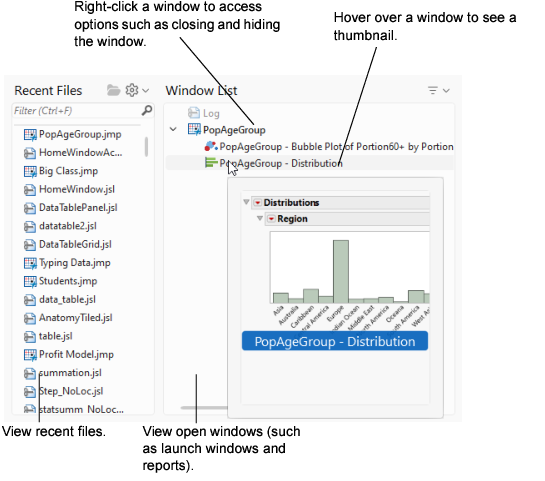
JMP Home Window on Windows
On Windows, the JMP Home Window appears when you open JMP. On the JMP Home Window, you can perform the following tasks:
• Open recent files in the Recent Files list or pin a frequently used file.
• Right-click files in the Recent Files list to perform common tasks.
• Open or close active JMP windows in the Window List.
• Set an open data table as the current data table by selecting it from the data table list at the top.
Figure 2.14 JMP Home Window Actions
Recent Files
On Windows, the Recent Files list provides quick access to files that you recently opened.
You can keep your favorite files at the top of the list for quick access. Hover over the file name and click the pin icon ( ). To unpin a file, click the pin icon (
 ).
).
You can drag files from the Recent Files list into these locations:
• the JMP Window List to open the file
• a Windows folder or on to your desktop to create a copy of the file
• applications such as Microsoft Notepad or Microsoft Word to edit the file
Right-click files to access the following options:
• open a file.
• copy the location path to a file.
• open a file within the folder that contains it.
• sort files alphabetically by name or by most recent.
• remove a selected file or files from the list.
• remove a file or files that are no longer in the same location. (Alternatively, you can select the files and press Delete.)
• (JSL scripts) edit, run, or debug a script.
• (Text files) change the import method or open as plain text.
• (SQL queries) run a SQL query that you saved in Query Builder. You can also create a new query by using an existing query as a template.
• run or edit a JMP application.
When you open a file that is not a JMP file from the Recent Files list, JMP applies your import preferences to arrange the data. You can right-click a text file to change the import method or to open the file in a text editing window. Your import preference is bold in the pop-up menu.
Tip: To prevent files that were opened by a script from appearing in the Recent Files window, select File > Preferences > General and deselect Add files opened by scripts to the Recent Files list.
Search the Recent Files List for JMP Files
To find a recently opened file in a long list of files, enter part of the file name in the Recent Files Filter box.
The following options are provided:
• Enter part of the file name in the Filter box above the list of files.
• Hover over the Filter box to view search tips.
• As the files are filtered, the Up and Down arrow keys change the selected file. Press Enter to open the selected file, or select the file with your cursor.
• If a file is selected in the Recent Files list, press Ctrl+F to activate the Filter box.
• Press Esc or click the X button to exit the filtering mode after you entered a search term.
Recent Files Settings Options
On Windows, the Recent Files panel Settings button ( ) contains the following options:
Show 
Filters the files shown in the Recent Files panel by some of the most commonly used types. Multiple options can be selected simultaneously in order to filter for multiple types of files.
All Files
Shows all recently opened and pinned files. This is the default option.
Data Tables
Shows JMP data table files.
Excel Files
Shows XLSX, XLSM, and XLS files.
Text Files
Shows text files, such as TXT and CSV.
All Data Files
Shows both data table and text files.
Scripts
Shows JSL scripts.
Python Scripts
Shows Python scripts.
Workflows
Shows JMP workflow JMPFLOW files.
Journals
Shows JMP journal JRN files.
Reports
Shows JMP report JRP files.
Projects
Shows JMP project JMPPRJ files.
Applications
Shows JMP application JMPAPPSOURCE files
Sort By Name 
Sorts recent files alphabetically.
Sort By Recently Used 
Sorts files chronologically by the most recently used.
Toggle Layout 
Reorganizes the JMP Home Window, alternating between horizontal and vertical layouts for the Recent Files panel and the Window List panel.
Show Large Icons 
Enlarges the font size and icon size of items in the Recent Files list.
Refresh 
Refreshes the Recent Files list.
Remove Missing Items
Removes files that have been deleted or moved since JMP was opened.
Window List
On Windows, the Window List shows open JMP windows, such as data tables, reports, and scripts. You can open, close, rearrange, and hide JMP windows.
• If you hover over a file in the Window List, a thumbnail appears.
• To open the Window List in its own window, select View > Window List.
• To display windows side-by-side, right-click the selected windows and select Arrange.
• To always automatically display the Window List inside maximized windows, select File > Preferences > Windows Specific and select Dock the Window List in maximized windows.
Right-click files to access the following options:
• view a window.
• close a window. (Alternatively, you can select files and press Delete.)
• close all windows except the currently selected window. (If the selected window is a report window, the dependent data table also remains open.)
• move a window to the back.
• hide a window from the Windows taskbar or unhide a window.
• select all windows, or clear all selections.
Note: The active file is formatted with bold text.