Points
In Graph Builder, the Points element ( ) shows data values as points.
Figure 3.25 Points Options
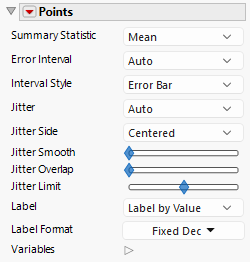
Summary Statistic
Changes the statistic that is being plotted. The statistic is calculated by using the variable on the response axis. None is the default setting, which indicates that the data values themselves are plotted.
Error Interval
Adds or removes the specified error interval in the graph.
Interval Style
Draws error bars, error bands, or hash bands for the selected error interval.
Jitter
Adds random noise to values to reduce overplotting. Choose from the following types of jitter:
None
No adjustments are made.
Auto
Adds various types of jitter when categorical variables are involved. No jitter is added when you have continuous variables only.
Random Uniform
Random offset with uniform distribution.
Random Normal
Random offset with Gaussian distribution.
Density Random
For one-dimensional jitter, this option places markers randomly within the bounds of a violin plot. For two-dimensional jitter, this option places markers randomly within an oval.
Packed
Places markers tightly to preserve any non-jittered dimensions.
Grid
Aligns points to a grid in the data dimension, except for outliers. This is equivalent to a statistical “dot plot”.
Hex Grid
Aligns points to a hexagonal grid, except for outliers.
Beeswarm
Tightly packs points, based on value order.
You can also customize jitter by right-clicking and selecting Customize and then selecting Marker.
Tip: To create a dot plot, select the Positive Grid option. You can move the dot plot to start at the bottom by changing the Y-axis values to 0-1. You can also resize the markers to a larger value, such as 20, to adjust the binning of the dots.
Jitter Side
Determines the jitter orientation. Choose from the following options:
Centered
Points are offset in both directions.
Positive
Points are offset in the positive direction.
Negative
Points are offset in the negative direction.
Ordinal
Points are positive for the first group (such as those with the minimum grouping value), negative for the last group (such as those with the maximum grouping value), and centered for others.
Jitter Smooth
(Available when Grid, Hex Grid, or Beeswarm is selected) Enables you to control the jitter smoothness.
Jitter Overlap
(Available when Grid, Hex Grid, or Beeswarm is selected) Enables you to control the amount of jitter overlap.
Jitter Limit
Controls the spread or amount of overlap.
Label
The type of label to display.
Label Format
For labels that display a value, a variety of formats, including defining a custom format.
Variables
Shows or hides graph elements for variables, or re-orders the display of variables.
Note: These options do not apply to variables in the Group X, Group Y, Wrap, or Page zones.
Check boxes are followed by the zone designation and the name of the variable. Use the check boxes to perform the following actions:
– Show or hide the elements that correspond to a variable in a zone.
– Add or remove the effect of applying the Color, Size, Shape, or Freq variable to the variable in the zone.
Tip: If you have multiple graphs, you can color or size each graph by different variables. Drag a second variable to the Color or Size zone and drop it in a corner. In the Variables option, select the specific color or size variable to apply to each graph.
Use arrows to re-order the display if there are multiple variables in a zone. Highlight a variable name and click an arrow to reposition it.
For an example using Variables, see “Example of an Area and Line Chart”.
Tip: To hide points with missing values for color or size, right-click on a points graph and choose Customize, select Marker, and then select Hide Missing Color or Hide Missing Size.
Red Triangle Options for Points
Response Axis
Changes the axis that is associated with the response variable to X (horizontal), Y (vertical), or automatically determines the response direction.
Set Shape Expression
Enables the use of a JSL expression to define a marker shape.
Set Shape Column
Sets a column to use as the marker shape.