Preferences for the JSL Script Editor
Script Editor preferences customize the appearance of the JSL Script Editor and script editor boxes, such as tab width, syntax coloring, and tooltips.
The Script Editor preferences are contained in three tabs: General, Styling, and Snippets.
Figure 15.21 Script Editor Preferences
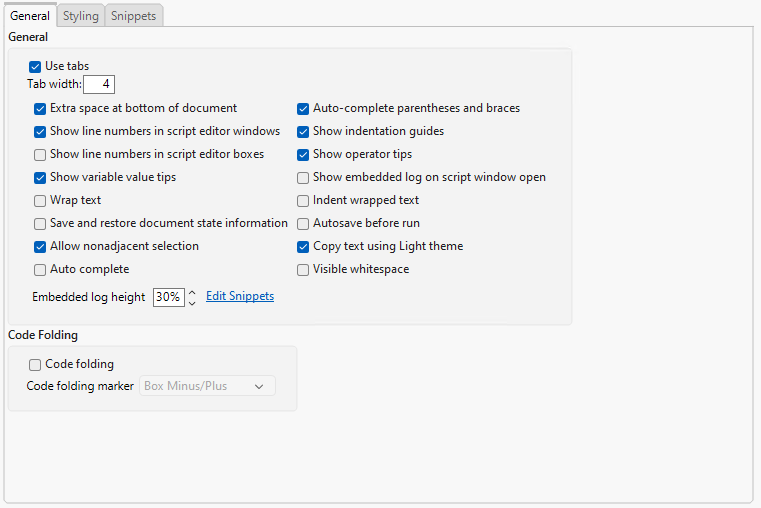
Preference | Description |
|---|---|
Use tabs | Select this option to enable tabs in your scripts. This option is selected by default. Clear this option to replace any tab that you enter with spaces. |
Tab width | Enter how many spaces a tab should indent. If you have disabled tabs, any tab you enter is replaced with the number of spaces specified. The default setting is 4. |
Extra space at bottom of document | Select this option to enable scrolling up from the last blank lines of a script. This option is selected by default on Windows and deselected on Apple macOS. |
Auto-complete parentheses and braces | Select this option to enable the script editor to automatically add closing parentheses, square brackets, and braces when you enter an opening one. This option is selected by default. |
Show line numbers in script editor windows | Select this option to show the line numbers on the left side of the script editor. This option is selected by default. |
Show indentation guides | Select this option to see faint vertical lines that mark indention. This option is selected by default. |
Show line numbers in script editor boxes | Select this option to show the line numbers on the left side of script editor boxes (such as in the Scripting Index). This option is off by default. |
Show operator tips | Select this option to see tooltips for JSL operators. This option is selected by default. |
Show variable value tips | Select this option to see tooltips for variable values. This option is selected by default. |
Show embedded log on script window open | Select this option to show an embedded log window in the scripting window when editing or running scripts. This option is off by default. |
Wrap text | Select this option to always wrap text in the script editor. This option is off by default. |
Indent wrapped text | Select this option to indent wrapped text by one tab space in the script editor. This option is off by default. |
Save and restore document state information | Saves the state of collapsed and expanded code, and restores that state when the script is reopened. |
Autosave before run | Automatically saves the script before you run it. This option is off by default. |
Allow nonadjacent selection | Enables you to select text that is not adjacent. Press Ctrl on Windows or Command on Apple macOS and drag your cursor over the text. Continue this action for any other text that you want to select. This option is selected by default. |
Copy text using Light theme | Determines whether the background color of the code is pasted to another document. This option is selected by default. This means that, when the Light theme is selected in the Script Editor preferences, the code is pasted with a light background into another document. |
Autocomplete | Suggests completions for text as you type, based on context and known keywords. |
Visible whitespace | Displays spaces, tabs, and line breaks using visible markers in the editor. |
Embedded log height | Specifies the height of the embedded log in a script window. The default setting is 30%. |
Code folding | Select this option to use code folding markers in the script editor, which mark the opening and closing of user-defined functions and Expr() blocks. You can expand and collapse these marked blocks of code. This option is off by default. You can also choose the appearance of the marker using the JSL code folding marker menu. See “Add Code Folding Markers” in the Scripting Guide. |
Code folding marker | Specifies the type of marker used to indicate when code is being folded. This option is available when Code folding is enabled. Choose from the following markers: • Arrow Down/Up • Minus/Plus • Circle Minus/Plus • Box Minus/Plus This option is set to Box Minus/Plus by default. |
Highlighting style | Specifies how matching elements are visually marked in the script editor when highlighting. Choose from the following styles: • Highlight • Boxed • Underline This option is set to Highlight by default. |
Highlight instances of the word under the cursor | Specifies whether to highlight all other occurrences of the word currently under the text cursor. |
Highlight instances of the current selection | Specifies whether to highlight all text that matches the current selection. |
Enable highlighting in log | Enables syntax or pattern-based highlighting in the log and embedded log. |
The following settings control how various code elements are displayed as well as the formatting for JSL elements.
Preference | Description |
|---|---|
Customize Styles | Select colors and fonts for code elements that are shown in JSL scripts, SAS scripts, the Text Explorer customization window, text files, and so on. Reset All Styles to Defaults restores the original colors for all items in the list. Reset Style to Defaults restores the original colors and font for the selected item. Note that resetting the Fonts preferences does not affect the fonts selected on this page. |
Spaces inside parentheses | Select this option to cause the script editor to add spaces between parentheses, brackets, and braces and their contents for automatically formatted scripts. This option is on by default. |
Spaces in operator names | Select this option to cause the script editor to add spaces between words within operator names. For example, turning on this option results in New Window instead of NewWindow. This option is selected by default. |
Color unknown object messages | Select this option to always show unknown object messages in color. Unknown object messages appear in the color specified by Message unknown color. This option is off by default. |
The following settings manage code snippets for the script editor. Use these settings to define, edit, and organize reusable templates that can be quickly inserted as you write, streamlining repetitive tasks and enforcing consistency.
Preference | Description |
|---|---|
Enable snippets | Activates support for inserting code snippets into the script editor. |
Seed JSL scripts with snippet | Inserts a predefined snippet at the start of new JSL scripts. Select the snippet to be used as a seed from the provided drop-down menu. |
Seed Python scripts with snippet | Inserts a predefined snippet at the start of new Python scripts. Select the snippet to be used as a seed from the provided drop-down menu. |
Edit Snippets | Create and modify snippets for use in the script editor. The editor in preferences includes a language select, a list of existing snippets, and a code editor pane for snippet content. |