Preferences for Third Party Data
These preferences specify settings for third-party data, such as Microsoft Excel and SPSS files.
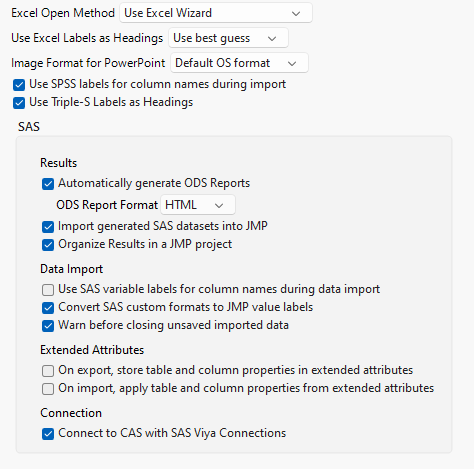
Figure 15.19 Third Party Data Preferences
Preference | Description |
|---|---|
Excel Open Method | Select one of the options to determine how JMP imports Microsoft Excel worksheets. Excel Wizard Lets you preview a Microsoft Excel worksheet and modify the settings before importing the data. This is the default setting on Windows. On Apple macOS, all .xlsx files open in the Excel Wizard. Open All Sheets Opens all worksheets in the workbook. On Apple macOS, this preference is for .xls files only. Select Individual Worksheets Lets you select the worksheets that you want to open from a workbook. On Apple macOS, this preference is for .xls files only. The option is also provided on Apple macOS when you open a .xls file by using File > Open. On Windows, you can also select File > Open, select the workbook, click the Open button arrow, and select Open Selected Worksheets or Use Excel Wizard. |
Use Excel Labels as Headings | Select this option to allow JMP to use Excel label names as column headers when importing Excel files. Available settings include: • Use best guess (default) • Always • Never |
Image Format for PowerPoint | Select the default file format for images that are exported to Microsoft PowerPoint. Windows does not support the native PDF graphics that are produced on Apple macOS. Apple macOS does not support the native EMF graphics that are produced on Windows. For cross-platform compatibility, specify the PNG or JPEG graphic format. Additional file formats are available through scripting. See “db<<Save Presentation(<path>, <Template(path)>, <Insert("Begin"|"End"|n)|Replace("Begin"|"End"|n)|Append>, <Outline Titles(title location)>, <format>)” in the JSL Syntax Reference. |
Use SPSS Labels for column names during import | Select this option to allow JMP to use SPSS label names as column headers when importing SPSS files. |
Use Triple-S Labels as Headings | Select this option to allow JMP to use Triple-S label names as column headers. |
Automatically generate ODS reports | Select this option automatically generate ODS Output using the SAS Server. |
Import SAS generated datasets into JMP | Select this option to automatically import any SAS code generated data sets into JMP. |
Organize Results in a JMP project | Select this option to organize SAS code and results in a JMP project. |
Use SAS variable labels for column names during data import | Select this option to use the column labels in the SAS data set as the JMP data table column names when importing a SAS data set into a JMP data table. This option is deselected by default. |
Convert SAS custom formats to JMP value labels | Select this option to use the information in the SAS column formats to set JMP value labels when importing a SAS data set into a JMP data table. This option is selected by default. |
Warn before closing unsaved imported data | Select this option to trigger a prompt to save any SAS data sets that you imported into JMP and have not saved before closing. This option is selected by default. |
On export, store table and column properties in extended attributes | Select to allow extended attribute support during SAS 9.4 data export. This option is deselected by default. |
On import, apply table and column properties from extended attributes | Select to allow extended attribute support during SAS 9.4 data import. This option is deselected by default. |
Connect to CAS with SAS Viya Connections | Select this option to connect to SAS Viya with JMP. When connecting to SAS Viya, JMP can automatically connect to CAS. |