Smoother
In Graph Builder, the Smoother element ( ) shows a smooth curve through the data. The smoother method determines which options are available.
Tip: To label a smoother, right-click on the smoother element in the legend.
Figure 3.26 Smoother Options
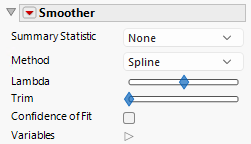
Summary Statistic
Changes the statistic that is being plotted. The statistic is calculated by using the variable on the response axis. None is the default setting, which indicates that the data values themselves are plotted. For more information about Summary Statistics, see “Explanation of Summary Statistics” in Using JMP.
Method
Specifies the method that is used for generating the smooth fit. Options include the following methods:
Spline
Indicates a method that fits a smooth curve through a set of data points by using splines.
P-Spline
Indicates a method that uses a penalized basis spline (P-Spline) model that is fitted to the data.
Local Kernel
Indicates a method to estimate a smooth curve through a set of data points. The method averages nearby data points, giving more weight to points that are closer to the target point, by using a kernel function.
Savitzky-Gloay
Indicates a smoothing method in which a digital filter is used to smooth data while preserving key features like peaks, valleys, and overall shape.
Moving Average
Indicates a smoothing method that replaces each data point with the average of neighboring points within a defined window. This window moves across the data, one point at a time.
Moving Box
Indicates a method that smooths data by averaging values within a fixed-size window that moves across the data.
Lambda
Enables you to adjust the value of lambda. The default value is 0.05. For more information about lambda, see “Fit Spline Report” in Basic Analysis.
Degree
Specifies the degree of the smoother.
Local Width
Enables you to control the smoother fit in terms of a local to a global fit. Use the red triangle Local Region option for further control.
Local Robustness
Enables you to adjust the robustness of the smoothing function that is applied to the data. This option helps in reducing the influence of outliers on the smoother, making the smoothing process more resistant to extreme values in the data set.
Trim
Enables you to trim the sections of the smoother that are based on incomplete or imbalanced data ranges. The slider is scaled from 0 to 1. At 1, all of the incomplete or imbalanced regions are trimmed with the exception of the spline where 1 corresponds to the penultimate edge knots.
Shape Constraint
(Available only for the P-Spline method) Refers to restrictions that are placed on the shape of the smoothed curve to ensure that it aligns with known or wanted properties of the underlying data. The following shape constraints are available:
None
The curve has no constraints.
Non-descending
The curve stays flat or increases as the factor increases.
Non-ascending
The curve stays flat or decreases as the factor increases.
Peak
The curve is nondecreasing then nonincreasing, pivoting at the unconstrained highest smoothed value.
Valley
The curve is nonincreasing then nondecreasing, pivoting at the unconstrained lowest smoothed value.
Peak and Valley
With three monotonic runs, the curve pivots at the unconstrained highest and lowest smoothed values.
Flat Start
The curve begins with a flat slope at the lowest factor values.
Flat End
The curve ends with a flat slope at the highest factor values.
Flat Start and End
The curve response tries to be flat at the lowest and highest factor values.
Cycle
The smoothness constraints wrap around from the final factor value to the starting factor value.
Local Constraint
(Available only for the P-Spline method) Constrains the response axis curve to be within the minimum and maximum values of a local region of points. The local region is defined as the closest 25% of the points for the default smoothness and adjusts with the smoothness lambda value.
Minimum Constraint
(Available only for the P-Spline method) Enables you to set the minimum response axis value that the smoothed curve will have.
Maximum Constraint
(Available only for the P-Spline method) Enables you to set the maximum response axis value that the smoothed curve will have.
Confidence of Fit
Shows or hides the bootstrap confidence region for each fit.
Variables
Shows or hides graph elements for variables, or re-orders the display of variables.
Note: These options do not apply to variables in the Group X, Group Y, Wrap, or Page zones.
Check boxes are followed by the zone designation and the name of the variable. Use the check boxes to perform the following actions:
– Show or hide the elements that correspond to a variable in a zone.
– Add or remove the effect of applying the Color, Size, Shape, or Freq variable to the variable in the zone.
Tip: If you have multiple graphs, you can color or size each graph by different variables. Drag a second variable to the Color or Size zone and drop it in a corner. In the Variables option, select the specific color or size variable to apply to each graph.
Use arrows to re-order the display if there are multiple variables in a zone. Highlight a variable name and click an arrow to reposition it.
For an example using Variables, see “Example of an Area and Line Chart”.
Red Triangle Options for Smoother
Response Axis
Changes the axis that is associated with the response variable to X (horizontal), Y (vertical), or Auto (the Y axis for Smoother).
Scale lambda for count
Adjusts the smoothing parameter (lambda) to ensure overlaid groups with different amounts of data have similar smoothness.
Constrain Confidence Region
Determines whether the shape constraint also applies to the bootstrapped fits that are used to compute the confidence of the fit region.
Local Region
Specifies options for controlling the region that is used for the local width option.
Local Weighting
Specifies weighting options.
Adapt to Axis Scale
For log and other axis transformations, applies computations on the transformed coordinates.
Save Formula
Saves fit formulas and upper and lower confidence intervals for a single variable to the data table.