Transfer Data from Excel to JMP
You can use the JMP add-in for Excel to transfer a spreadsheet from Excel to the following JMP destinations:
• a data table
• Graph Builder
• Distribution platform
• Fit Y by X platform
• Fit Model platform
• Time Series platform
• Control Chart platform
Set JMP Add-In Preferences in Excel
To configure JMP add-in preferences:
1. In Excel, select JMP > Preferences.
The JMP Preferences window appears.
Figure 3.6 JMP Add-In Preferences
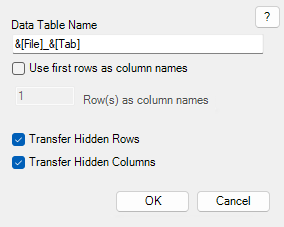
2. Accept the default Data Table Name (File name_Worksheet name) or enter a name.
3. Select to Use the first rows as column names if the first row in the worksheet contains column headers.
4. If you selected to use the first rows as column headers, enter the number of rows used.
5. Select to Transfer Hidden Rows if the worksheet contains hidden rows to be included in the JMP data table.
6. Select to Transfer Hidden Column if the worksheet contains hidden columns to be included in the JMP data table.
7. Click OK to save your preferences.
Transfer to JMP
To transfer an Excel worksheet to JMP:
1. Open the Excel file.
2. Select the worksheet to transfer.
3. Select JMP and then select the JMP destination:
– Data Table
– Graph Builder
– Distribution platform
– Fit Y by X platform
– Fit Model platform
– Time Series platform
– Control Chart platform
The Excel worksheet is opened as a data table in JMP and the selected platform’s launch window appears.