Windows Specific Preferences
The Windows Specific preferences customize settings for Windows computers, including auto-hiding menus and toolbars and selecting the default graphics format.
Figure 15.26 Windows Specific Preferences
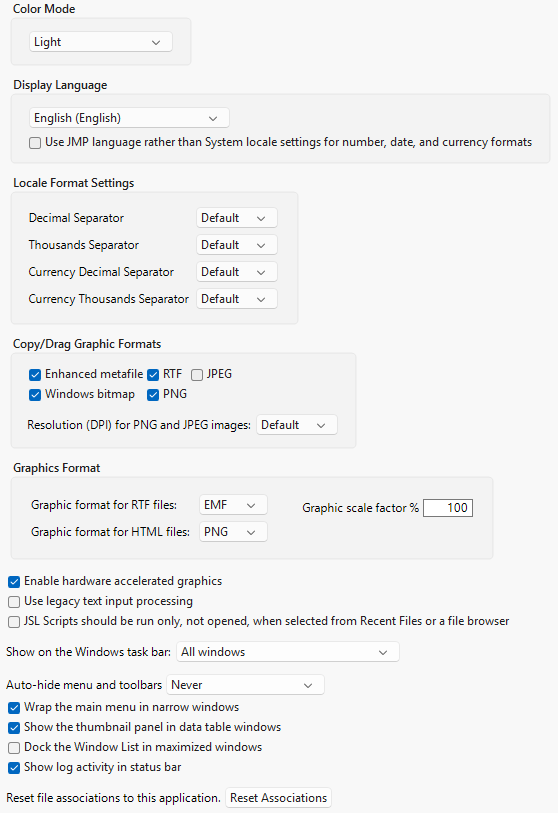
Preference | Description |
|---|---|
Color Mode | Allows users to switch between different color modes available for JMP. Changing the color mode changes the appearance of controls on JMP, such as buttons and scrollbars. Use System Setting The default appearance of JMP based on the setting chosen in the Windows settings. Light Changes the color scheme to lighter colors. Dark Changes the color scheme to darker colors. High Contrast Changes the color scheme to ensure high contrast. |
Display Language | Select the language in which you want to run JMP. The locale settings for your operating system normally determine settings for number, date, and currency formats. Select the option in the language drop-down menu to use that language to determine these formats instead. Text that appears in windows that are provided by the operating system (for example, File > Open) does not reflect changes in the language setting. Note: After changing the display language, close and restart JMP to have the language settings fully take effect. |
Use JMP language rather than System locale settings for number, date, and currency formats | Uses the JMP display language to specify number, date, and currency formats. |
Locale Format Settings | Specify the decimal and thousands separators that are used for numbers and currency values. The Default setting uses the system locale and the settings in the Display Language preferences. If a non-default setting is specified, that setting overrides the Display Language preferences and the system locale. |
Copy/Drag Graphic Formats | Select one or more graphic formats to use when copying and pasting (or dragging and dropping) graphics from JMP into other applications. Enhanced Metafile, Windows bitmap, RTF, and PNG are selected by default. The resolution for PNG and JPEG images is Default. |
Resolution (DPI) for PNG and JPEG images | Specify the DPI to be used when you copy a graphic format. Choose from the Default (96) or 300. 300 is better for images that must be stretched, embedded in trade publications, or printed. However, this setting uses more memory and is slower to generate for large images. The following script lets you set the default DPI. Change the number to a different DPI if you want and then run the script. Pref( Save Image DPI( 600 ) ); To verify the default DPI after you run the preceding script, run the following script: Get Preferences( Save Image DPI );For more information about specifying a higher DPI, see “Set the Graphic DPI for Exported Graphics”. |
Graphics Format | Select the format to use for graphics when you save a JMP report as an RTF file (EMF, PNG, or JPEG) or an HTML file (PNG, JPEG, GIF, and SVG). In the Graphic Scale Factor % box, enter the percentage at which you want graphics to appear in other applications. This feature might not work with all versions of your chosen application. 100% is the default setting. |
Enable hardware accelerated graphics | Takes better advantage of the computer’s graphics processing unit (GPU) for better video performance. Consider selecting this option if your computer is sluggish when drawing JMP windows. This is an experimental feature. |
Use legacy text input processing | Legacy text handling may allow older input method editors (IMEs) to function with JMP. Affects only windows that are created after activation. |
JSL Scripts should be run only, not opened, when selected from Recent Files or a file browser | Select this option to force all scripts to run when opened. If this option is selected, the script window for the script is not opened. This option is deselected by default. |
Show on the Windows task bar | Select which JMP windows you would like displayed on the Windows taskbar. The default selection is All Windows. You can also choose to show the main JMP window and data table windows. |
Auto-hide menu and toolbars | Select the rule that determines when menus and toolbars are hidden. Menus and toolbars are shown by default in report windows. For other windows, the menus and toolbars are shown based on the height of the window. The default setting is Never. |
Wrap the main menu in narrow windows | Select this option to wrap the menu to additional lines when the window is narrower than the menu. This option is selected by default. |
Show the thumbnail panel in data table windows | Select this option to show the thumbnail panel of reports at the bottom of a data table. This option is selected by default. |
Dock the Window List in maximized windows | Select this option to automatically dock the Window List if you maximize your JMP windows. This option is deselected by default. |
Show log activity in status bar | Select this option to show an icon in the status bar that appears when activity has been detected in the log window. You can then click the icon to bring the log window to the front. This option is selected by default. |
Reset file associations to this application | Click this button to associate all JMP file types with the JMP version that you are running. |