Workflow Builder Find Window
You can find and replace text in a workflow. Launch the Find window from the Workflow Builder red triangle by selecting Advanced > Find.
Figure 13.7 Workflow Builder Find Window
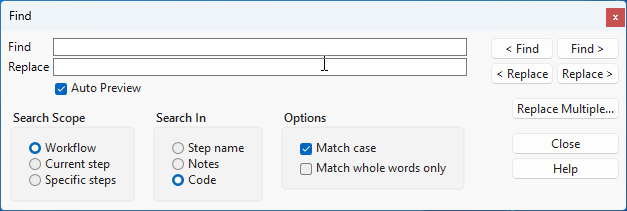
Find
Enables you to search for a string within the workflow.
Replace
(Optional) Enables you to specify the new value for the string.
Auto Preview
When selected, displays the number of workflow steps that contain the search string and the total number of string matches.
Search Scope
Specifies whether to search the entire workflow, the current step, or one or more specific steps.
Search In
Specifies where the search is performed. You can search the step name, in the notes, or in the main steps and custom code.
Options
Enables you to specify additional search criteria, including whether to match case and match whole words only.
< Find
Enables you to search for the previous match.
< Replace
Enables you to replace the current match and find the previous match.
Find >
Enables you to search for the next match.
Replace >
Enables you to replace the current match and find the next match.
Replace Multiple
Opens the Replace Multiple window, where the search matches are displayed. You can select which strings that you want to replace and see the current code and proposed changes.