Notebook Basics
Create a New JMP Notebook
Create a new JMP Notebook by selecting File > New > JMP Notebook.
See for how to create a new notebook by capturing the output of a script.
Add a New Block or Section
From a section, select the red triangle > Add New Block, and then the type of block to add.
Sections are a special type of block.
Change a Block’s Type
Select a block’s type using the menu in the upper-right of each block.
Changing a block’s type does not alter or remove any content of that block.
Figure 17.1 Change the Block type

Collapsing Blocks and Sections
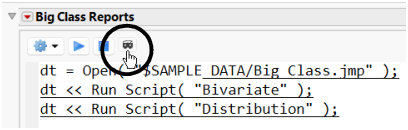
Click the mask icon to collapse a block so that only its heading is visible.
Figure 17.2 Collapse a Block
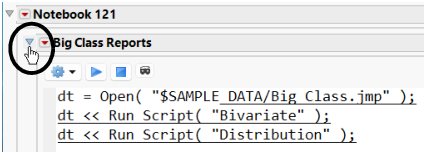
Sections can be collapsed by clicking the disclosure icon.
Figure 17.3 Collapse a Section
Reordering Blocks and Sections
Blocks can be dragged to a new position (even into other sections).
Drag from the block header. During the drag, shading appears to indicate where the drop will land.
Figure 17.4 Drag a Block from its Header

Sections and blocks can be moved using the menu commands Move Block Up or Move Block Down available in sections from the red triangle menu, and in blocks from the gear icon.
Naming Blocks and Sections
To name a section, double-click the current section name.
To name a block, right-click in the heading bar and select Block Name.
After a block is named, clicking the name selects it for editing.
Change the Height of a Block
Set the number of lines to display in a block by either dragging the bottom edge of the block, or by selecting the gear icon and then Line Count.
Note that rendered text sections expand to render the text and do not adhere to the Line Count.
Duplicate a Block or Section
To duplicate a block, select the gear icon and then Duplicate Block.
The new block is inserted below the current block.
To duplicate a section, select the red triangle and then Duplicate Block.
The new section is inserted below the current section.
Remove a Block or Section
To remove a block, select the gear icon and then Remove Block.
To remove a section, select the red triangle and then Remove Section.
Embedded Log
From the top section, select the red triangle and then Show Embedded Log.
If the embedded log is displayed, log information does not also go to the main JMP log.
Sample JMP Notebooks
Popout Results
When a block has results, you can display them in a separate window. Right-click in an area of the output that is not part of the report and select Popout Results.