JMP Live Configuration Help
After you install JMP Live, there are configuration steps that administrators must take to enable logging in to JMP Live and to set up email in JMP Live.
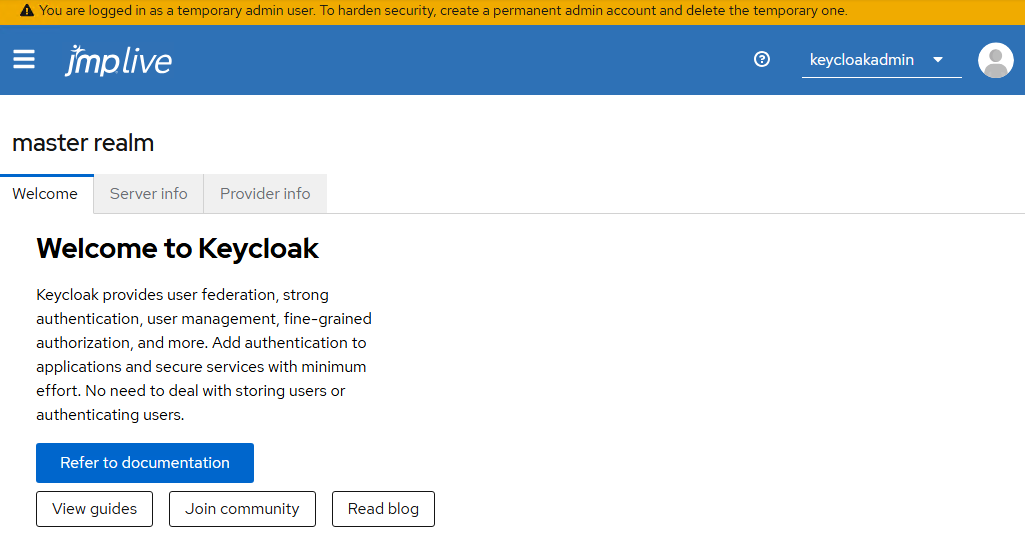
Figure 1.1 Keycloak Administration Console
Configure Keycloak
This configuration involves your internal service provider (Keycloak and JMP Live) and your external identity provider (such as Microsoft Entra ID or Okta). Keycloak provides single sign-on access to JMP Live. To set this up, you must do the following tasks:
Set the JMP Live Callback URL
After you install JMP Live, attempting to log in without configuring Keycloak results in an error that indicates an invalid redirect (callback) URL. To fix this error, you must configure the redirect (callback) URL in Keycloak.
|
1.
|
Open a browser and log in to the Keycloak Administration Console using the HTTP or HTTPS port that you specified during the Keycloak installation. If you chose a default port, this is http://localhost:8888/auth or https://localhost:8443/auth.
|
|
2.
|
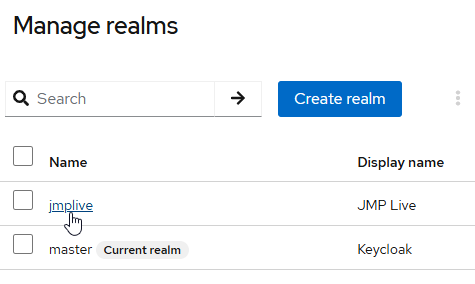
Click Manage realms and select the jmplive realm.
|
Figure 1.2 Select the jmplive Realm
|
3.
|
Click Clients.
|
|
4.
|
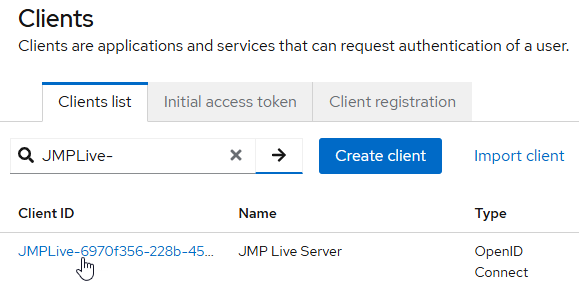
Under Client ID, select the JMP Live client (starts with JMPLive-).
|
Figure 1.3 Select the JMP Live Client ID
|
5.
|
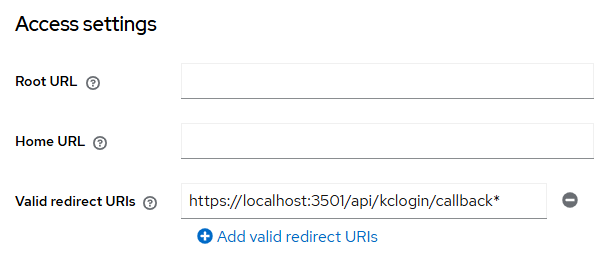
On the Settings tab, in the Valid redirect URIs field, add your JMP Live callback URL, for example: https://<your_keycloak_URL>.com:3501/api/kclogin/callback*.
|
Figure 1.4 Add a Valid Redirect URI
|
6.
|
Click Save.
|
Set up a SAML Identity Provider
This process uses Keycloak to connect the SAML identity provider (such as Entra ID or Okta) to JMP Live. This connection enables users to log in to JMP Live using single sign-on (SSO) with their corporate credentials.
Get Metadata for the Identity Provider
Get the metadata in Table 1.1 from your identity provider or IT team.
|
Identity Provider Metadata
|
Example
|
|---|---|
|
SAML configuration, usually an entity descriptor (metadata) URL or a SAML metadata XML file
|
Microsoft Entra ID format for a SAML entity descriptor URL: https://login.microsoftonline.com/<TenantDomainName>/federationmetadata/2007-06/federationmetadata.xml
|
|
Entity ID
|
Microsoft Entra ID format for an Entity ID: https://sts.windows.net/<TenantID>
|
|
NameID policy format
|
Email or Persistent
|
|
Attributes that the identity provider sends to the service provider
|
Username or user ID, email, firstName, lastName, groups, roles
|
Create a SAML Identity Provider in Keycloak and Import Metadata
|
1.
|
Open a browser and log in to the Keycloak Administration Console using the HTTP or HTTPS port that you specified during the Keycloak installation. If you chose a default port, this is http://localhost:8888/auth or https://localhost:8443/auth.
|
|
2.
|
Click Manage realms and select the jmplive realm.
|
|
3.
|
Click Identity providers.
|
|
4.
|
Click SAML v2.0.
|
Note: The Redirect URI field is prepopulated.
|
5.
|
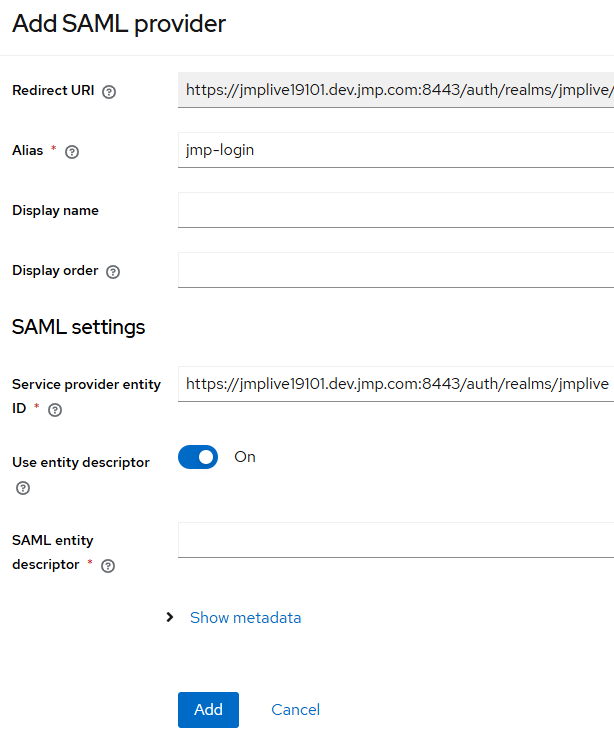
For Alias, enter a clearly worded alias (for example, corp-saml or your company name-login). This alias appears on the JMP Live login screen, so users see it.
|
|
6.
|
For the SAML entity descriptor, paste the identity provider metadata URL from your IT team.
|
Figure 1.5 Enter an Alias
|
7.
|
Click Show metadata.
|
|
8.
|
Verify that Keycloak has filled in these fields:
|
|
–
|
Identity provider entity ID
|
|
–
|
Single Sign-On service URL
|
|
–
|
Single logout service URL (if provided)
|
|
–
|
NameID policy format
|
|
–
|
Validating X509 certificates
|
|
9.
|
Click Add.
|
Verify that the SAML Identity Provider is Enabled
|
1.
|
In the Keycloak Admin Console, click Identity providers.
|
|
2.
|
Click the SAML alias that you created in step 5.
|
|
3.
|
At the upper right, verify that Enabled is on.
|
Figure 1.6 SAML Identity Provider is Enabled

Map SAML Attributes
SAML attribute mappers tell JMP Live which fields to map for SSO, such as usernames and emails.
|
1.
|
In the Keycloak Admin Console, click Identity providers.
|
|
2.
|
Click the SAML alias that you created in step 5.
|
|
3.
|
Click the Mappers tab.
|
|
4.
|
Add mappers for the attributes that you need in JMP Live.
|
Example of Adding a Username Attribute
|
1.
|
Click Add mapper.
|
|
2.
|
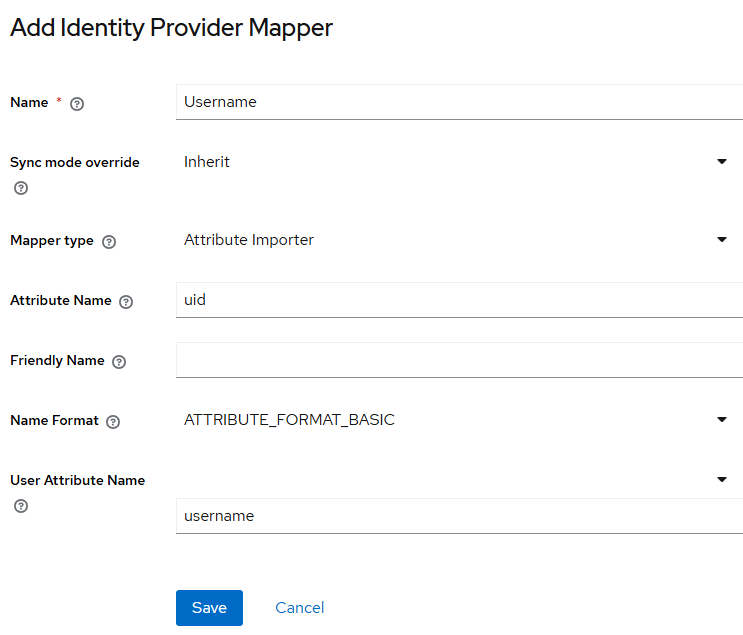
Set the Mapper type to Attribute Importer.
|
|
3.
|
For Name, enter username.
|
|
4.
|
For Attribute Name, enter the identity provider attribute for username (such as uid or userPrincipalName).
|
|
5.
|
For User Attribute Name, enter username.
|
Figure 1.7 Example of Adding a Username Attribute
|
6.
|
Click Save.
|
|
Attribute
|
Mapper Type
|
Name and User Attribute Name
|
Attribute Name
|
|---|---|---|---|
|
Email
|
Attribute Importer
|
email
|
Identity provider email attribute (such as mail or email)
|
|
First Name
|
Attribute Importer
|
firstName
|
Identity provider first name attribute (such as givenName)
|
|
Last Name
|
Attribute Importer
|
lastName
|
Identity provider last name attribute (such as sn or surname)
|
Register Keycloak as a SAML Service Provider
|
1.
|
In the Keycloak Admin Console, click Identity providers.
|
|
2.
|
Click the SAML alias that you created in step 5.
|
|
3.
|
Obtain these SAML service provider details:
|
|
–
|
The service provider entity ID (also called an ACS URL) that is used by Keycloak for the JMP Live client.
|
|
–
|
The NameID policy format that you expect. Examples include email or persistent.
|
|
–
|
Any additional audience or recipient values that are required.
|
Note: These details can vary depending on the identity provider.
|
4.
|
Give your identity provider team these details. The identity provider team must create or update their SAML application using these details, which registers Keycloak with the external identity provider.
|
Test the SAML Login to JMP Live
When you log in to JMP Live as a user, the corresponding user is created in Keycloak.
|
1.
|
Log in to JMP Live.
|
This completes authentication with your external identity provider. You should be able to log in with no errors.
If login fails:
|
–
|
Check the Keycloak server logs for SAML errors. By default, the server logs are here: C:\Program Files\JMP\Keycloak\keycloak-<version>\logs\service\kcservice.out.log.
|
|
–
|
Verify that the SAML service provider details (see step 3) match between Keycloak and the external identity provider.
|
|
2.
|
In the Keycloak Admin Console, click Users. Verify that the user that you logged in as appears with the correct attributes.
|
Set up Email in JMP Live
To set up admin email in JMP Live:
Configure the SMTP Server
|
1.
|
Log in to JMP Live as an administrator.
|
|
2.
|
Click Admin > Settings.
|
|
3.
|
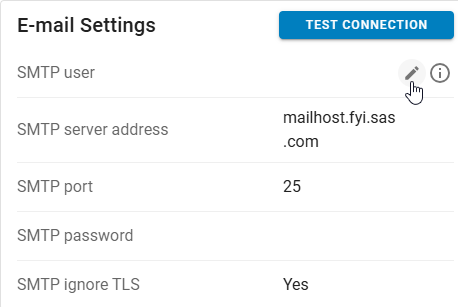
Under E-mail Settings, click Edit
 to update each field and click Save. to update each field and click Save. |
Note: Which fields are required depends on your SMTP server configuration. If a user name or password is not required, you can leave those fields blank.
Figure 1.8 Edit E-mail Settings
Add Email Addresses for JMP Live
|
1.
|
Log in to JMP Live as an administrator.
|
|
2.
|
Click Admin > Settings.
|
|
3.
|
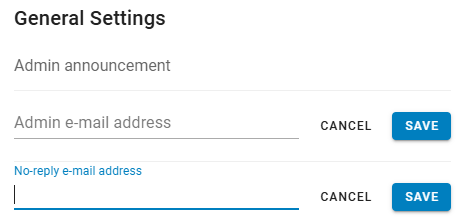
Under General Settings, click Edit
to update these fields: |
|
–
|
The Admin e-mail address, which is where admin alerts are sent
|
|
–
|
The No-reply e-mail address, which is for sending emails from JMP Live
|
|
4.
|
Click Save.
|
Figure 1.9 Add E-mail Addresses