Changing your user count in the JMP Store
Increase or decrease the number of users that will be included in your next subscription renewal.
background-image

style
blue-purple-gradient, background-image-narrow, text-light, text-large
-
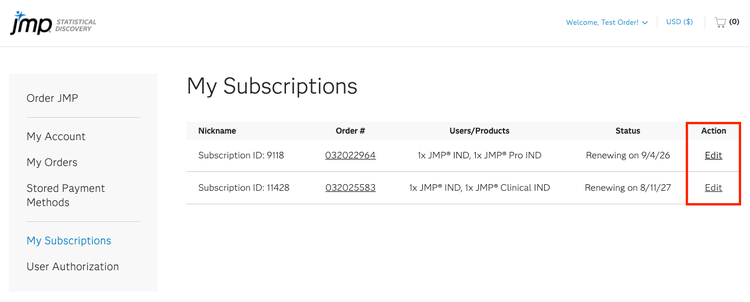
Log in to your JMP Store account and navigate to My Subscriptions.
-
Locate the subscription you want to update and click Edit in the Action column.
-
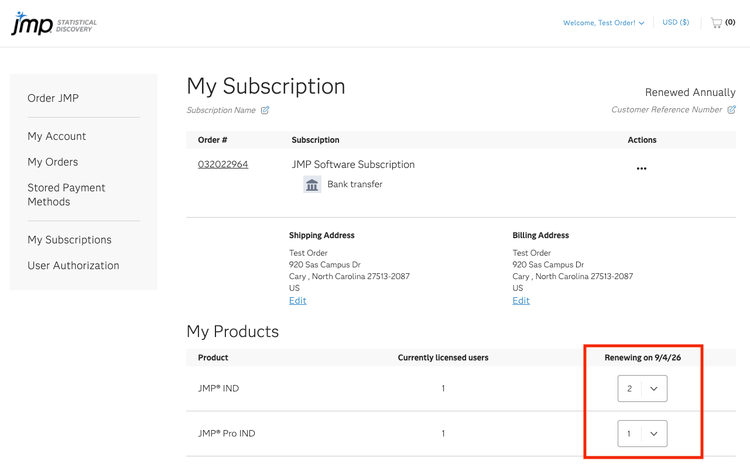
Under Renewing on [date], use the dropdown to select the number of users you want to renew. If your subscription includes multiple products, update the renewal quantity for each product as needed.
-
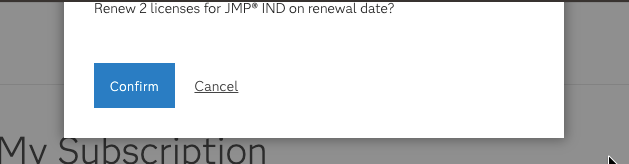
A confirmation message will appear. Click Confirm to update the user count or Cancel to return without making any changes.
That's it! The updated quantity will now be reflected for your next renewal.