System Operations, Configurations, and Preferences
How does JMP Clinical know where to find my studies?
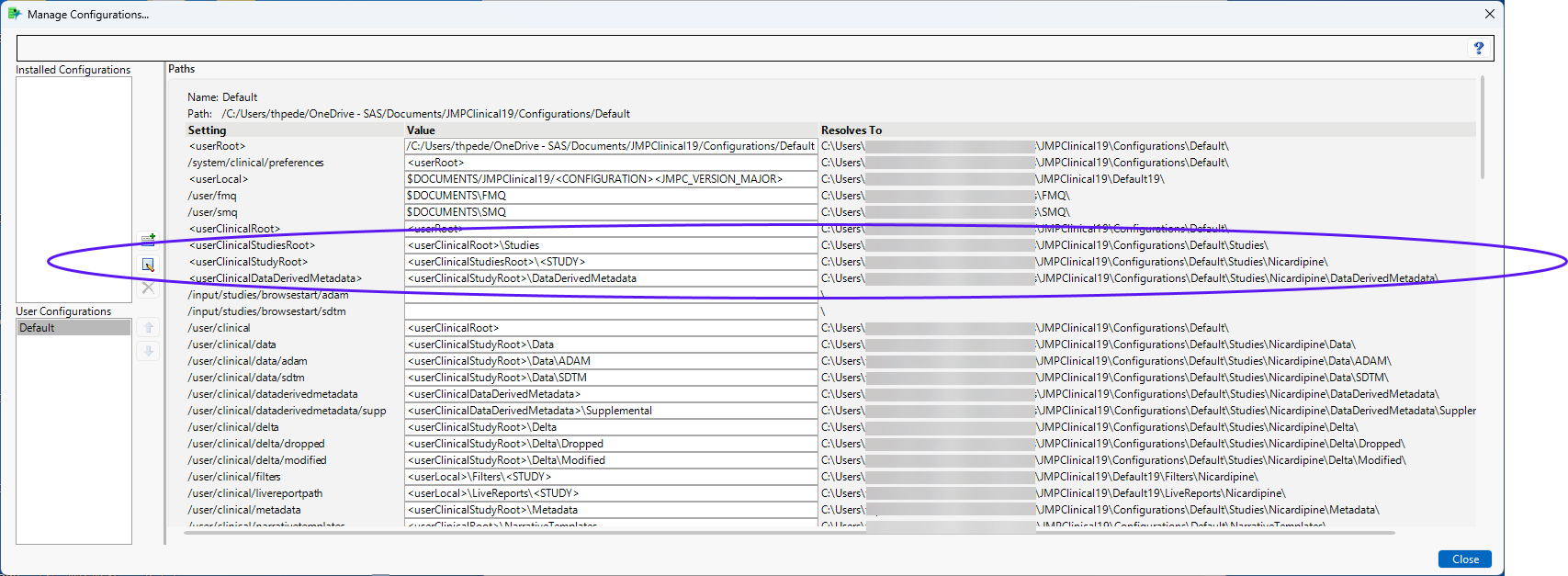
The location of your studies depends on the configuration you have selected on the Settings tab of the JMP Clinical main window. To find the location of the studies, click Manage Configurations on the Settings tab to open the Manage Configuration window. The location of the study data is listed in the advanced path options, as shown below:
How can I change the location of and share my studies with other users?
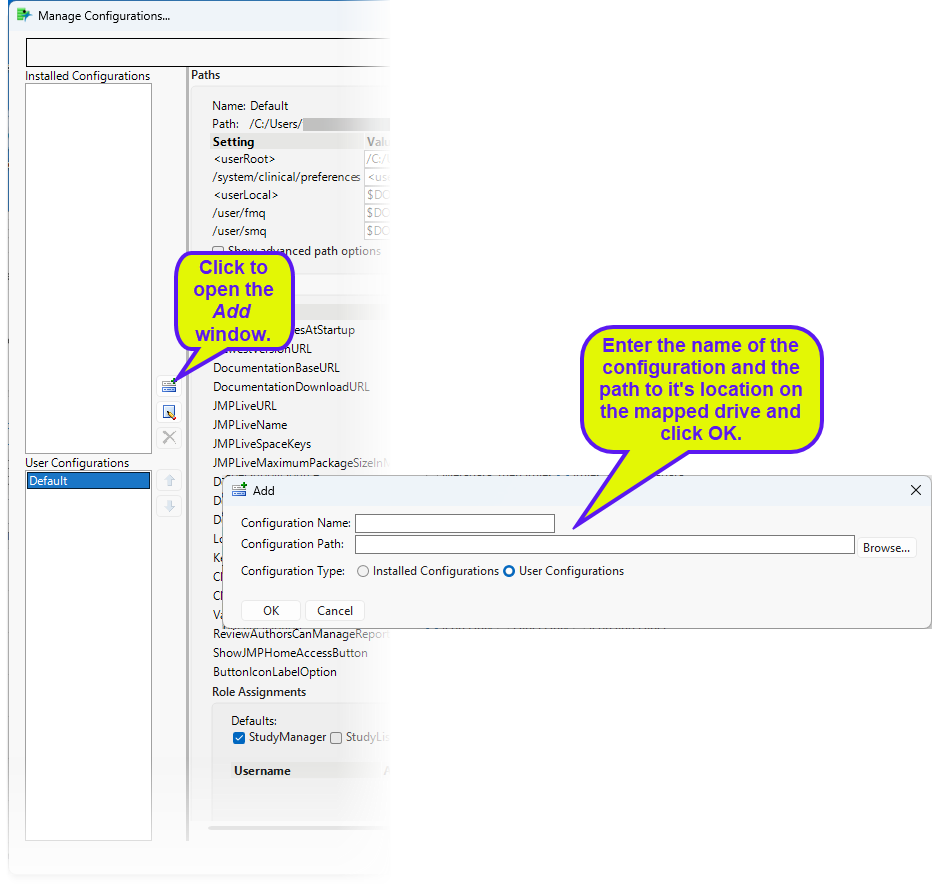
To set up a shared location for your studies, you must first map a location on a shared drive and then add a Shared configuration to the Manage Configuration file that is installed with JMP Clinical.
| 8 | Examine the installation.configuration.file shown below. |
| 8 | Save and close the file. |
You must exit out and reopen JMP Clinical before the changes take effect.
| 8 | Close and then reopen JMP Clinical. |
| 8 | Click the Settings tab and then on the Configuration drop-down menu. |
The new “Share” configuration is now shown as an option.
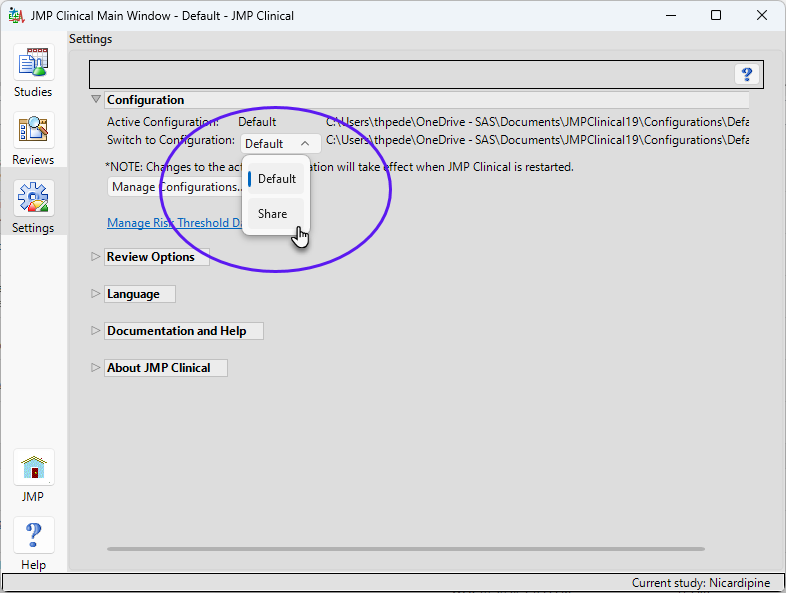
| 8 | Select Share. |
You must close and reopen JMP Clinical before the new selection takes effect. If the new Share folder is an existing shared folder, studies contained within the folder are displayed on the Studies tab. If this is a new shared folder, JMP Clinical adds the necessary components for the folder to function as a shared studies folder.
Note: Anyone with Read/Write privileges on the shared drive has access to a new shared folder. As the creator of this folder you can control level of access by changing the permissions using WinO/S commands.
I have just updated JMP Clinical to a new version and my reports are in the wrong order and I can't access my studies. How do I fix this?
Once you install the updated version of JMP Clinical, you will need to refresh your studies and reset the report configuration as described below:
| 8 | Open JMP Clinical and open the Studies tab |
| 8 | Select a study and click  to refresh that study. Repeat for all of the studies. to refresh that study. Repeat for all of the studies. |
| 8 | Select one of studies as the Current study. |
| 8 | Click on the Settings tab and then click to open the Configuring JMP Clinical. |
| 8 | Navigate to the Report Management section and click . |
| 8 | Close the Configuring JMP Clinical. and then close JMP Clinical. |
| 8 | Reopen JMP Clinical and proceed as normal. |
How do JMP Preferences impact JMP Clinical's functionality?
JMP Clinical relies on several JMP preferences to be set in a particular way in order to ensure consistent behavior and results. As such, some preferences are set (or reset) every time JMP Clinical is launched. Altering these preferences after JMP Clinical is launched is not recommended and doing so may result in unexpected behaviors. The full list of preference settings made by JMP Clinical can be found in c:/ProgramData/JMP/JMPClinical/<VERSION>/Clinical/JSLFiles/setprefs.jsl (Windows) and /Library/Application Support/JMP/JMPClinical/<VERSION>/Clinical/JSLFiles/setprefs.jsl (MAC).
How is JMP Clinical affected by localization-specification?
Data used in JMP Clinical must comply with local CDISC standards for variables and values. Certain values have been hardcoded in JMP Clinical software and must be specified exactly as listed below. The following table lists the English specification for these values and their equivalents in additional languages supported by JMP Clinical software:
Available options are described in the table below:
|
English String |
Domain |
Variable(s) |
Report Affected |
(Chinese) |
(Japanese) |
|
Screen Failure |
DM, ADSL |
ARM, TRT01P, ACTARM |
Time to Event |
|
|
|
Mild |
AE |
AESEV |
Patient Profile |
|
|
|
Moderate |
AE |
AESEV |
Patient Profile |
|
|
|
Severe |
AE |
AESEV |
Patient Profile |
|
|
|
Life Threatening |
AE |
AESEV |
Patient Profile |
|
|
|
High |
EG, LB, VS |
--NRIND |
Patient Profile |
|
|
|
Normal |
EG, LB, VS |
--NRIND |
Patient Profile |
|
|
|
Low |
EG, LB, VS |
--NRIND |
Patient Profile |
|
|
|
Complete |
DS |
DSDECOD, DSTECRM |
Time to Event |
|
|
|
Completed |
DS |
DSDECOD, DSTERM |
Time to Event |
|
|
|
Death |
DS |
DSDECOD, DSTERM |
Time to Event |
|
|
|
Died |
DS |
DSDECOD, DSTERM |
Time to Event |
|
|
|
Dead |
DS |
DSDECOD, DSTERM |
Time to Event |
|
|
|
Disposition Event |
DS |
|
Time to Event |
|
|
|
Y |
AE |
AESER |
Adverse Events Distribution, The value for AESER in ad.sas7bdat. |
|
|
|
N |
AE |
AESER |
Adverse Events Distribution, The value for AESER in ad.sas7bdat. |
|
|
|
F |
DM, ADSL |
SEX |
|
|
|
|
M |
DM, ADSL |
SEX |
|
|
|
|
Drug Withdrawn |
AE |
AEACN |
TEAE |
|
|
|
Fatal |
AE |
AESEV |
Patient Profile |
|
|








