Create Live Report
The Create Live Report process generates a publishable version of a JMP Clinical review or an individual report for sharing on JMP Live or another administrator-configured website. This process packages all open reports into an interactive web-based format that can be explored, filtered, and shared with authorized users.
Users can choose to publish a single report or an entire review, control whether underlying data and study notes are included, and optimize the report for either maximum interactivity or improved performance when working with large data sets. Published reports are uploaded directly to the designated website, making them immediately available to collaborators.
Before You Begin
Before publishing a report to JMP Live, ensure the following requirements are met:
| • | JMP Live access: You must have an active JMP Live license to publish reports. |
| • | JMP Clinical configuration: JMP Clinical must be configured with a valid JMP Live URL and JMP Live Name. Publishing will fail if these settings are missing or incorrect. See the Configuring JMP Clinical for Use with JMP Live section below for details. |
The JMP Live Report
The JMP Live Report, shown below, was generated after running the Demographics Distribution report using the Nicardipine sample data set.
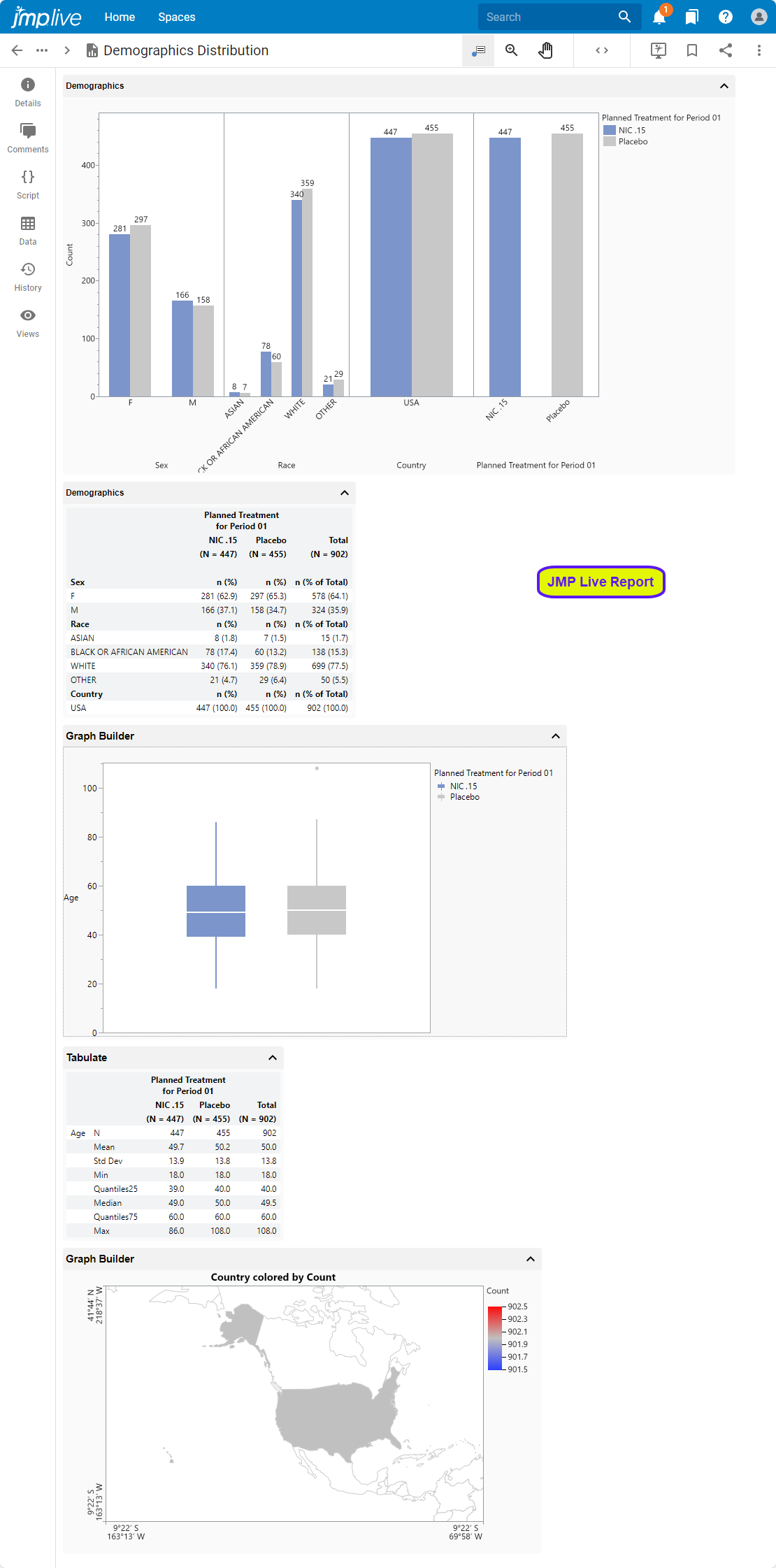
You must be a licensed JMP Live user to create a JMP Live report.
Your JMP Clinical software must be configured for use with JMP Live. Refer to Configuring JMP Clinical for Use with JMP Live for more information.
See JMP Live Help for more information and instructions about using JMP Live.
Note: You should not check the Inverse check box on any data filter associated with the review/report being published to JMP Live.
Generating and Publishing a JMP Live Report
| 8 | Click the  action button at the top of any JMP Clinical review. action button at the top of any JMP Clinical review. |
The Create Live Report window opens.
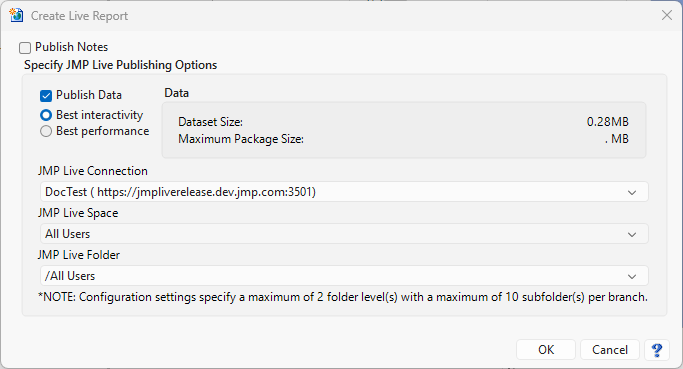
Report Options
The following options enable you to tailor the JMP Live report to your specific needs:
Publish Data
Check the box to include all data sets with your JMP Live report. You can choose to format the data for Best interactivity, where all supported aspects of the report are fully interactive, or Best performance, where images and graphs are not interactive, but supported data in the rest of the report remains interactive.
Note: If your data set is large, you might choose Best performance to increase the responsiveness of the report.
Publish Notes
Check the box to append the study notes to the end of your JMP Live report.
Best interactivity
Click this button to make all supported aspects of the report fully interactive.
Best performance
Click this button to make supported data this report interactive. Images and graphs do not remain interactive, however. Select this option when yur data set is large to increase the responsiveness of the report.
Data
The size of your data set(s) is shown as the Dataset Size:.
JMP Live Connection
Displays the URL to which you are publishing.
JMP Live Space
Use this widget to specify the space within the server where your report will be placed.
JMP Live Folder
Use this option to select a folder within the JMP Live Space where your report will be placed.
Publish a single Report or the whole Review
There are two Create Live Report buttons on the Review Builder, one for publishing the active report and one for publishing the entire review.
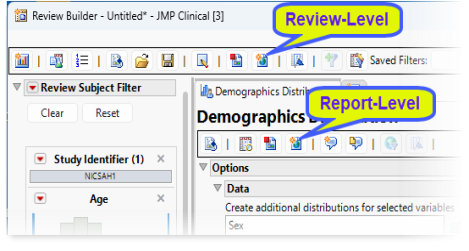
| 8 | Click the Report-Level button to publish the active report only (in this example, Demographic Distribution) to JMP Live. |
| 8 | Click the Review-Level button to publish the entire review to JMP Live. |
The Create Live Report window and associated options are the same for both.
Configuring JMP Clinical for Use with JMP Live
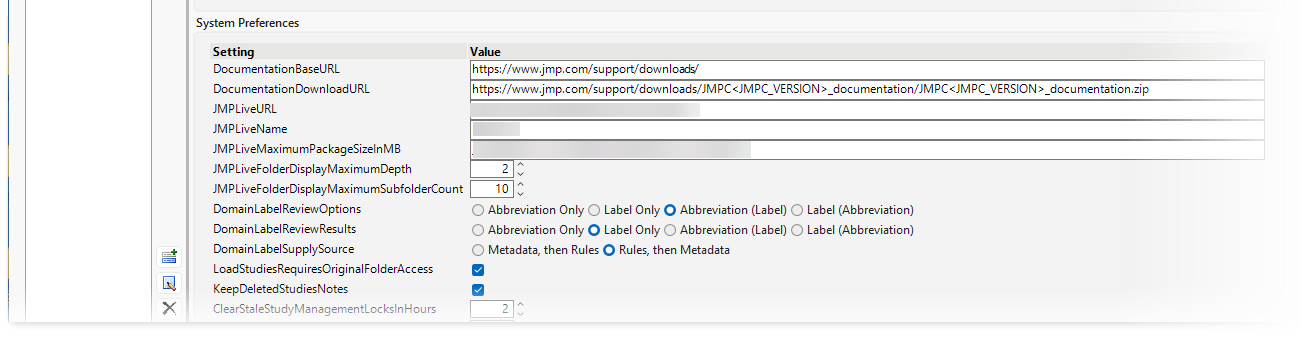
You must configure JMP Clinical software for JMP Live before you can create a JMP Live report. You must have both a JMPLiveURL and a JMPLiveName. If either are missing, JMP Live will not work properly.
| 8 | Open JMP Clinical and click on the Settings button. |
| 8 | Click |
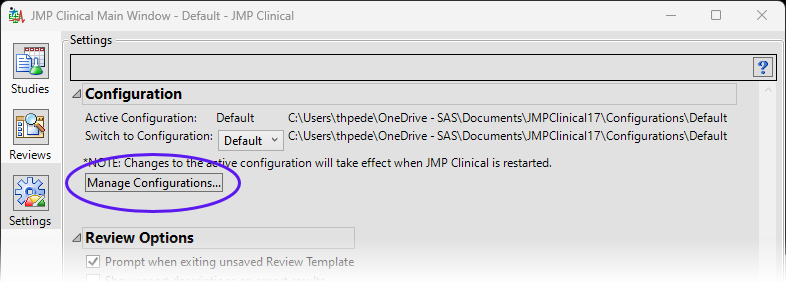
| 8 | Add your assigned JMP Live URL and JMP Live Name to the appropriate rows in the System Preferences box on the Manage Configurations window. |
| 8 | Click to close the Manage Configurations window. |
| 8 | You must close and relaunch JMP Clinical for changes to the Settings tab and Manage Configurations window to take effect. |
Note: The JMP Live URL is the URL to the JMP Live instance. If more than one JMP Live instance, separate with vertical bars (|). The JMP Live Name is the name of your choice corresponding to each JMP Live instance. If you have more than one JMP Live instance, separate with vertical bars (|).