Customize Axes and Axis Labels in Graphs
Double-click a numeric axis in a JMP graph to customize it by using the Axis Settings window. Or, right-click the axis area and select Axis Settings to access the window.
Note: You can also customize nominal axes by using the Axis Settings window of the Graph Builder, Distribution, Oneway, and Contingency platforms.
Customization features in the window depend on the data type of the axis and the specific platform that JMP uses to create the plot or chart. Figure 9.40 shows a typical Axis Settings window for numeric (continuous) axes.
Figure 9.40 Axis Settings Window for a Numeric (Continuous) Axis
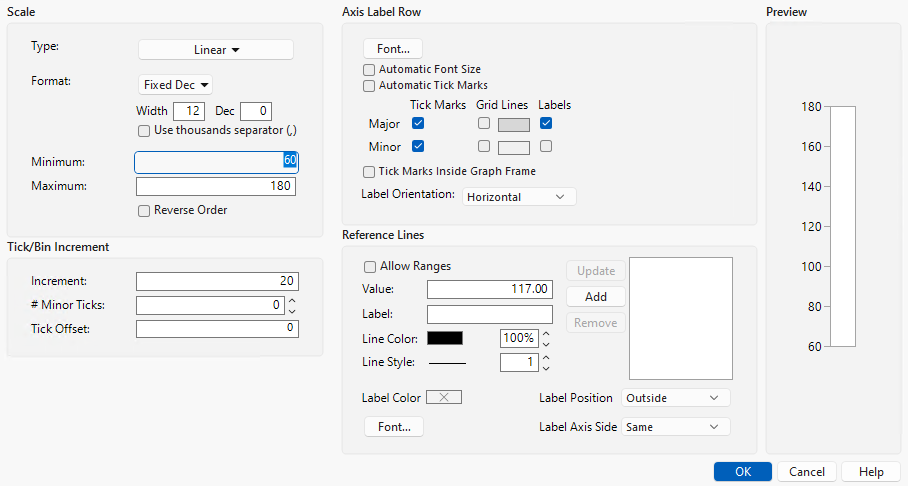
The Axis Settings window contains the following panels:
• Scale
• The Preview panel shows how your current selections will appear on the axis.
Scale
In the Scale panel, you can do the following tasks:
• Change the Numeric Format of an Axis
• Establish Minimum and Maximum Axis Values
Change the Axis Scale Type
When viewing a graph with a numeric axis, you can change the axis scale to one of the following types:
• Linear
• Log
• Power
• Geodesic
• Geodesic US
• Probability Scales (Normal, Weibull, Fréchet, Logistic, Exponential, Gamma, Beta, and Mixtures)
Notes:
• Specific platforms might use other scale types that are fixed and cannot be changed. For example, Destructive Degradation, Degradation, and the X axis in Fit Y by X scatterplots use custom scales. Do not change the scale in these graphs through the Axis Settings window.
• If you select a scale type of Log, enter the Base to use.
• If you select a scale type of Power, enter the Power to use.
• Power works similarly to log scale, but instead of the scale conversion being log(x), it is x^p, where p is a customizable axis option. For example, Power = 2 creates an x^2 axis.
To set a default scale type for a variable and avoid making this change every time you run an analysis, see “Axis”.
Change the Numeric Format of an Axis
For plots and charts that contain a numeric axis area, you can change the format of the axis. For more information about numeric formats, see “Numeric Formats”.
Notes:
• If you select Date, Time, or Duration, you must specify the format of the increments. See Add and Remove Axis Labels. You can also specify label row nesting. See Label Row Nesting.
• If you select Fixed Dec, enter the number of decimal places that you want JMP to display in the Dec box.
• If you select Precision, select whether you want to keep trailing zeros and all whole digits.
• To add commas to values that equal a thousand or more, select the Use thousands separator(,) option. You must account for a space for each comma in the Width box, or else they might not appear. This option is available for the Best, Fixed Dec, Percent, and Currency formats.
• For a numeric axis, you can adjust the width of the tick mark labels by using the Width box.
• When you change the numeric format of an axis, you do not change the numeric format of the way the values appear in the corresponding data table. To change how a date or time value appears in a data table, see “Numeric Formats”.
Selecting a date interval from the date increment drop-down menu divides the JMP date (number of seconds) into the appropriate units. Specifying the appropriate interval for your data gives the plot scale that you want. The date axis must be a column with a JMP date value and appear in the Axis Settings window in the date format that is found in the Column Info window. However, you can use the Axis Settings window to format the date’s appearance in the plot.
Establish Minimum and Maximum Axis Values
For plots and charts that contain a numeric axis area, you can change the minimum and maximum values that you want the graph to display.
Notes:
• To restore the default minimum, maximum axis settings, and tick increments of an axis, right-click the axis labels and select Revert Scale. To restore all default axis settings, right-click the axis labels and select Revert Axis.
• Select Reverse Order to reverse the axes by reversing the minimum and maximum values. Note that this option is not supported for ternary plots.
Tip: To set a default minimum and maximum axis value for a variable and avoid making this change every time you run an analysis, see “Axis”.
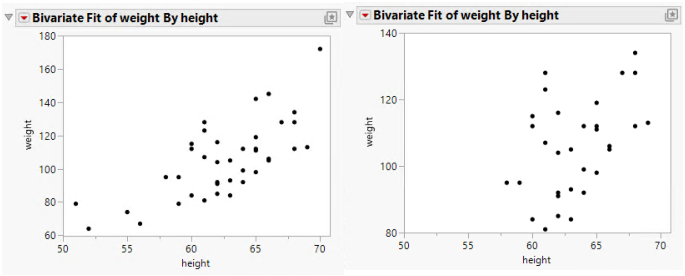
The example on the right side in Figure 9.41 is an enlargement of the point cluster that shows between 80 and 140 in the plot on the left side of the image. The enlarged plot is obtained by reassigning the maximum and minimum axis values.
Figure 9.41 Rescale Axis to Enlarge a Plot Section
Tick/Bin Increment
In the Tick/Bin Increment panel, you can do the following tasks:
Change Axis Increments
While viewing a graph, you can change the axis increments.
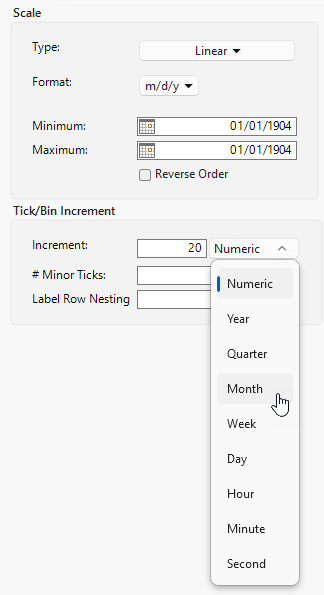
If the axis Format is set to Date, Time, or Duration, a format menu appears beside Increment (Figure 9.42). Select the format for the increments.
Figure 9.42 Selecting the Format for Date and Time Increments
Tip: To set a default axis increment for a variable and avoid making this change every time you run an analysis, see “Axis”.
Add Minor Tick Marks
You can add tick marks to a numeric axis or change the number of minor tick marks that appear on a numeric axis. In the Axis Label Row panel, be sure to select the Minor Tick Marks check box so that the tick marks appear on the axis.
Tip: To set default minor tick marks for a variable and avoid making this change every time you run an analysis, see “Axis”.
Change the Tick Offset
To change the starting point of the tick marks, enter a number in the Tick Offset box. For example, if the Tick Offset is currently set to 0, setting it to 1 moves all the values on the axes up by 1.
Label Row Nesting
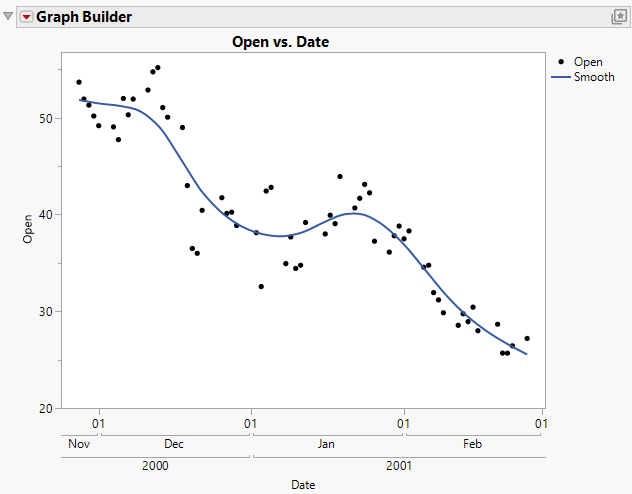
This option appears only if you select Date, Time, or Duration as the axis Format. Label row nesting uses a multilevel time scale to enable you to split a date axis into multiple rows based on the format. For example, you might put the year on the outermost row, then the month, and then the day:
1. Select Help > Sample Data Folder and open Stock Prices.jmp.
2. Select Graph > Graph Builder.
3. Drag Date into the X zone.
4. Drag Open into the Y zone.
5. Double-click the X axis.
6. For Format, select Date > ddMonyyyy.
7. Increase the value for Label Row Nesting to 3.
8. Click OK.
9. Click Done to see the finished graph.
Figure 9.43 Example of Label Row Nesting
Axis Label Row
In the Axis Label Row panel, you can do the following tasks:
• Add Tick Marks, Grid Lines, or Labels
• Change the Orientation for Tick Labels
Note: In Graph Builder, if you have nested labels in an axis, tabs appear in the Axis Label Row panel. You can change each row of labels separately in its own tab.
Change the Axis Label Font
You can change the axis label font on any axis type. Your changes only apply to the active graph. To set the default axis label font, see “Preferences for File Locations”.
To change the current font type and size, double-click an axis and then click Font.
Notes:
• Select Automatic Font Size to have JMP attempt to decrease the font size (down to a certain minimum) if all of the labels cannot fit at the default size.
• To change the axis label font color, right-click the axis and select Show Properties. In the Properties options on the right side of the panel, change the text color.
Add Tick Marks, Grid Lines, or Labels
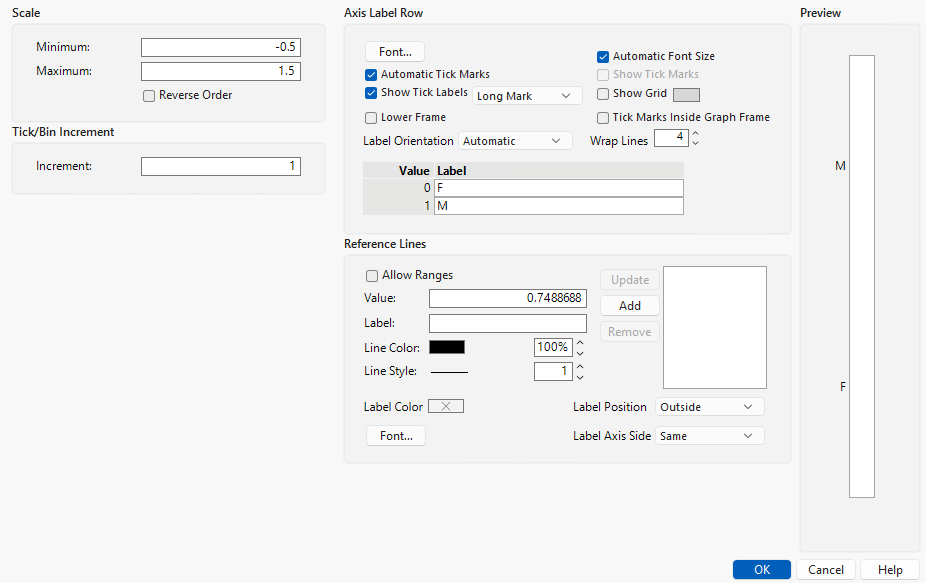
These options can vary depending on whether your axis is continuous or categorical. Figure 9.44 shows axis settings for a categorical axis. Figure 9.40 shows axis settings for a continuous axis.
Figure 9.44 Axis Label Row for a Categorical Axis
Options for continuous axes:
• Select Automatic Tick Marks to only turn on tick marks if one or more labels are hidden due to insufficient space.
• Add major or minor tick marks, grid lines, or labels by selecting the corresponding check boxes.
• Click the Grid Lines color box to change the color of grid lines.
• Select Tick Marks Inside Graph Frame to move the tick marks inside the graph.
Options for categorical axes:
• The default is to not show tick marks if all of the labels are visible. To add tick marks, select Show Tick Marks. Change the tick mark style by selecting one of the options.
• Select Automatic Tick Marks to only turn on tick marks if one or more labels is hidden (due to insufficient space).
• Add grid lines by selecting Show Grid.
• Click the Show Grid color box to change the color of grid lines.
• Select Tick Marks Inside Graph Frame to move the tick marks inside the graph.
• Select Lower Frame to add a frame around the labels.
• Change the number of lines that the text wraps.
• Change the labels by entering different values in the Label boxes.
Tips:
• To set default tick marks for a variable and avoid making this change every time you run an analysis, see “Properties That Control the Display of Columns”.
• For additional axis customizations, select Show Properties from the axis right-click menu.
Change the Orientation for Tick Labels
To change the orientation for tick labels, select an option from the Label Orientation list.
Automatic
Tick labels are oriented automatically to be readable, depending on the tick increment and length of the labels.
Horizontal
Tick labels are oriented with the baseline at the bottom.
Vertical
Tick labels are oriented vertical with the baseline on the right side.
Perpendicular
Tick labels are oriented horizontal for vertical axes and vertical for horizontal axes.
Note: Parallel and Perpendicular are useful with paired axes, like in Multivariate plots.
Parallel
Tick labels are oriented vertical for vertical axes and horizontal for horizontal axes.
Angled
Tick labels are oriented angled at approximately 45 degrees.
Reference Lines
Add reference lines to graphs:
1. Double-click a numeric axis or right-click a numeric axis and select Axis Settings.
2. In the Value text box, enter the value to which you want the reference line to correspond.
This is the position on the graph at which the line is placed.
3. Enter a Label for the line.
4. You can further customize the reference line by choosing either of these options:
Allow Ranges
Enables you to enter a minimum and a maximum value, which define the beginning and the end of the reference line. The reference line appears over a range of data.
Line Color
Changes the line color. You can also specify the opacity.
Line Style
Specifies the line style (when Allow Ranges is not selected). You can also specify the line width.
Label Color
Specifies the color of the label.
Font
Enables you to adjust the font for the reference line label.
Label Position
Enables you to select a position for the reference line label. Options are outside or inside the graph frame.
Label Axis Side
Enables you to select the side of the graph for the reference line label.
5. Click Add.
The value moves into the box to the right of the Add button, indicating that it will be placed on the graph. Your changes appear in the Preview window.
6. To add more lines, repeat the previous steps.
7. To change an existing reference line, make your changes and then click Update.
Tip: To set a default reference line for a variable and avoid making this change every time you run an analysis, see “Properties That Control the Display of Columns”.
Extend Divider Lines and Frames for Categorical Axes
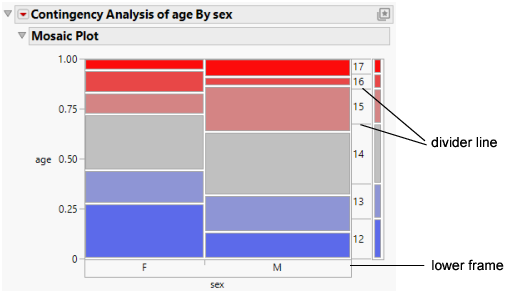
Extending the vertical divider lines between tick labels is useful when there are many levels of a nominal or ordinal (categorical) variable.
To extend the divider line to the x-axis labels, follow these steps:
1. Double-click a nominal or ordinal axis to show the axis settings.
2. Select Show Tick Labels > Short Divider or Show Tick Labels > Long Divider to add the divider lines.
Use Lower Frame to add a frame around the axis area.
Figure 9.45 Divider Lines
Add and Remove Axis Labels
You can add or remove labels in a numeric axis. To add an axis label:
1. Right-click a numeric axis and select Add Axis Label.
2. Enter a name for the axis label.
The axis area enlarges to hold the number of label lines that you enter.
This option can be used multiple times to add multiple labels. To edit the label after it has been added to the axis, click the label and it will turn into an edit box.
To remove an axis label, right-click a numeric axis and select Remove Axis Label. The last label added is removed.
Rotate Axis Labels and Tick Marks
You can change the axis label on any axis type.
To rotate an axis label, follow these steps:
1. Double-click an axis to show the axis settings.
2. From the Label Orientation list, select which direction to rotate the text.
Tip: To set a default axis label position for a variable and avoid making this change every time you run an analysis, see “Properties That Control the Display of Columns”.
You can rotate tick marks on a nominal axis by right-clicking the tick label, selecting Axis Settings, and changing the Label Orientation setting.
Copy and Paste Graph Contents
After customizing a graph by adding elements such as a fitted line, you can copy and paste the contents from one graph to another compatible graph. To customize a graph, follow these steps:
1. Right-click the graph that you have customized.
2. Select Edit > Copy Frame Contents.
3. Right-click the graph to which you would like to copy the settings.
4. Select Edit > Paste Frame Contents.
Tip: If you have difficulty pasting histogram bars, see the JSL workaround “Copy and Paste Histograms” in the Scripting Guide.
Copy and Paste Axis Settings
After customizing an axis (as described in Customize Axes and Axis Labels in Graphs), you can copy and paste your new settings to another axis:
1. Right-click the axis that you have customized.
2. Select Edit > Copy Axis Settings.
3. Right-click the axis to which you would like to copy the settings.
4. Select Edit > Paste Axis Settings.
Tip: To broadcast the axis settings to multiple graphs, press Ctrl when you right-click the axis and select Edit > Paste Axis Settings.