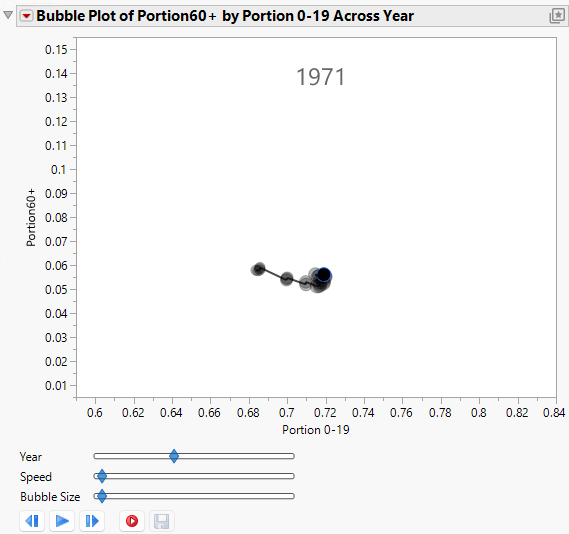
Example of a Time Variable and No ID Variable
For dynamic bubble plots, you might specify a Time variable only and no ID variable. The resulting bubble plot contains a single moving bubble that tracks the series as the Time value changes.
1. Select Help > Sample Data Folder and open PopAgeGroup.jmp.
2. Select Graph > Bubble Plot.
3. Select Portion60+ and click Y.
4. Select Portion 0-19 and click X.
5. Select Year and click Time.
6. Click OK.
7. Right-click the Y axis and choose Axis Settings:
– Change the Minimum value to 0.01.
– Change the Maximum value to 0.15.
– Change the Increment to 0.01.
– Change # of Minor Ticks to 1.
– Click OK.
8. Right-click the X axis and choose Axis Settings:
– Change the Minimum value to 0.6.
– Change the Maximum value to 0.84.
– Change the Increment to 0.02.
– Change the # of Minor Ticks to 1.
– Click OK.
Figure 5.7 The Initial Report Window with a Time Variable
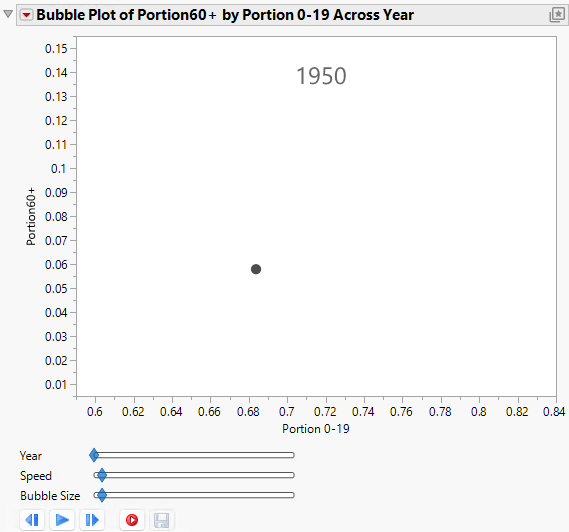
9. Click the bubble to select it.
All rows in the data table are also highlighted.
10. Click the Bubble Plot red triangle and select Trail Bubbles > All and Trail Lines > All.
11. Click the play button.
The bubble plot animates, showing a trail for the single bubble.
Figure 5.8 Animated Bubble Plot over Time