Example of Creating a Custom Background Map
This example demonstrates the creation of a custom background map for an office temperature study and how JMP was used to visualize the results. Data were collected that contained office temperatures for a floor within a building. A map was created for the floor by using the Custom Map Creator add-in from the JMP File Exchange, which you can find at https://community.jmp.com/docs/DOC-6218. The office temperature results were then analyzed visually by using Graph Builder.
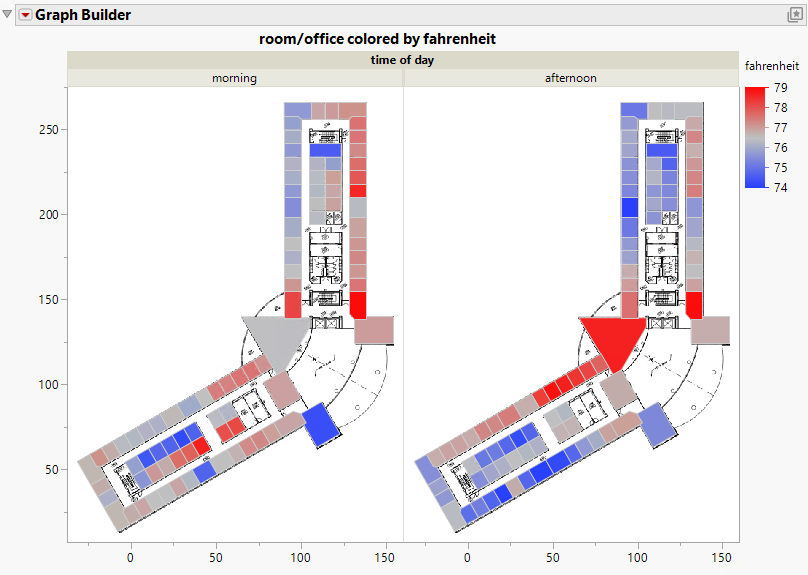
Figure 12.32 shows the floor, grouped by time of day. The color reflects the Fahrenheit value. Exploring data visually in this way can give hints as to what factors are affecting office temperature. Looking at this map, it appears that the offices on the east side of the building are warmer in the mornings than they are in the afternoons. On the western side of the building, the opposite appears to be true. From this visualization, you might expect that both of these variables are affecting office temperatures, or perhaps that the interaction between these terms is significant. Such visuals help guide decision-making during the analysis.
Figure 12.32 Room/Office Colored by Fahrenheit and Grouped by Time of Day
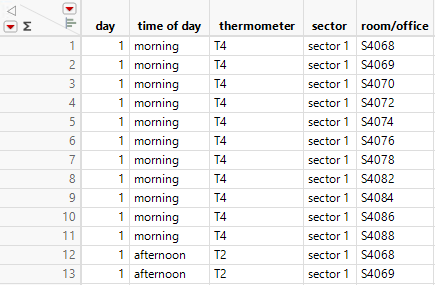
First, data were collected and entered into a data table (S4 Temps.jmp). Note the Room/Office column. This column contains the unique names for each office and was assigned the Map Role to correctly define the map files.
Figure 12.33 Partial View of the S4 Temps.jmp Data Table
Then, a map of the floor was created by using the Custom Map Creator add-in, which you can download from the JMP File Exchange at https://community.jmp.com/docs/DOC-6218. The add-in creates two tables to define the shapes: an XY table and a Name table. The instructions below describe how it was built.
Create a Map of the Floor
1. Launch the add-in through the menu options Add-Ins > Map Shapes > Custom Map Creator.
Two tables open in the background, followed by the Custom Map Creator Window.
2. Drag a background image into the graph frame.
An image of the floor plan was available.
3. Perform any resizing on the background image and graph the frame.
4. Name the table (for example, S4).
5. Click Next.
6. Name the shape that you are about to define.
For this example, each office was individually named for the map (for example, S4001).
7. Within the graph frame, use your mouse to click all of the boundaries of the shape that you want to define.
A line appears that connects all of the boundary points.
8. As soon as you finish defining the boundaries of the shape, click Next Shape.
Continue adding shapes until you complete the floor plan. Note that you do not need to connect the final boundary point; the add-in automatically does that for you when you click Next Shape.
9. The line size and color can be changed.
In addition, checking Fill Shapes fills each shape with a random color.
10. Click Finish.
The custom map files were created and named appropriately. The map files are S4-Name.jmp and S4-XY.jmp and have been saved in the JMP Samples/Data folder.
Add the Map Role Column Property
Note: Path names in this section refer to the JMP folder. In JMP Pro on Windows, the JMP folder is named JMPPro.
The S4 Temps.jmp data table contains office data over a three-day period. Set up the Map Role column property in the data table:
1. Select Help > Sample Data Folder and open S4 Temps.jmp.
2. Right-click the room/office column and select Column Info.
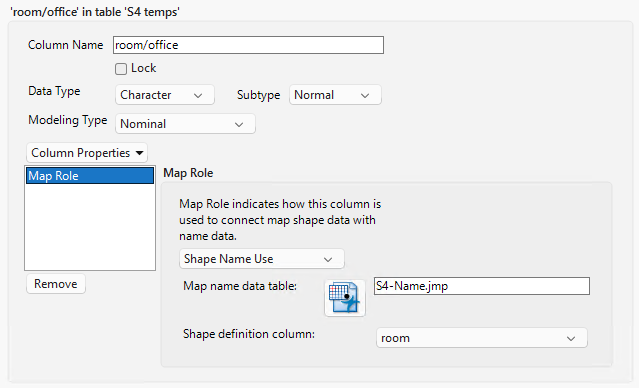
3. Select Column Properties > Map Role.
4. Select Shape Name Use.
5. Click the icon next to Map name data table and navigate to the S4-Name.jmp file (located in the JMP Samples/Data folder).
This tells JMP where the data tables that contain the map information reside.
6. Select room from the Shape definition column list.
Room is the specific column within the S4-Name.jmp data table that contains the unique names for each office. Notice that the room column has the Shape Name Definition Map Role property assigned as part of correctly defining the map files.
Note: Remember, the Shape ID column in the -Name data table maps to the Shape ID column in the -XY data table. This means that indicating where the -Name data table resides links it to the -XY data table so that JMP has everything that it needs to create the map.
Figure 12.34 Map Role Column Property
7. Click OK.
After the Map Role column property is set up, you can perform your analysis. You want to visually see the differences in office temperatures throughout the floor.
1. Select Graph > Graph Builder.
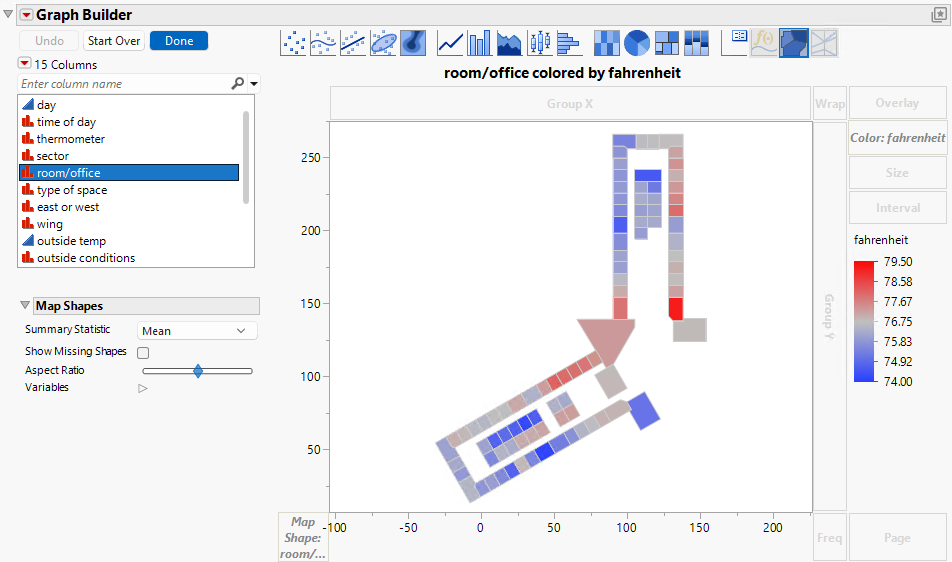
2. Drag and drop room/office into the Map Shape zone.
Because you defined the Map Role column property on this column, the map appears.
3. Drag and drop fahrenheit to the Color zone.
Figure 12.35 Room/Office Colored by Fahrenheit
4. Drag and drop time of day onto the Group X zone.
Figure 12.36 Room/Office Colored by Fahrenheit and Grouped by Time of Day
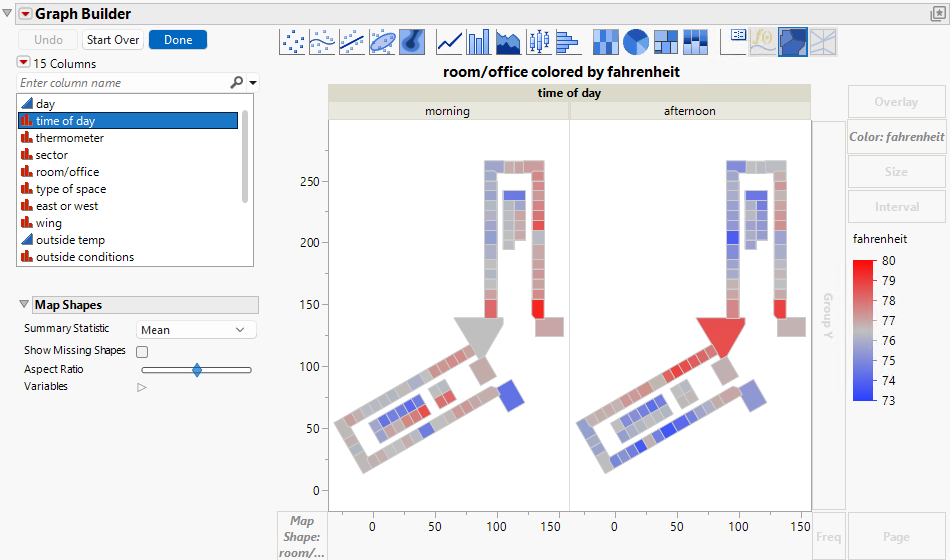
Note that only the offices that were part of the study and were created by using the Custom Map Creator add-in are displayed. To add the entire floor plan image, the original floor plan graphic was dragged and dropped onto the Graph Builder window to create Figure 12.37.
To view Figure 12.37, select Help > Sample Data Folder, open S4 Temps.jmp, and run the by Time of Day script.
Figure 12.37 Room/Office Map with Original Floor Plan
There are several scripts that are provided with the data table that you can run to view the various analyses and modeling that can be performed and visually displayed.