Images in Maps
Every flat map misrepresents the surface of the Earth in some way. Maps cannot match a globe in truly representing the surface of the entire Earth. A map projection is used to portray all or part of the round Earth on a flat surface. This cannot be done without some distortion. Every projection has its own set of advantages and disadvantages. A map can show one or more, but not all, of the following: true direction, distance, area, or shape.
JMP uses two projections (Albers Equal Area Conic and Kavrayskiy VII) for its maps. The regional scale uses an Albers equal area projection, and the world scale uses a Kavrayskiy VII compromise projection. Within Images, you can select from two built-in map images, or you can connect to a Web Map Service to retrieve a background image.
Earth Images Installed with JMP
JMP provides two levels of earth imagery; simple and detailed. Both maps show features such as bodies of water and terrain. However, detailed maps show more precise terrain. With detailed maps, you can zoom in farther, and the map features remain clear. Image maps are raster images. The maps wrap horizontally, so you continue to see map details as you scroll from left to right. The maps do not wrap vertically. Beyond the -90 and 90 y-axis range, a plain background appears instead of the map.
Figure 12.13 Examples of Simple and Detailed Maps
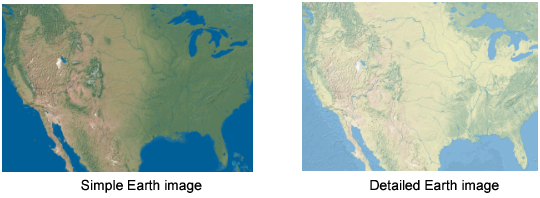
As its name suggests, Simple Earth is a relatively unadorned image of the Earth’s geography. It does not show clouds or arctic ice, and it uses a green and brown color scheme for the land and a constant deep blue for water. Detailed Earth has a softer color scheme than Simple Earth. It has lighter greens and browns for the land and variation in the blue for the water. Detailed Earth also has a slightly higher resolution than Simple Earth. The higher resolution lets you zoom in to a graph further with Detailed Earth than with Simple Earth before the quality of the background image begins to blur.
Another feature of Simple Earth and Detailed Earth is the ability to wrap. The Earth is round, and when you cross 180° longitude, the Earth does not end. The longitudinal value continues from -180° and increases. The map wraps continuously in the horizontal direction, much as the Earth does. The background map does not wrap in the vertical direction.
Simple Earth and Detailed Earth both support a geodesic scaling. In Figure 12.13, the Earth appears as a rectangle, where the width is twice as wide as the height. If you took this rectangle and rolled it up, you would have a cylinder. In reality, you know that the Earth does not form a cylinder, but rather a sphere. You can use a geodesic scaling, which transforms the map to a more realistic representation of the Earth. To use the geodesic scaling, change the type of scale on the axes.
To change the axes scale
1. Right-click the X or Y axis and select Axis Settings.
2. Make sure that the Scale Type is set to Geodesic.
Figure 12.14 Y Axis Setting Window
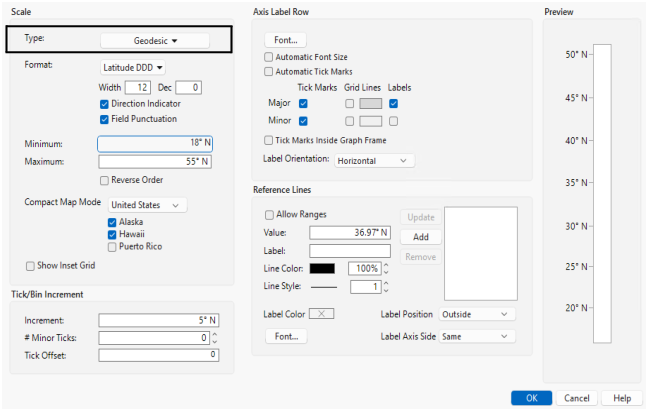
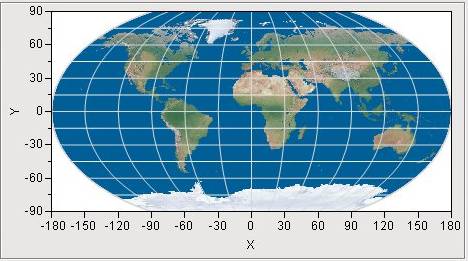
It is important to note that you must set the scale to Geodesic for both axes to get the transformation. You do not see a change in the map after setting only one of the axes. In the following figure, Simple Earth is used as the background map with both axes set to use a geodesic scale. The axes lines are turned on as well. Notice the longitudinal lines are now curved, instead of straight.
Figure 12.15 Simple Earth Background Map - Axes Set to Geodesic Scale
Because Detailed and Simple Earth are built into JMP, these options work anytime, without a network connection. However, these images might not be all that you want, or they might not be detailed at the resolution that you need. If this is the case, and if you have an internet connection, you can connect to a Web Map Service to retrieve a map image that meets your needs.
Maps from the Internet
The National Aeronautics and Space Administration (NASA) and other organizations provide map image data by using a protocol called Web Map Service (WMS). These maps have the advantage of showing the most up-to-date geographical information. However, the display of the maps can be slow depending on the response time of the server, and the sites can change or disappear at any time. An internet connection is required to access the information.
Figure 12.16 Examples of NASA and WMS Maps
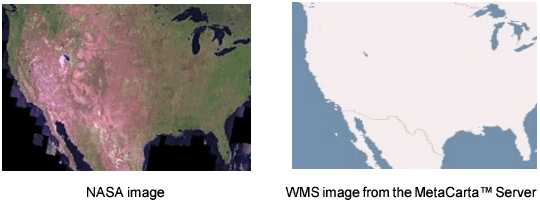
The NASA server provides maps for the entire Earth. The following figure displays the Earth by using the NASA server as its source for the background map. The boundary map shows the outlines of the countries.
Figure 12.17 NASA Server Map Example
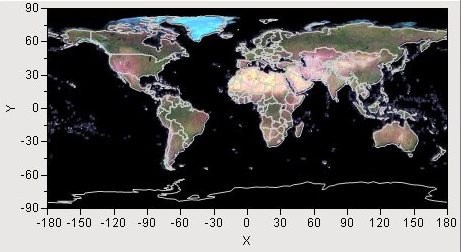
Not only does this server cover the entire Earth, but you can also zoom in on a much smaller area of the Earth and still get a reasonable map. The following figure displays the Colorado River that runs through the Grand Canyon in Arizona. The Grand Canyon Village is visible in the bottom of the map.
Figure 12.18 NASA Server Map Example - Zoom In on Colorado
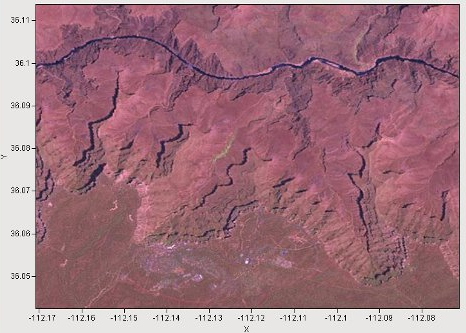
If you look at the axes values, you can see that the area is less than 1/10° by 1/10°. The Simple Earth and Detailed Earth background maps do not display that type of resolution. The NASA server provides a more detailed view of any land mass on Earth. However, water is simply filled in as black. The NASA server is free to access, but it is also limited in availability. If the server is temporarily not available or becomes overloaded with requests, it delivers an error message instead of the requested map.
Another internet-based option for background maps is a Web Map Service (WMS). The WMS option enables you to specify any server that supports the WMS interface. The NASA server is an example of a WMS server, but this example provides the URL and a layer name for you. With the WMS option, you must know the URL to the WMS server and a layer name that is supported by the server. Most WMS servers support multiple layers. For example, one layer can show terrain, another layer can show roads, and still another layer can include water, such as rivers and lakes. By specifying the URL for the server and the layer, JMP can make a request to the server and then display the map that is returned.
Unlike with simple and detailed maps, WMS maps do not wrap. You can scroll horizontally and vertically. However, beyond the -180 to 180 (horizontal axis) and -90 to 90 (vertical axis) ranges, a plain background appears instead of the map. The limits of the axes are used to define the limits of the map that is displayed.
To use the WMS option for a background map, you must decide which WMS server to use. There are many WMS servers freely available from the internet. Most of these servers provide maps only for a particular area of the world, and each of them supports their own layers. Therefore, you must search for the appropriate WMS server for your particular situation.
You can search for WMS servers on the internet by using your favorite search engine. After you find a server, you must discover the layers that it supports. For this, you can use the WMS Explorer add-in. The WMS Explorer add-in generates a list of all the layers that are available on a server. You can select a layer from the list to see what it looks like. You can download the WMS Explorer add-in from the JMP File Exchange page.
Note: To use the WMS Explorer add-in and the WMS background map capabilities of JMP, your computer must be connected to the internet.
To locate a server, launch the add-in through the menu items Add-Ins > Map Images > WMS Explorer. The add-in presents a text box for entering the URL of a known WMS server. Alternatively, you can make a selection from a drop-down list of prediscovered WMS servers (the list can be out of date). After specifying a WMS server, select Get Layers. The use of Get Layers is not necessary if you are selecting from the drop-down list or if you click Enter after entering a URL. The Get Layers option sends a request to the WMS server for a list of layers that the server supports. The returned list appears in the list box on the left side and is labeled Layers. A map of the world appears as an outline in the graph to the right side. Selecting a layer makes a request to the WMS server to return a map, by using the specified layer, that represents the entire earth. Selecting a different layer generates a different map.
The default maps do not cover the entire earth (for example, some WMS servers might provide mapping data for a particular county, within a state). In that case, it is likely that selecting a layer does not generate any visible map. You might have to zoom in on the appropriate area before any image map is visible. The standard JMP toolbar is available in the add-in window, and the zoom tool works just like it does in any JMP window.
The graph is a typical graph in JMP, which means that all the regular JMP controls are available to you. You can adjust the axes or use the zoom tool (found on the menu bar) just as you would in JMP. You can also right-click to select Size/Scale > Size to Isometric to return the graph to a proper aspect ratio. You can select Background Map, where you can adjust the boundary map.
After you determine the map that you want, note the URL in the text box at the top and the selected layer in the Layers list. This is the information that you need to enter in the background map window when WMS is selected as the type of image background map.
Because requests are being made to a server across the internet, there are a number of conditions that can generate an error. WMS servers often have limited availability and sometimes are not available at all. Occasionally, a WMS server might return a name of a layer that it no longer supports. In these types of cases (and others), a server usually returns an error message instead of a map. If that happens, the error message is displayed below the Layers list in an area that is labeled Errors.