Import SAS Data Sets
SAS data sets are saved in one of many SAS formats:
• Windows supported formats are .sas7bdat and .sas7bxat.
• Apple macOS supports reading and writing .sas7bdat files.
• Windows and Apple macOS support reading and writing .xpt files
When you open a data set in JMP, the file opens as a data table. JMP uses SAS variable names as column names by default. To use variable labels in a specific file on Windows, select the option when you open the file (see step 5 in the following steps).
The following ISO date formats are supported for .sas7bdat files: B8601DA, B8601DN, B8601DT, B8601DZ, B8601LZ, B8601TM, B8601TZ, E8601DA, E8601DN, E8601DT, E8601DZ, E8601LZ, E8601TM, E8601TZ, and IS8601DA. If the date format is not supported, the data is imported with the Scientific Notation format.The following date formats are supported for .xpt files: BEST, DATE, DATETIME,DAY, MMDDYY, DOWNAME, HHMM,HOUR, TIME,YYMMDD, DDMMYY, MMSS, DTDATE, IS8601DA, E8601DA, PERCENT, and DOLLAR.
To open a SAS data set from JMP
1. Select File > Open.
2. (Windows only) Select SAS Data Sets from the list next to File name, as shown in Figure 3.50.
Note: SAS variable names and formats are preserved and can be saved after you make changes to the SAS data set. See “Save JMP Data as a SAS Data Set”.
3. Select the file.
Figure 3.50 Open SAS Data Set
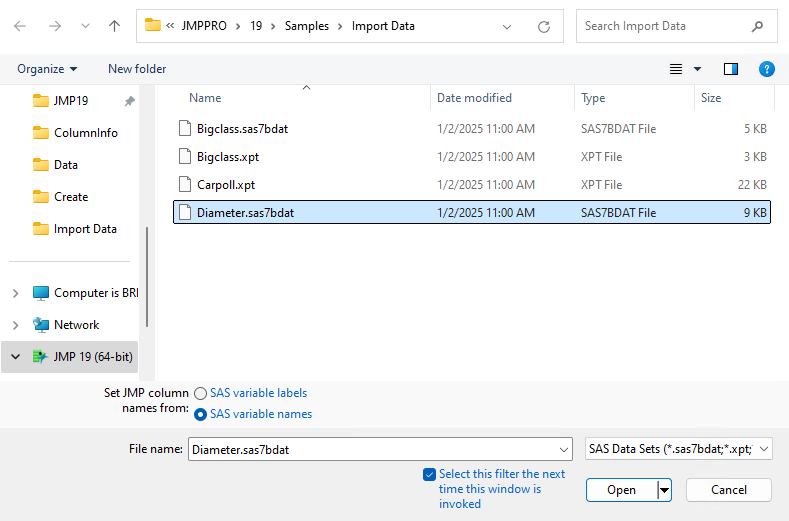
Note: To select the columns to import, click the arrow on the Open button and select Select columns.
4. (Optional) Select any of the following options:
SAS variable labels
Uses the SAS variable labels (instead of variable names) as the column names in the JMP data table.
SAS variable names
Uses the SAS variable names (instead of the labels) as the column names in the JMP data table.
5. (Optional on Windows) Select any of the following options:
Apply table and column properties from SAS 9.4 extended attributes
Includes the extended attributes when storing JMP metadata if the SAS server supports extended attributes (SAS 9.4). This setting overrides the SAS 9.4 Extended Attributes preference on the Third Party Data page.
Select this filter the next time this window is invoked
Sets the default file type choice to the option that you select next to the File name list. If selected, the default file type will be SAS Data Sets the next time that you open this window.
6. (Optional) Select any of the following options for a SAS Transport (.xpt) file:
Select member
Lets you enter the name of a specific member, or table, for JMP to open. On Apple macOS, select Member Tables > Specified and then enter the name.
Open all members
Opens all members, or tables, in the transport file. On Apple macOS, select Member Tables > All.
Save all members
Saves the file as a JMP file as soon as you open it. JMP saves the file to the same directory where the SAS transport file is stored. On Apple macOS, the option is Save all.
Select columns
Tells JMP to open only certain columns from the transport file. Select the columns that you want to import from the list that appears. On Apple macOS, the option is Select columns before opening.
7. Click Open.
Note: If you are importing date variables from a SAS file, JMP looks for a SAS date format and translates it to a JMP date column.
Open Password-Protected Data Sets
JMP can open SAS version 7 or later data sets that are password protected. The passwords are not case sensitive.
To open password-protected data sets
1. Select File > Open.
2. Select SAS Data Sets from the list next to File name.
3. Select the file.
4. Click Open.
5. Enter the password and click OK.
When the password is incorrect, you are prompted to enter it again until you enter the correct password.