Import XML and JSON Files
Preview and Import XML and JSON Data
The XML Import Wizard imports two types of nested text data: XML and JSON files. Both types of files contain structured text that can be nested to represent hierarchical relationships. This wizard helps you select the elements of the hierarchy that hold values and elements that determine rows to build a data table.
Think of a nested text file as a book filled with short stories. Some short stories might include chapters, while others consist only of paragraphs. Chapters consist of paragraphs, and paragraphs consist of sentences. Here’s an example of the full tree for such a book:
<book>
<story name="car poll">
<wheels>4</wheels>
<para><name>chev</name></para>
<para><name>ford</name></para>
<para><name>volk</name></para>
</story>
<story name="big class">
<para><name>ralph</name><height>6</height></para>
<para><name>billy</name><height>5</height></para>
</story>
<story name="cheese" location="NC">
<chapter name="american">
<para>1<price>2.00</price><quantity>2</quantity></para>
<para>2<price>2.10</price><quantity>4</quantity></para>
<para>3<price>2.20</price><quantity>3</quantity></para>
</chapter>
<chapter name="swiss">
<para>1<price>3.00</price><quantity>3</quantity></para>
<para>2<price>3.10</price><quantity>2</quantity></para>
</chapter>
</story>
</book>
This XML document (the book) contains three short stories; each short story is a different data table. Suppose that you choose to import only one of them at a time. This particular XML file uses paragraphs to represent rows in a table in all of the tables. Arranging content by paragraph is not required. If you wanted to import the cheese table, which is slightly more complicated than the other two, you would probably want a variety column that contains “american” or “swiss” for each row. You would also want price and quantity columns. And you might want a column that doesn’t have a clearly defined name for the 1, 2, 3, 1, 2 values of <para>. You would expect five rows. Finally, you might want a table variable or a column for the location NC value.A JSON file consists of name and value pairs that are imported as column headers and data. In the following example, the first name in each string is appended to “Grocery Store Purchases” and turned into column headers, as in “Grocery Store Purchases.Item”. The value in the first cell of the table is “avocado”. The next column is named “Grocery Store Purchases.Category”, and “Produce” is the value in the first cell of the second column.
{"Grocery Store Purchases":[
{"Item":"avocado", "Category":"Produce"},
{"Item":"bread", "Category":"Bakery"},
{"Item":"chocolate", "Category":"candy"}
]}
To import an XML or JSON file in the XML Import Wizard
1. Select File > Open.
2. Navigate to JMP’s Samples/Import Data folder.
3. On Windows, set the file type to XML Data Files.
4. Select Book.xml and click Open.
The file opens in the XML Import Wizard.
Note: “Data (Using Preview)” is selected on the Open Data File window so that the XML file opens in the wizard automatically. You can also import XML and JSON files directly. See Import XML Files Directly.
Determine How the Data is Imported
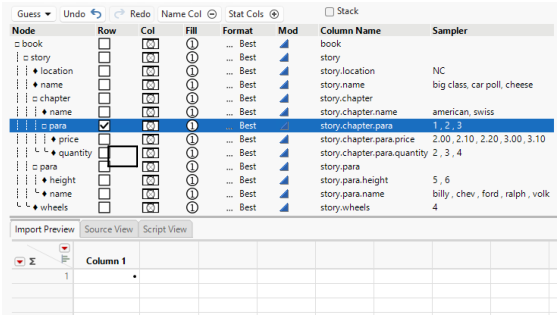
1. In the Row column, select the element that should create a new row in the data table.
In this example, the row is created when </para> is processed, and the columns are written for that row with their current values.
Figure 3.29 Row Element Selected in the Row Column
2. In the Col column, select the data type for that column next to the Col circle.
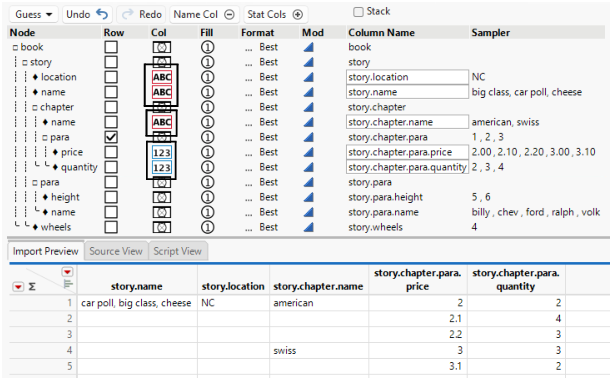
– location: Character
– name: Character (both instances)
– price: Numeric
– quantity: Numeric
Tip: The values in the Sampler column give an idea of what the data type should be.
Figure 3.30 Data Types Assigned in the Col Column
3. In the Fill column, specify which values fill the cells.
For location and both instances of name, click the Fill circle and select +book/story. This setting fills cells with the values until the node <book>/<story> begins again.
Figure 3.31 Fill Values Selected in the Fill Column
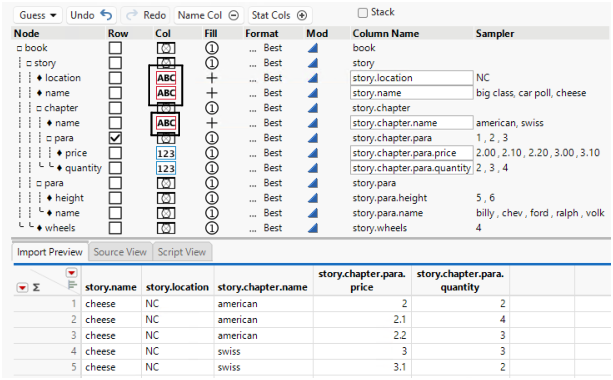
When adding each row to the data table, JMP decides what to do on the next row if no new value is found for a column. For example, the chapter name is not specified for each type of cheese, and missing values follow “american” and “swiss”.
– The Use Once option indicates to use the value once and forget it; the second, third, and fifth rows would be missing if the data is not given again.
– The Fill Forever option specifies that the value is never forgotten but is replaced with new values when found.
– The +book/story option that you selected in this example indicates that, when the opening <book>/<story> elements are found, JMP fills in the cells until the <book>/<story> node begins again. The -<element> option refers to the closing tag of the element, which will be the point at which the node ends.
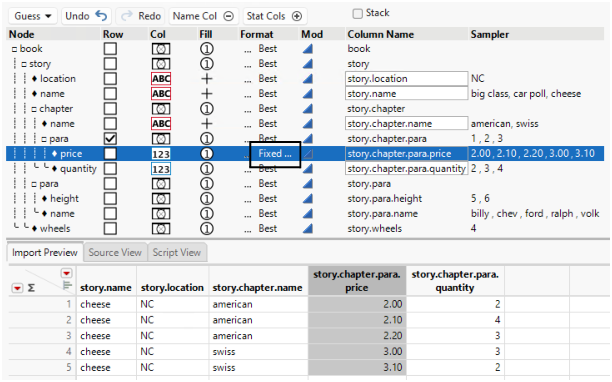
4. In the Format column, click Best next to price, select Fixed Dec, type “2” for the decimal place, and then click OK.
Figure 3.32 Format Type Selected in the Format Column
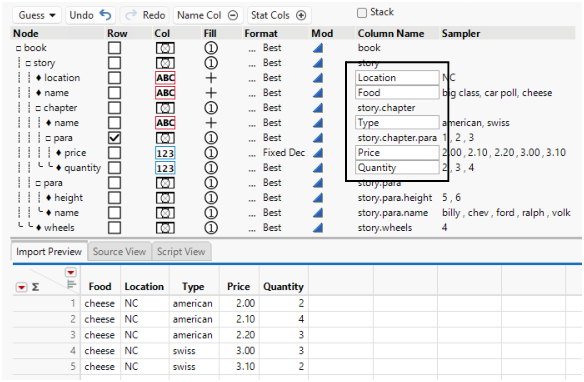
5. In the Column Name column, rename columns as shown in Figure 3.33.
Figure 3.33 Renamed Columns in the Column Name Column
6. At the bottom of the window, click OK.
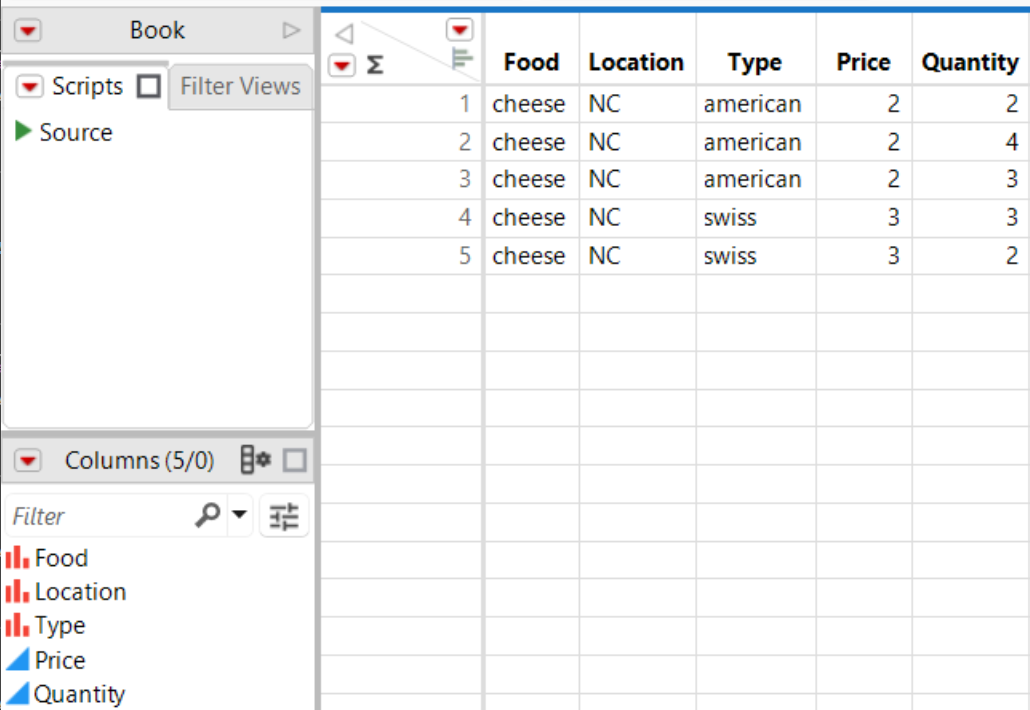
The data is imported in a data table as you specified.
Figure 3.34 Final Data Table
View the Statistics in the XML Import Wizard
Click Stat Cols at the top of the XML Import Wizard to show statistics for the elements.
Occurs
The number of times the element occurs. The root element occurs once and is usually not the element to make rows from. You’ll get as many rows as there are occurrences of the element..
If you select multiple rows, then the actual number might be less than the total of the “occurs”. Elements that end right after another element ends don’t generate an extra row. For example, if you select both <para> and <chapter> as row makers, then you don’t get an extra row when the chapter ends right after the last paragraph. But you could get an extra row if there were a <footnote> for <chapter> after the last paragraph and before the end of the chapter. You must select the footnote column to make that happen.
Writes
The number of times that the source has a value that could be written. If the value is zero, you probably don’t want to make a column from this element because the values would all be missing.
Unique
The number of unique values (less than or equal to the Writes value).
Repeats
The maximum number of times that this element repeats within its parent element. Elements with larger repeat values are strong candidates for creating rows. If this element repeats and is used as a column, a character column will make a list. An expression column might be even better because it uses {lists} (within braces) to indicate where the values stop and start. A numeric column will get only one of the repeating values.
Sampler
The element values.
XML Import Wizard Options
Guess
Allows JMP to select the settings based on the size of data table that you select.
• Tall guess selects an element that will make as many rows as possible (the default setting).
• Wide guess selects an element to make rows that will make as many columns as possible.
• Huge guess selects as many elements to make rows as it needs to get all of the data into the table. The table might be bigger than you expect.
Undo
Reverses the last change made to the window.
Redo
Recalls the last change made to the window.
Name Col
Shows or hides the Column Name column.
Stat Cols
Shows or hides statistics for the elements in the tree.
Stack
Applies to nodes that repeat within a parent node that is creating rows. By default, extra values are stored in a single table cell, separated by commas. If this option is selected, repeating values are stacked in extra rows.
Import Preview
Shows a preview of the imported data based on the options that you select.
Source View
Shows the source XML document.
Script View
Shows a JSL script of the settings that you select.
Import XML Files Directly
JMP can detect the structure of an XML or JSON file and import it directly into a data table. If you don’t want to see a preview of the data in the XML Import Wizard, use this method.
1. On Windows:
– Select File > Open.
– Set the file type to Data Files.
– Select the file.
– Next to Open as, select Data (Best Guess).
2. On Apple macOS:
– Select File > Open and select the file.
– Click Options in the lower left corner of the window.
– Select Data (Best Guess).
3. Click Open.
The file opens as a data table.
If you are not satisfied with the results, consider using the XML Import Wizard to customize the import. See Preview and Import XML and JSON Data.
Note: You can import XML or JSON text from a script editor window by selecting Edit > Import as Data. If nothing is selected in the file, then the import is based on the file extension. If text is selected, then JMP attempts to parse the text as JSON or XML. Otherwise, the text is imported into a CSV file.