Insert Constants in Formulas
Formulas in JMP can be simple assignments of numeric, character, or row state constants, or they can contain complex evaluations based on conditional clauses. Constants include commonly used numeric terms, such as e, pi, -1, 0, 1, and 2. There are two ways to add a constant value to a formula:
• Enter them manually by using the keyboard.
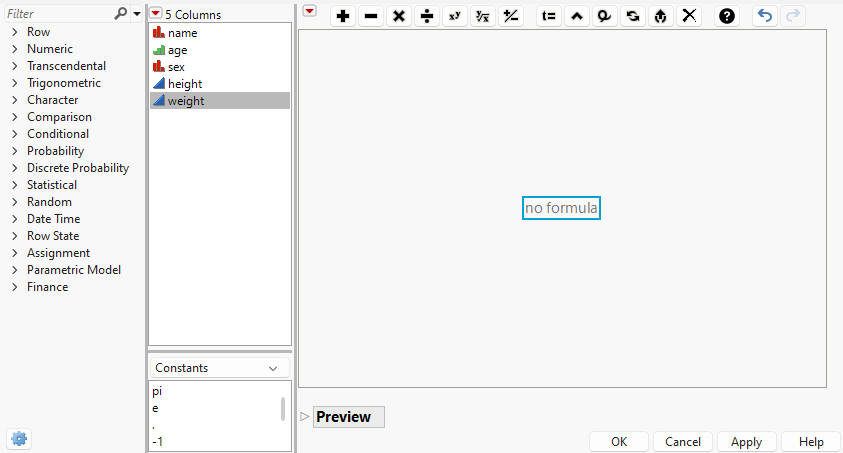
• Select them from the list in the middle pane, as shown in Figure 7.9.
Figure 7.9 The Formula Editorwith Constants Selected
To add constants to a formula, follow these steps:
1. Open the Formula Editor by right-clicking a column name in the data table and selecting Formula.
2. Select a box in the formula editing area by clicking it.
It is selected when there is a blue outline around it.
3. Double-click to enter a number or select Constants in the middle pane, as shown in Figure 7.9.
Then double-click a value in the list that appears: 0, 1, 2, -1, pi, e. The value appears in the outlined box.
4. Complete the remainder of the formula by using the keypad and functions.
See Refer to Data Table Values in Formulas, Add Operators to JMP Formulas, and Use Functions in Formulas.
Note: Double-clicking or pressing Alt and then clicking the constant replaces the portion of the formula that is selected.