JMP Basics
After you open JMP on Windows, the Home Window appears. On Apple macOS, the JMP Starter and Home Window appear.
The JMP Starter window categorizes actions and platforms.
Figure 2.2 The JMP Starter Window
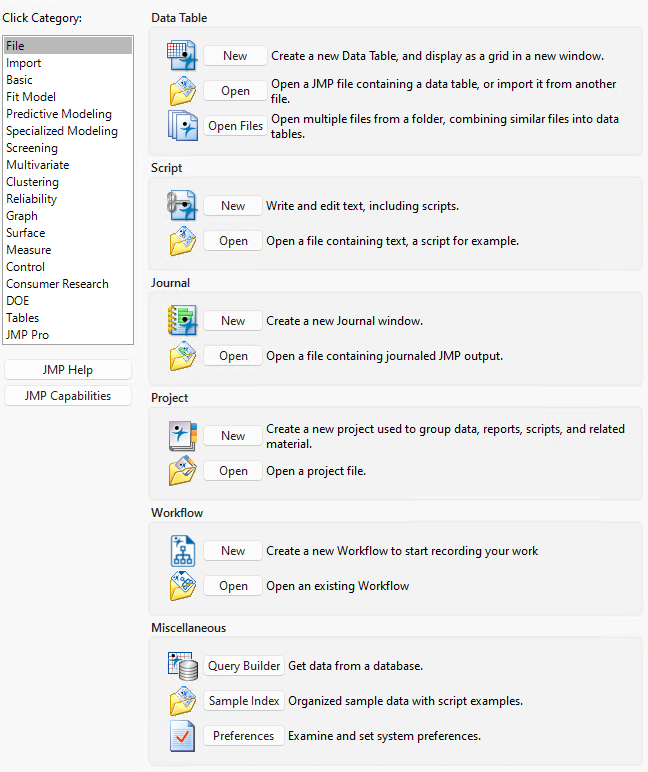
On the left side of the window is a list of categories. Click a category to see the category’s features and commands. The JMP Starter also lists JMP Pro features and platforms.
The Home Window helps you organize and access files in JMP.
Figure 2.3 The Home Window on Windows
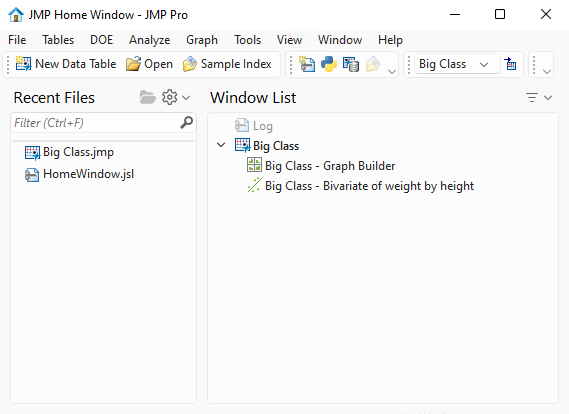
To open the Home Window on Windows, select View > Home Window. On Apple macOS, select Window > JMP Home. The Home Window includes links to the following items:
• the data tables and report windows that are currently open
• files that you have opened recently
For more information about the Home Window, see “Manage Files and Open Windows” in Using JMP.
Most JMP windows contain a menu bar and a toolbar, and you can access JMP features in three ways.
• the menu bar
• the toolbar buttons
• the buttons on the JMP Starter window
About the Menu Bar and Toolbars
The menus and toolbars are hidden in many windows. To see them, hover over the blue bar under the window’s title bar. The menus in the JMP Starter window, the Home Window, and all data tables are always visible.