Linear Constraints
The Prediction Profiler, Custom Profiler, and Mixture Profiler can incorporate linear constraints into their operations. Linear constraints can be entered in two ways, described in the following sections.
Red Triangle Menu Item
To enter linear constraints via the red triangle menu, select Linear Constraints>Edit Constraints from either the Prediction Profiler or Custom Profiler red triangle menu.
There are options in the Edit Constraints window to add linear constraints manually or load linear constraints from an existing data table. Click the Add Linear Constraint button to enter an equation to specify the constraint. For example, to enter the constraint p1 + 2*p2 ≥ 0.9, enter the equation as shown in Figure 2.7. Click the Load from Linear Constraints Table button to import linear constraints from an existing constraints data table.
Note: Saving constraints to a data table is an option in Custom and Mixture designs. The table contains columns of constraints with the ConstraintState column property.
As shown, if you are profiling factors from a mixture design, the mixture constraint is present by default and cannot be modified. The Linear Constraints window also enables you to view the bound constraints and axis settings for each continuous factor. The factor bound constraints can be updated.
Figure 2.7 Enter Coefficients
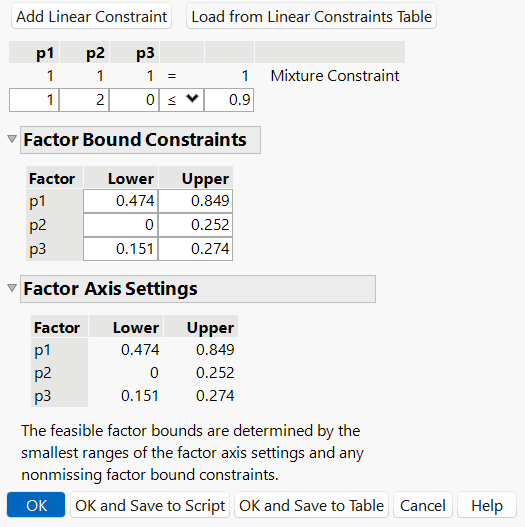
After you click OK, the Profiler updates the profile traces, and the constraint is incorporated into subsequent analyses and optimizations. There are also options to apply the linear constraint changes and save the constraints to either a data table script or a new data table for future use.
If you attempt to add a constraint for which there is no feasible solution, a message is written to the log and the constraint is not added. To delete a constraint, enter zeros for all the coefficients.
Constraints added in one profiler are not accessible by other profilers until saved. For example, if constraints are added under the Prediction Profiler, they are not accessible to the Custom Profiler. To use the constraint, you can either add it under the Custom Profiler red triangle menu, select OK and Save in the Linear Constraints window, or use the Save Linear Constraints command described in the next section.
Optimization Control Panel
To enter linear constraints via the Optimization control panel, select Optimization and Desirability > Optimization Control Panel and click the Factors tab.
In the Linear Constraints section, there are options to add linear constraints manually or load linear constraints from an existing data table. Click the Add Linear Constraint button to enter constraint coefficients into the appropriate boxes. Click the Load from Linear Constraints Table button to import linear constraints from an existing data table. You can also use the Factor Bound Constraints section to view and change the bounds for each continuous factor.
Figure 2.8 Optimization Control Panel
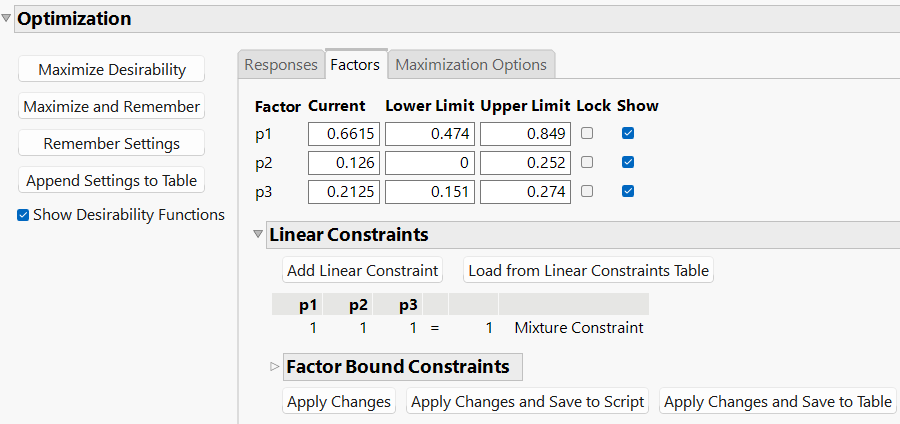
The Apply Changes option applies the constraint changes to the Profiler. The Apply Changes and Save option applies the constraint changes to the Profiler and saves the linear constraints to a table script called Constraint. The Apply Changes and Save to Table option applies the constraint changes to the Profiler and saves the linear constraints to a new data table.
Constraint Table Property/Script
If you add constraints in one profiler and want to make them accessible by other profilers, you can use one of the following options:
• Use the Save Linear Constraints command, accessible through the platform red triangle menu.
• Use the OK and Save option in the Linear Constraints window.
• Use the Apply Changes and Save option in the Factors tab of the Optimization Control Panel.
Each of these options creates or alters a Table Script called Constraint. An example of the Table Property is shown in Figure 2.9.
Figure 2.9 Constraint Table Script
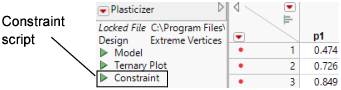
The Constraint Table Property is a list of the constraints, and is editable. It is accessible to other profilers, and negates the need to enter the constraints in other profilers. To view or edit Constraint, right-click the green triangle and select Edit. The content of the constraint from Figure 2.7 is shown below in Figure 2.10.
Figure 2.10 Example Constraint
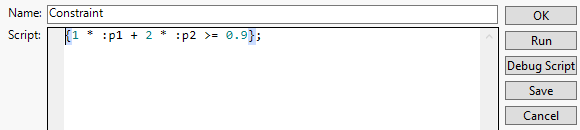
The Constraint Table Script can be created manually by choosing New Script from the red triangle menu beside a table name.
Note: When creating the Constraint Table Script manually, the spelling must be exactly “Constraint”. Also, the constraint variables are case sensitive and must match the column name. For example, in Figure 2.10, the constraint variables are p1 and p2, not P1 and P2.
The Constraint Table Script is also created when specifying linear constraints when designing an experiment.
The Alter Linear Constraints and Save Linear Constraints commands are not available in the Mixture Profiler. To incorporate linear constraints into the operations of the Mixture Profiler, the Constraint Table Script must be created by one of the methods discussed in this section.