Local Data Filters in JMP Reports
Local Data Filters limit the scope of the filter to the output of the platform that you are in. For example, suppose that you have data on the profits of 30 different computer and pharmaceutical companies. You want to examine profits by company type. You can run a distribution and then use the Local Data Filter option to narrow the results in the Distribution platform to the type of company.
1. Select Help > Sample Data Folder and open Companies.jmp.
2. Select Analyze > Distribution.
3. Select Profits ($M) and click Y, Columns.
4. Click OK.
5. Click the Distributions red triangle and select Local Data Filter.
6. Click Type and click Add ( ).
).
7. In the Type box, click Pharmaceutical to see only their profits and then click Computer to see only their profits.
Figure 9.4 Local Data Filter Showing Pharmaceutical Profits
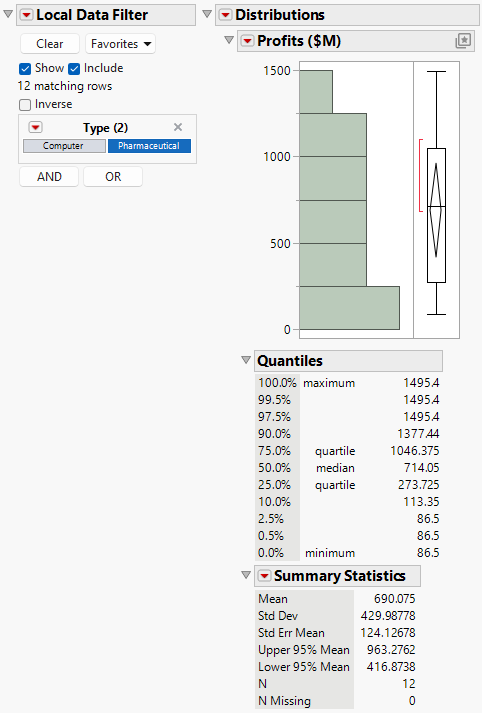
Note: The red triangle menu next to a variable contains options such as inverting the selection and displaying the values in a list of check boxes. For more information, see Red Triangle Options for Variables in Data Filters.
Local Filtering
When you use a Local Data Filter, it only filters in the platform, not in the data table (as the Data Filter option does). For example, if you exclude rows in a Local Data Filter, these rows are not excluded in the data table. And, if you have row states in your data table, they are not impacted by the Local Data Filter.
Save a Filter
You can script and save a Local Data Filter, so that you can access your filter settings again quickly. To save a filter, click the Local Data Filter red triangle and select one of the Save Script options.
Count Excluded Rows
The counts for each level of a variable (including excluded rows) are shown in the Local Data Filter by default. To omit the excluded rows from the count, click the Local Data Filter red triangle and deselect Count Excluded Rows.
Figure 9.5 shows the difference between counting and omitting excluded rows. When the excluded rows are counted, the Local Data Filter shows 20 rows that contain the value “Computer”. Also, there are nine “big” values. When the excluded rows are omitted, only 16 rows contain “Computer”.
Figure 9.5 Counting (Left) and Omitting (Right) Excluded Rows
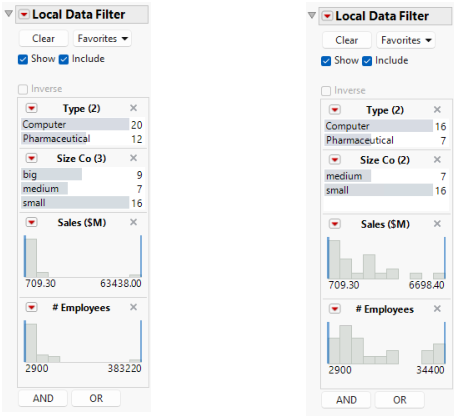
Note: The counts are not shown when Display Options is set to Blocks Display (Figure 9.4).
For more information about advanced scripting with Local Data Filters, see “Define the Context of a Data Filter” in the Scripting Guide.
Use By Groups and Subset Reports
If your analysis uses By groups or combines reports that use linked subsets of the same table, you can share a Local Data Filter on the parent table between all the different By groups and subset reports.
Use Local Data Filters in Dashboards and Applications
You can incorporate Local Data Filters into dashboards or applications:
• For an example of using Local Data Filters with dashboards, see “Example of Creating a JMP Query Dashboard and Add-In”.
• For an example of using Local Data Filters with applications, see “Filtering Data in Separate Reports Using a Local Data Filter” in the Scripting Guide.
Zoom In on Time Series Data
After you filter time series data, you can zoom in on the Local Data Filter histogram to see smaller time increments. Suppose that one year of data are selected on the histogram. To view smaller increments of time within that year, select Zoom to Selection from the red triangle next to the variable. Select Reset Zoom from the Local Data Filter red triangle to reset the histogram.