Pop-Up Menu for Cell Plots
In JMP, right-click the cell plot to find the following options:
Graph Type
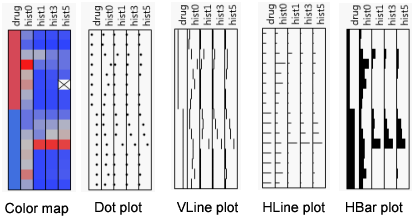
Determines the appearance of the graph. See Change the Graph Type.
Color Theme
Shows a list of color themes that affect continuous variables in color maps. The default color theme is Blue to Gray to Red (corresponding to small values to middle values to large values). Use White to Black to create a gray-scale plot.
Note: To see custom colors, you must first create them. Select File > Preferences > Graphs. In the Color Themes area, click the type of color theme that you want to create, click New, and then change the colors. For more information about creating custom color themes, see “Create Color Themes in Graphs” in Using JMP.
Sort Ascending
Sorts the rows of the plot from lowest to highest by the values of a column. To sort, right-click in the plot under a column and select Sort Ascending. The entire plot is rearranged to accommodate the sorting. See Additional Example of the Cell Plot Platform.
Sort Descending
Sorts the rows of the plot from highest to lowest by the values of a column. To sort, right-click in the plot under a column and select Sort Descending. The entire plot is rearranged to accommodate the sorting.
No Separator Lines
Draws or removes lines that separate the columns.
Note: For more information about the pop-up options that appear when you right-click labels, see “JMP Reports” in Using JMP.
Change the Graph Type
Use the Graph Type option to change the appearance of the cell plot.
Figure 8.5 Graph Types