Preferences for Importing and Exporting Text Files
Text Data Files preferences enable you to customize the import and export of text files.
Figure 15.18 Text Data Files Preferences
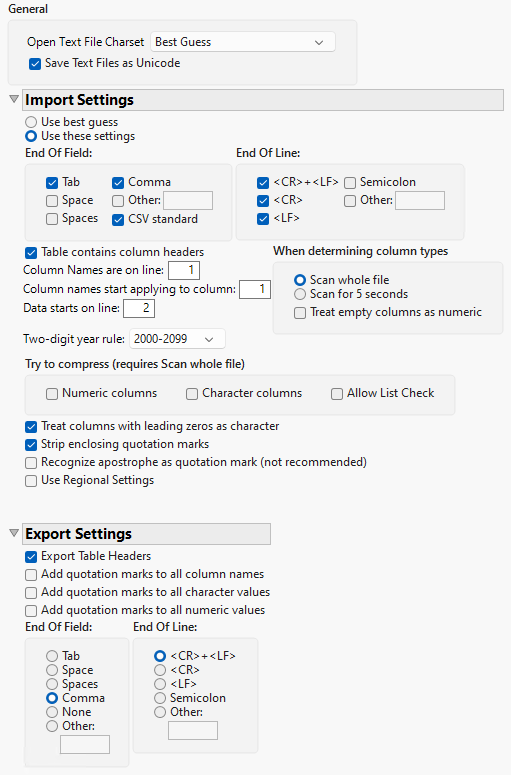
Preference | Description |
|---|---|
Open Text File Charset | Select one of the options from the menu to determine what character encoding JMP uses to open files. The default setting is Best Guess. Note that Windows-1252 is considered ANSII on some systems, and UTF-8-BOM is not supported. |
Save Text Files as Unicode | JMP uses the Unicode character set, which supports special characters such as é and ½. JMP automatically saves files without special Unicode characters as plain text. This option is selected by default. Deselect this check box to save all of your files as plain text. |
Import Settings | Select the strategy that JMP uses to open text files. The default selection is Use these settings. In that case, you must ensure that the settings reflect your text files. If you select Use best guess, JMP collects statistics in the text file on tabs, commas, blanks, and a few other characters and uses a rule-based system to decide what the file format might be. The rules try to make reasonable field widths and a reasonable number of fields per line. If your data format is too different from what the rules are designed to guess, JMP guesses incorrectly. In that case, either use the wizard or explicitly describe your data in these preference settings. |
End Of Field | Select one or more characters to use as the delimiter that signifies the end of a field when importing text data. Tab, comma, and CSV standard are selected by default. Select the Other option and enter a character to specify a delimiter that is not listed. |
End Of Line | Select one or more characters to use as the delimiter that signifies the end of a line (row). <CR>+<LF>, <CR>, and <LF> are selected by default. Select the Other option and enter a character to specify a delimiter that is not listed. Note that if quotation marks are encountered when importing text data, the delimiter rules change to look for an end quotation mark. Other text delimiters, including spaces, that are embedded within the quotation marks are ignored and treated as part of the text string. |
Table contains column headers | Select this option if your text file contains column names. If you select this option, enter the line number where the column names are located in the field next to Column Names are on line. This option is selected by default. |
Column Names are on line | If you select the Table contains column headers option, enter the line number where the column names are located in this field. Line one is the default setting. |
Column names start applying to column | Select this option and enter the column number for data columns that do not have column names. This option specifies where the column names start applying. Column one is the default setting. |
Data starts on line | Enter the line number where the data starts in your text file. Line two is the default setting. |
When determining column types | Set the duration for which JMP scans a text file to determine data types for the columns. Scan whole file is selected by default. Note that the Scan whole file option can slow down the import process for large text files. Consider selecting Scan for 5 seconds instead. When your text file contains columns of missing data, select Treat empty columns as numeric to import the columns as numeric rather than character. A period, Unicode dot, NaN, or a blank string are possible missing value indicators. This option is deselected by default. |
Two-digit year rule | Select the rule that you want to use to import dates that have two-digit years instead of four-digit years. 2000-2099 is the default setting. For more information about these rules, see “Two-digit year rule”. |
Try to compress | Select the options that are used for compressing text files. The following options are available, and all are deselected by default: • Numeric columns • Character columns • Allow List Check Note: This feature requires a scan of the entire file. |
Treat columns with leading zeros as character | Select this option to treat all columns that begin with zeros as character columns. This option is selected by default. |
Strip enclosing quotation marks | Select this option to remove quotation marks that enclose data in the text file. This option is selected by default. |
Recognize apostrophe as quotation mark | Select this option to treat apostrophes as quotation marks and omit them. This option is deselected by default. Note: This option is not recommended unless your data comes from a nonstandard source that places apostrophes around data fields rather than quotation marks. |
Use Regional Settings | Select this option to use the operating system’s regional settings when importing a text file. • If the option is deselected (the default setting), files that use a period for a decimal point and a comma for the value separator import correctly. • If the file uses a comma for a decimal point and some other value separator (and the regional settings use a comma for a decimal point), selecting this option imports the text correctly. You must specify the value separator in the Text Data Files import preferences. |
Preference | Description |
|---|---|
Export Table Headers | Select this option to include column names when you save data tables as text files. This option is selected by default. |
Add quotation marks to all column names | Select this option to insert quotation marks around column names. This option is used to export data to a program that has more stringent requirements than CSV. This option is deselected by default. |
Add quotation marks to all character values | Select this option to insert quotation marks around character values. This option is used to export data to a program that has more stringent requirements than CSV. This option is deselected by default. |
Add quotation marks to all numeric values | Select this option to insert quotation marks around numeric values. This option is used to export data to a program that has more stringent requirements than CSV. This option is deselected by default. |
End Of Field | Select one or more characters to use as the delimiter that signifies the end of a field when exporting text data. The comma is the default setting. Select the Other option and enter a character to specify a delimiter that is not listed. |
End Of Line | Select one or more characters to use as the delimiter that signifies the end of a line (row). <CR>+<LF> is the default setting. Select the Other option and enter a character to specify a delimiter that is not listed. |