Preview and Import Microsoft Excel Data
Before you import a worksheet, open the spreadsheet in Excel and decide how you want the data to be structured in the final data table. For example, you need to know whether the worksheet includes hidden or merged cells. In the wizard, you can then exclude hidden columns or rows.
To import a Microsoft Excel file that contains several worksheets
1. Open the worksheet in Microsoft Excel.
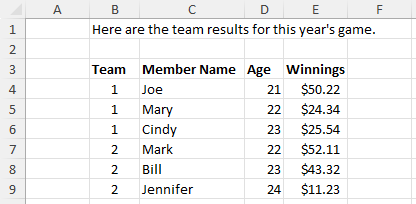
For the figures in this example, the Team Results.xlsx file located in the JMP Samples/Import Data folder is used. The file has the following characteristics:
– The data begin on row 4, column 2 and end on row 9, column 5.
– Two worksheets.
– The second worksheet has two sets of merged cells.
– No hidden rows or columns.
Figure 3.2 Team Results.xlsx Worksheet
2. Open the Excel file by selecting File > Open.
The Open Data File window appears.
3. Select Excel Files next to File name.
4. Select the Excel file and click Open.
The worksheet opens in the Excel Import Wizard, where a preview of the data appears along with import options.
Figure 3.3 Example Initial Data Preview
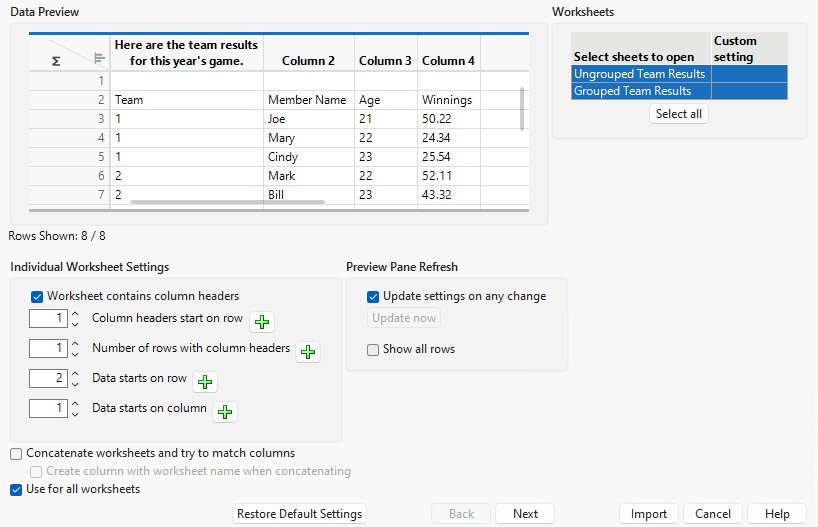
Note the following characteristics in the Data Preview:
– Both worksheets are selected for import in the upper right corner.
– The first column has been automatically removed.
– Text from the first row of the worksheet appears as the column headers. However, you want the text in row 3 of the worksheet to be used as the column headers.
– The first data row is empty.
Note: JMP remembers your previous changes each time you import a worksheet, even after closing and reopening JMP. This feature is helpful when you want to re-import the same worksheet several times and experiment with options. To clear those changes when you import a different worksheet, click Restore Default Settings.
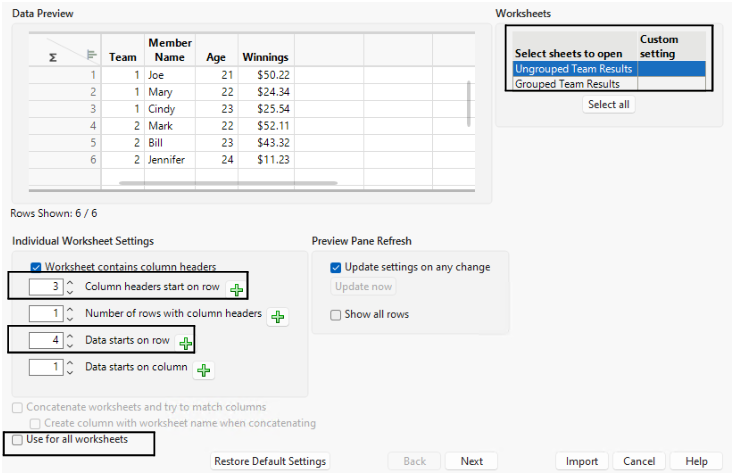
5. For Column headers start on row, type 3.
6. For Number of rows with column headers, type 1.
7. For Data starts on row, type 4.
8. For Data start on column, type 1.
9. Select Ungrouped Team Results in the Worksheets pane.
Only this worksheet is imported.
10. Deselect Use for all worksheets.
These settings apply only to Ungrouped Team Results.
Figure 3.4 Selecting the Column Header Row
Tip: Right-click a numeric column header in the Data Preview pane to change the format.
For more information about all options, see Individual Worksheet Settings.
11. Click Next to configure other import settings.
The window displays additional import settings.
12. For Data ends with row, type 9.
13. For Data ends with column, type 5.
Figure 3.5 Specifying the Last Column
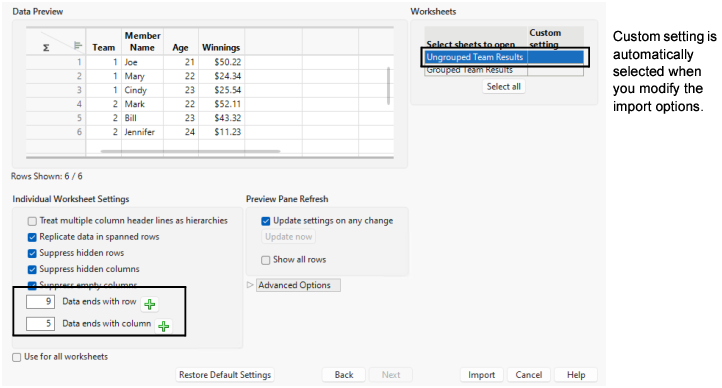
For more information about all options, see Additional Individual Worksheet Settings.
14. Click Import to convert the worksheet as you specified.
Figure 3.6 Final Data Table
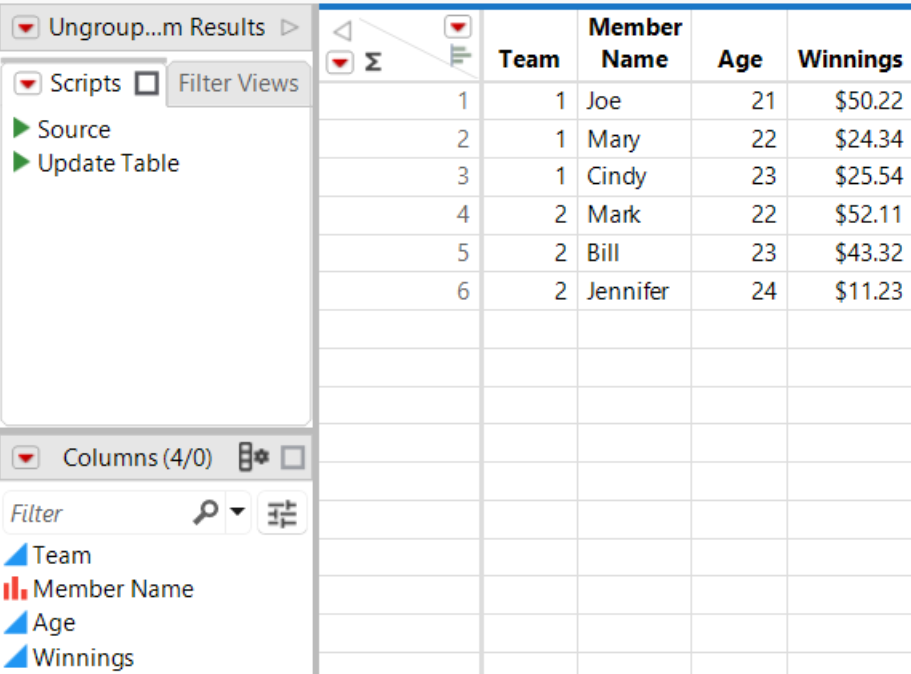
The following sections describe options in the Excel Import Wizard.
Individual Worksheet Settings
Worksheet contains column headers
Indicates if the worksheet contains rows with column headers.
Column headers start on row
Indicates which row the column headers begin on in the worksheet. Click the up arrow  until the headers begin on the correct row, or enter the row number and press Enter.
Number of rows with column headers
Indicates whether the worksheet has multiple rows as column headers. Click the up arrow until the header rows appear correctly, or enter the number of rows and press Enter.
Data starts on row
Indicates which row the data start on in the worksheet.
Data starts on column
Indicates which column the data start on in the worksheet.
Concatenate worksheets and try to match columns
Merges all worksheets into one data table. JMP matches columns that have the same header.
Create column with worksheet name when concatenating
Adds a new Source Table column that lists the worksheet name for each imported table. This option is available after you select the preceding concatenate option.
Use for all worksheets
Applies the current import settings to all worksheets that are selected in the upper right corner.
Additional Individual Worksheet Settings
Treat multiple column header lines as hierarchies
Indicates that the worksheet contains multiple rows as column headers and that you want these headers to be hierarchies. This option is only for stackable data.
Replicate data in spanned rows
Indicates that cells are merged in the worksheet across rows. JMP unmerges data that were merged in the worksheet and copies the cell contents as separate categories.The option is selected by default.
If you deselect Replicate data in spanned rows, JMP unspans the cells and copies the cell contents into the topmost cell. The remaining unspanned cells are left empty.
Suppress hidden rows
Prevents hidden rows from appearing in the data table.
Suppress hidden columns
Prevents hidden columns from appearing in the data table.
Suppress empty columns
Indicates whether an empty column that has a column header is imported. Deselect the option to import the column.
Data ends with row
Indicates the last row in the worksheet that contains data.
Data ends with column
Indicates the last column in the worksheet that contains data.
Advanced Options
Column Name Separator String
Indicates the separator between each word in a column header if the headers were originally in different rows. Specify the number of rows with column headers on the first Excel Import Wizard window. Then enter a character or space in the Column Name Separator String box. The default string, a hyphen, results in a column header such as “First-Second-Third”.
Multiple series Stack
Divides subcategories into separate columns in a worksheet with hierarchical headers. You must also select Treat multiple column header lines as hierarchies. The main category is imported as the Label column.
Replicate headers in spanned rows
Repeats the header text in each cell for rows that are spanned in the worksheet. For example, the State column header that is shown in Figure 3.7 was in a merged cell in the worksheet. On the left side of the figure, the header is replicated. Deselect the option to avoid repeating the header as shown on the right side of the figure.
Figure 3.7 Replicated Headers in a Microsoft Excel File
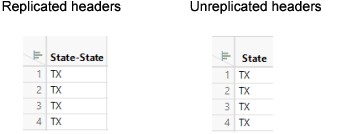
Import cell colors
Applies the cell coloring from the worksheet to the data table. On Apple macOS, only primary and secondary colors can be imported reliably.
Limit column type detection
Scans a maximum of 100 rows to determine the column type. Select this option to speed up the import of large worksheets.
Tips:
• JMP remembers your previous changes each time you import a worksheet, even after closing and reopening JMP. This feature is very helpful when you want to re-import the same worksheet several times and experiment with options. To clear those changes when you import a different worksheet, click Restore Default Settings.
• Your import settings are saved in a data table script named Source. To re-import the worksheet with the same settings, run the script. The script includes the path to the worksheet, so make sure that other users have access to that location.
• To speed up the data preview in large worksheets, deselect Update settings on any change on the first wizard window. Modify the settings and then click Update now to refresh the data preview.
• To view all rows in the Data Preview pane, select Show all rows. The preview might be slightly delayed depending on the size of the spreadsheet.
• You can combine two worksheets from the same workbook into one data table. The column names are matched on import, so the order of the columns is irrelevant.
Import a Microsoft Excel File with Hierarchical Headings
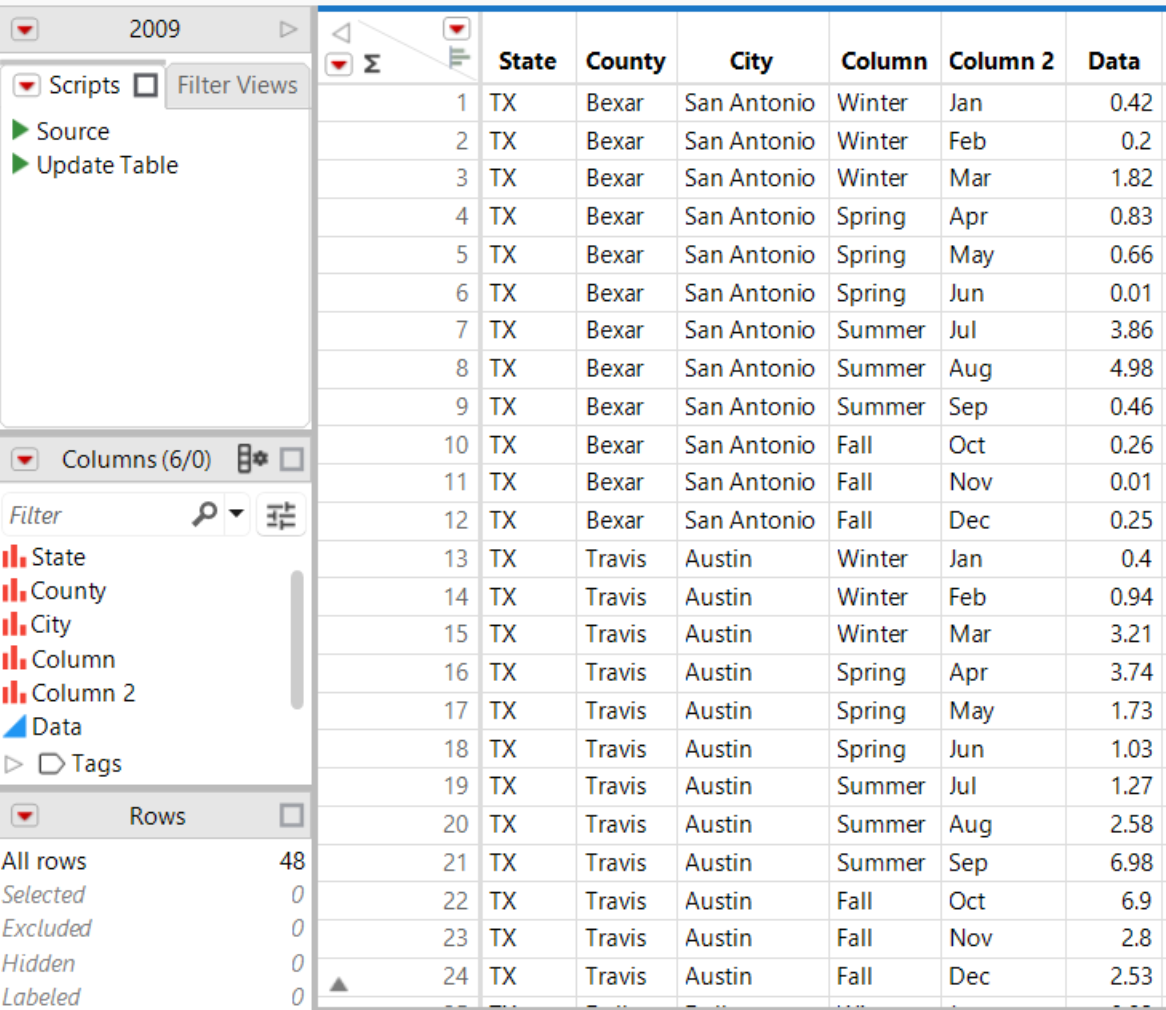
In an Excel worksheet, multiple header rows can have an implied hierarchy; the second header row contains data that are categories of the first header row. Figure 3.8 shows an example. In the worksheet at the top of the figure, the seasons “Winter” and “Spring” are in spanned cells above the months within those seasons. In the JMP data table, you want the seasons in one column and their corresponding months in another column.
Figure 3.8 The Original Data in Excel and Final Data in JMP for 2009
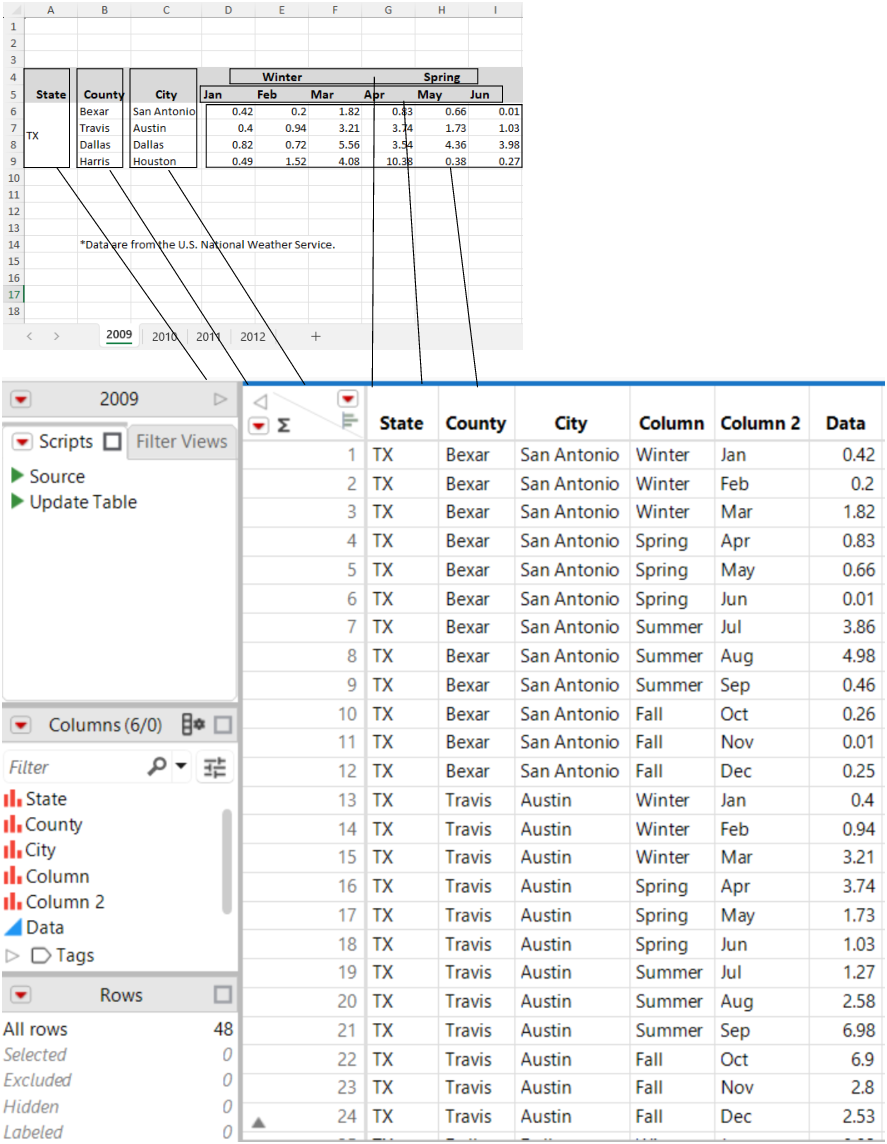
To import the worksheets and maintain multiple column hierarchies
1. In JMP, select File > Open.
2. In the Open Data File window, select Texas Precipitation.xlsx, located in the JMP Samples/Import Data folder, and then click Open.
The worksheet opens in the Excel Import Wizard, where a preview of the data appears along with import options.
Figure 3.9 Excel Import Wizard Preview
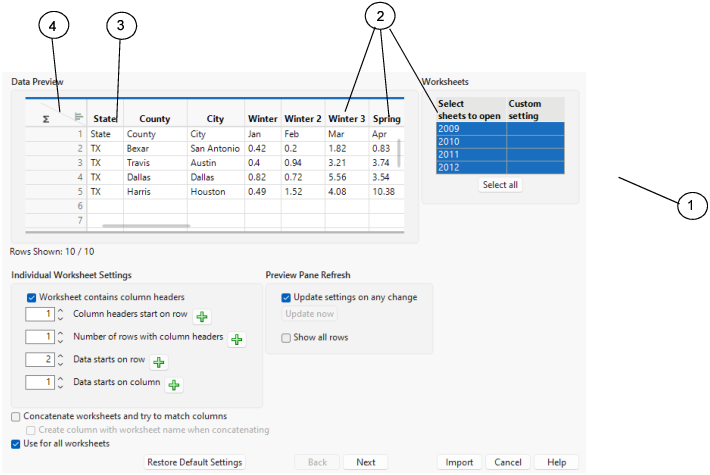
Figure 3.9 shows the default settings for this worksheet:
1 | All worksheets are selected for import. Press Ctrl and click a worksheet to exclude it from the import. |
2 | Each season is split over several columns. |
3 | Data from the second header row of the worksheet appear in the first row. |
4 | The empty rows at the top have been removed. |
3. Under Preview Pane Refresh, make sure that Update settings on any change is selected.
This means that the Data Preview automatically refreshes when you make changes.
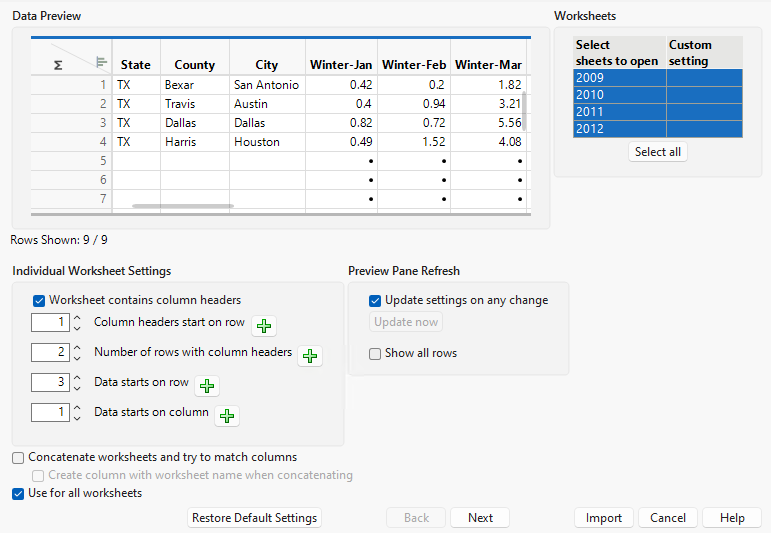
4. Next to Number of rows with column headers, click the up arrow once.
Notice that Data starts on row automatically updates to 3.
Figure 3.10 Updated Settings on Page One
5. Click Next.
6. Next to Data ends with row, type 6 and press Enter.
After the first three empty rows are removed from the worksheet, the data end with row 6.
Tip: Instead of you entering the end row number, JMP can calculate the row for you. In the Data Preview pane, select row 4. Click the plus sign ( ) next to Data ends with row.
Figure 3.11 Updated Settings on Page Two

Notice that Replicate data in spanned rows is selected by default. JMP unmerges data that were merged in the worksheet and copies the cell contents as separate categories. “TX” was originally in a merged cell. In JMP, it is copied into separate cells.
7. Select Treat multiple column header lines as hierarchies.
Each season and month in the header rows of the worksheet become categories in the data table.
8. Click Import.
The four worksheets open as separate data tables. The data tables contain a Source script, which you can run to import the data into new data tables that use the same import settings (Figure 3.12). Your import settings are also saved the next time you open the worksheet in the Excel Wizard in any JMP session.
Figure 3.12 The Final Data