Publish Reports to JMP Live
Note: You must use JMP 17.0 or later to publish to JMP Live 17, 18, or 19. To see which version of JMP Live you are using, log in to JMP Live and click  .
.
JMP Live is web-based software for hosting and sharing JMP reports or data. You can share JMP Live content with anyone who has access to your JMP Live site and does not have JMP. Learn more at jmp.com/live.
Note on Data Accessibility
The data that are represented in your published reports will exist in an interactive HTML format as well as in the JMP data table format. Disabling download permission prevents any user who has access to the JMP Live post from being able to download the data in the JMP data table format. However, it does not prevent a user from being able to get the HTML that contains the data in an XML format. Enabling download permission allows a user who has access to the JMP Live or JMP Public page to get the data in either way. The JMP format is useful only to users who have access to the JMP Live or JMP Public page who also have a separate license of JMP software or a third-party software that knows how to read JMP files. However, a determined, malicious user who has access to your JMP Live or JMP Public site could use a web browser to gain access to the data.
JMP Public
JMP Public is a website that is powered by JMP Live, where anyone can share JMP content with the public.
Register for JMP Public
Before you can publish posts to JMP Public, you must register and sign in by using a SAS profile.
1. In a browser, go to https://public.jmp.com.
Supported browsers include Chrome, Firefox, Safari, and Edge.
2. At the upper right, click Sign in.
3. If you have a SAS profile, sign in with those credentials and then click Submit.
4. If you do not have a SAS profile:
a. Click Create profile. Complete the form and click Create profile.
b. Follow the instructions in the email to set your password and activate your profile.
Add a Connection to a JMP Live Server
Before you can publish to JMP Live, you must add a connection to a JMP Live server.
Note: The first connection that you add becomes the default. The default connection is used for all interactive publishing and scripts that do not explicitly specify another connection. If you add more connections, you can change the default connection.
1. In JMP, select File > Publish > Manage Connections.
2. Click Add New.
3. Enter the JMP Live URL, which is formatted like this: https://jmpliveserver.com.
4. (Optional) Update the default name that identifies the connection.
5. Click Next.
6. Sign in to the JMP Live server with your user name and password.
7. After the connection is created successfully, click Save.
The server name appears under Select a connection.
8. Click Exit.
Create and Publish JMP Reports
1. Create reports in JMP.
Tip: If your report contains a Local Data Filter, you should add columns before you publish. Otherwise, the Local Data Filter is static instead of active. To add columns, select them in the Local Data Filter and click the Add icon  .
.
2. Select File > Publish > Publish Reports to JMP Live or Publish Reports to JMP Public.
– (JMP Live only) If you have not added a JMP Live server connection, add one now. See Add a Connection to a JMP Live Server.
– You might need to sign in to JMP Live or JMP Public.
Tip: Quickly publish a report to JMP Live by using the keyboard shortcut: Ctrl+Shift+U (Windows) or Command+Option+U (Apple macOS).
Figure 11.4 Select the Reports
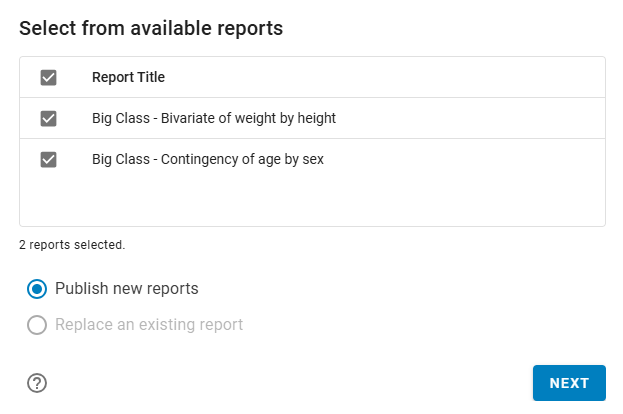
3. Select the reports that you want to publish.
Tip: To choose all open reports, select the Report Title box. If you are replacing a report, you must choose only one report.
4. Choose what action you want to take:
5. Click Next.
Publish New Reports
Figure 11.5 Select Where to Publish the Reports
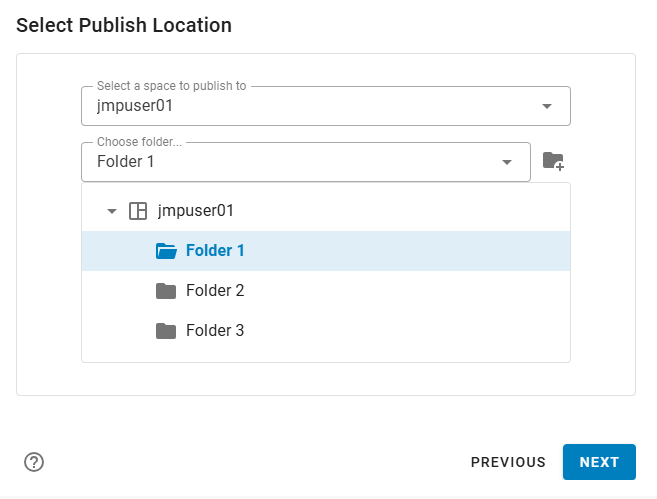
1. Choose the space where you want to publish your report.
To find a space, enter the space name.
Note: You see only spaces that you have permission to publish to.
2. Select an existing folder from the list or enter text to find the folder where you want to publish your report.
Note: You see only folders that you have permission to view. Folders that you do not have permission to publish to are dimmed with a no publishing icon.
Tip: To create a new folder, click the space or folder where you want to create the folder and click Create folder ( ).
).
3. Click Next.
Figure 11.6 Update Report Options
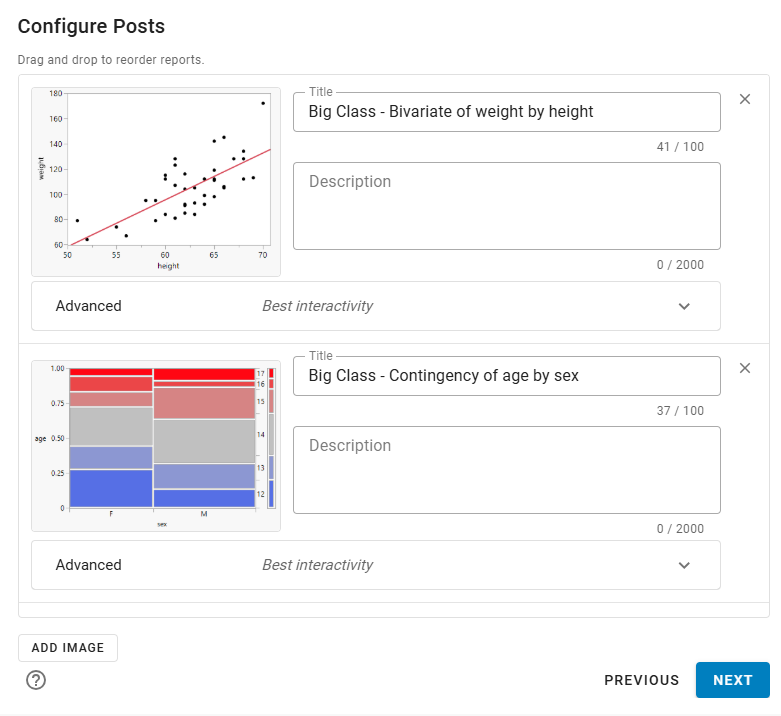
4. (Optional) You can:
– Update the title for each report.
– Click and drag to change the report order.
– Add a description, image, or set advanced options. See Report Options.
5. Click Next.
Figure 11.7 Update Data Options and Publish
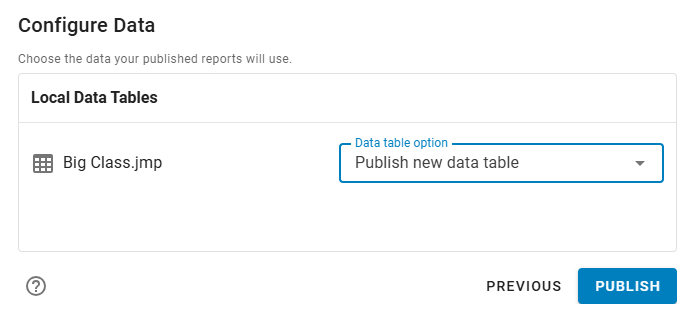
6. Choose whether to publish a new data table or use or update an existing JMP Live or JMP Public data table.
JMP populates this option based on what is currently in the space that you are publishing to.
– If an exact copy of your local data table exists, the option is set to use that data table.
– If you made changes to an existing data table, the option is set to update the existing table. Any other reports that use this data table also update to use the new data.
Notes:
– To use existing data, you must have permission to download the data.
– If a refresh or import script is set on the existing data in JMP Live, the only option is to use the existing table because you cannot manually update these tables.
7. Click Publish.
Figure 11.8 Publish Status for Creating a New Report
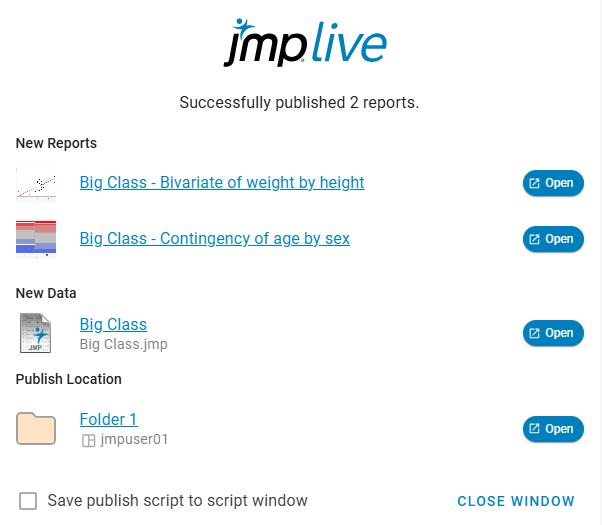
8. (Optional, JMP Live only) To save your process as a JSL script, select Save publish script to script window.
9. Click an Open link to launch JMP Live, or click Close Window.
Figure 11.9 Published Reports in a JMP Live Folder

Note: Who can see your post depends on space and folder permissions. For details, see the JMP Live Help. In JMP Live, click > Help.
Replace an Existing Report
Figure 11.10 Select an Existing Post

Note: You see only posts that you have permission to update.
1. Select an existing post from the list or enter text to find a post.
2. Click Next.
Figure 11.11 Choose How to Publish Data
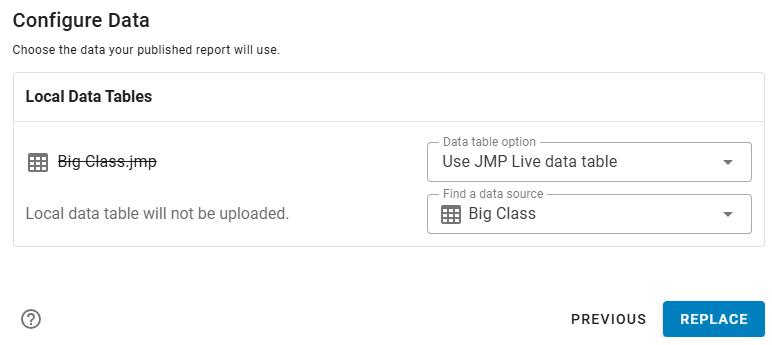
3. Choose whether to publish a new data table or use or update an existing JMP Live or JMP Public data table.
JMP populates this option based on what is currently in the space that you are publishing to.
– If an exact copy of your local data table exists, the option is set to use that data table.
– If you made changes to an existing data table, the option is set to update the existing table. Any other reports that use this data table also update to use the new data.
Notes:
– To use existing data, you must have permission to download the data.
– If a refresh or import script is set on the existing data in JMP Live, the only option is to use the existing table because you cannot manually update these tables.
4. Click Replace.
Figure 11.12 Publish Status for Replacing a Post
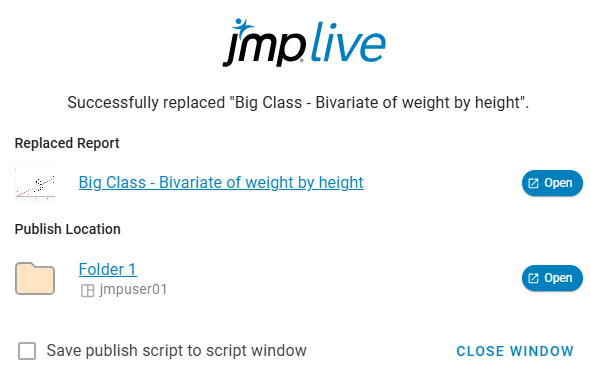
5. (Optional, JMP Live only) To save your process as a JSL script, select Save publish script to script window.
6. Click an Open link to launch JMP Live, or click Close Window.
Figure 11.13 Published Reports in a JMP Live Folder
Note: Who can see your post depends on space and folder permissions. For details, see the JMP Live Help. In JMP Live, click > Help.
Report Options
Description
(Optional) Add a description of the report that appears on the post’s thumbnail.
Advanced
Select Publish data for interactive reports. If you deselect this option, the reports are static. When selected, the data that are used by the report and a JSL script of the report are published.
Tip: To avoid sharing sensitive data, turn off Publish Data.
Best interactivity
All supported aspects of the report are fully interactive.
Best performance
Images and graphs are not interactive, but supported data in the rest of the report remains interactive. If your data set is large, you might choose this option to increase the responsiveness of the report.
Warning notifications
(Applicable for platforms that support control charts only.) Notifies interested parties when the report has control chart warnings. Interested parties can include subscribers or groups where warnings are enabled.
Add Image
Add an image as a report.
Delete icon ( )
)
Remove a report.