Select Columns in the JMP Columns Manager
The Columns Manager option in the Cols menu helps you quickly select columns by attributes, properties, and statistics, particularly in a data table that has many columns. You can view summary statistics and properties for those columns, view quartiles in the summary statistics, subset the data, and more. Columns in the Columns Manager window are also linked to columns in the data table.
Figure 4.11 Linked Columns in the Column Manager
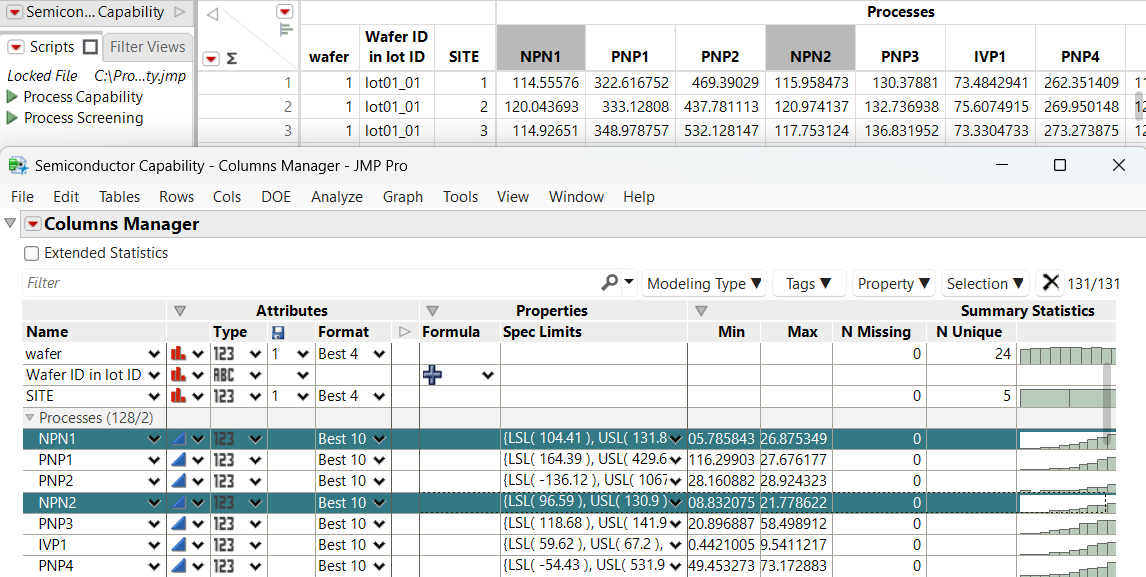
The Columns Manager gives you a quick view of data table characteristics. For example, the Summary Statistics shows which columns contain missing values. You can select those columns in the report and then exclude them in the data table.
Figure 4.12 Identify Missing Values
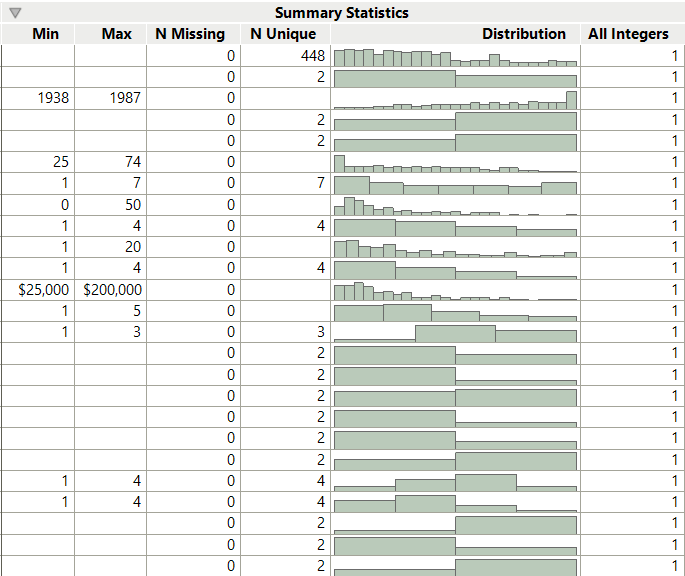
The Summary Statistics shows the following information:
• the total number of rows (N)
• the number of rows with missing values (N Missing)
• the number of unique values (N Unique)
• the Min and Max, a Distribution, and the number of Integers for continuous data
When Extended Statistics is selected, the Columns Manager also shows the following statistics:
• the arithmetic mean of a column’s values (Mean)
• the sample standard deviation (Std Dev)
• the first quartile, which is the median of the lower half of the column’s values (Q1)
• the 50th percentile, which is the value where half of the data are below and half are above or equal to the 50th quantile (Median)
• the third quartile, which is the median of the upper half of the column’s values (Q3)
Example of Finding Columns with a Specific Property
This example shows how to find columns that have a Formula property and then view all formulas at once.
1. Select Help > Sample Data Folder and open Consumer Preferences.jmp.
2. Select Cols > Columns Manager to open the Data Table Columns Manager window.
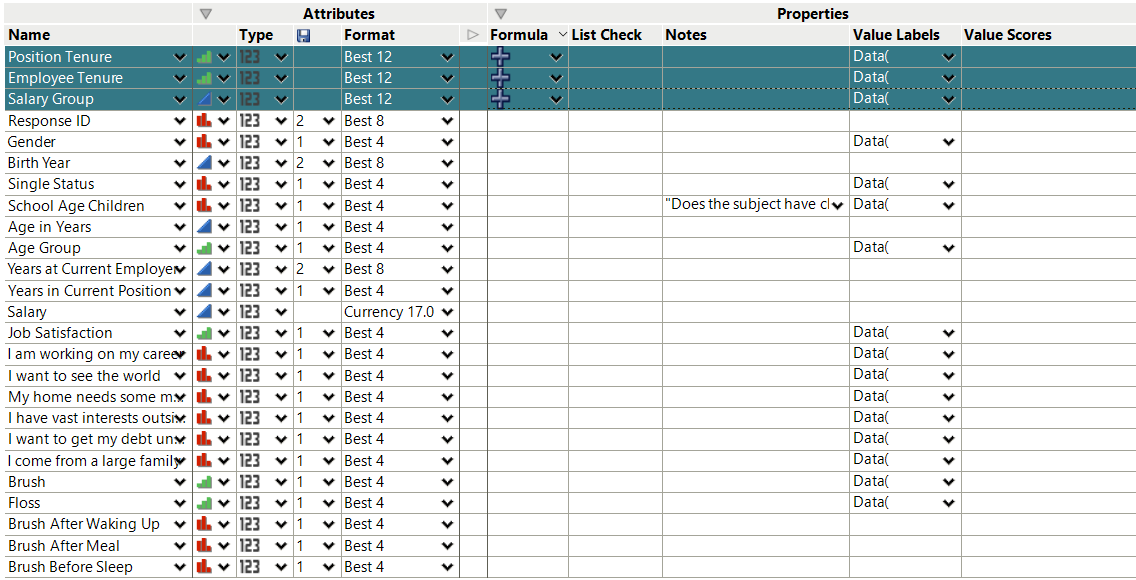
3. Select the Formula column twice to sort by Ascending.
Columns that have a Formula property appear at the top of the Columns Manager.
Figure 4.13 Sort the Formula Columns in the Columns Manager
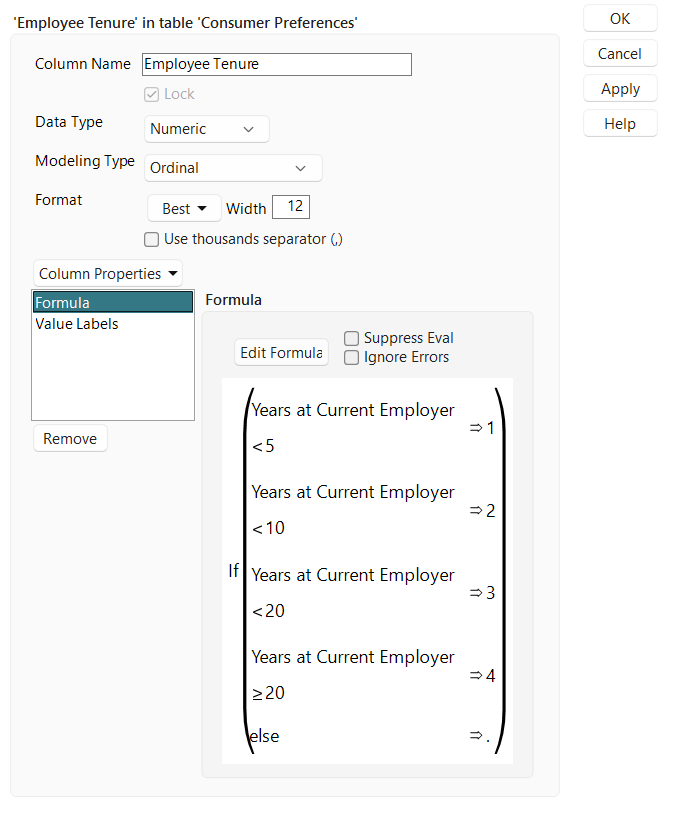
4. Select the Employee Tenure, Position Tenure, and Salary Group columns and select Cols > Column Info.
Formulas for the selected columns appear in the data table’s Column Settings window.
Figure 4.14 View Formulas in the Column Settings Window
Example of Showing Summary Statistics
This example shows how to find columns with a low standard deviation. This can be helpful if you want to delete or exclude that data from an analysis.
1. Select Help > Sample Data Folder and open Semiconductor Capability.jmp.
2. Select Cols > Columns Manager to open the Data Table Columns Manager window.
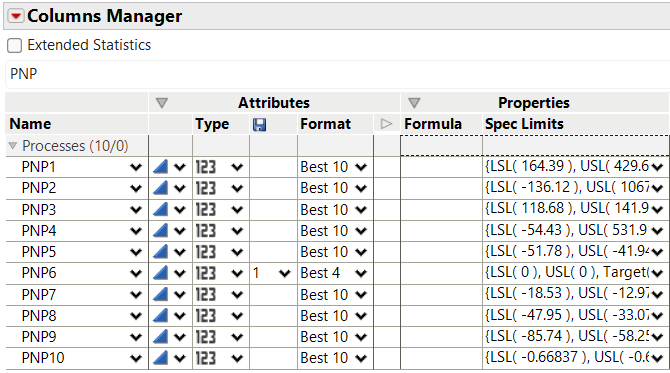
3. Type PNP in the Filter box and press Enter.
4. Expand the processes group to show the PNP columns.
The grouped processes are shown.
Figure 4.15 Filter Columns by Name
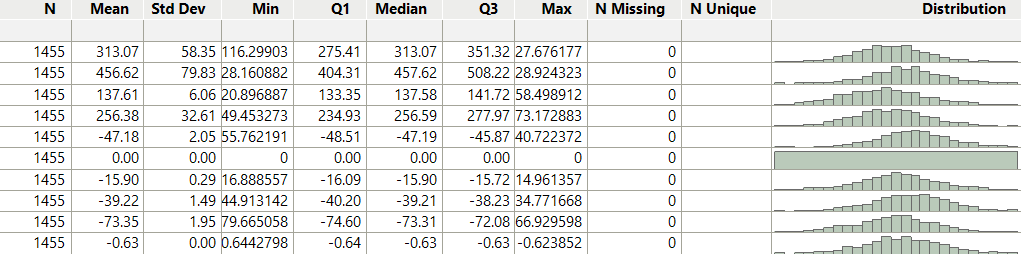
5. Click Extended Statistics to add additional summary statistics to the Columns Manager window.
The rows show the number, mean, standard deviation, minimum, first quartile, median, third quartile, maximum, number of missing values, number of unique values, and the distribution for each column.
Figure 4.16 Extended Summary Statistics for Selected Columns
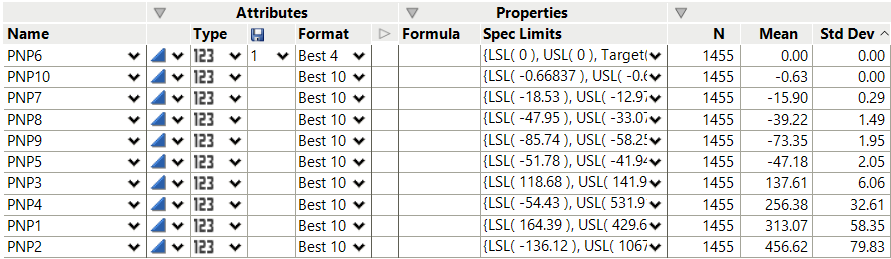
6. Select the Std Dev column twice to sort by Ascending.
Notice that PNP6 has no standard deviation because the minimum, maximum, and mean values are 0.
Figure 4.17 Sorted Std Dev Column
7. In the Columns Manager, select the row for PNP6 and then display the data table.
8. View the data table, scroll right to find the PNP6 column, select it, and press Delete to remove the selected column.
The column is removed from the data table.
9. To close the Columns Manager, click the X button in the upper right corner (Windows) or upper left corner (Apple macOS) of the window.