Select Columns in Data Tables
You can select columns in the data table by using the Columns Manager or by going sequentially through columns.
• Select Columns in the JMP Columns Manager
• Locate Next and Previously Selected Columns in Data Tables
How to Select Columns
Choose one of several methods for selecting columns in a data table.
To select one entire column
• In the data grid, click in the empty space around the column name.
• In the Columns panel, click the column name.
To select a specific column number
1. Select Cols > Column Selection > Go to.
2. Enter the column number or name and click OK.
To select multiple columns
• For continuous selection:
– Click and drag the cursor over the column name.
– Press Shift and click the first and last columns of the wanted range.
– Press Shift and press the left or right arrow key.
• For columns that are not next to each other:
– Press Ctrl and click each column.
To select or deselect all columns
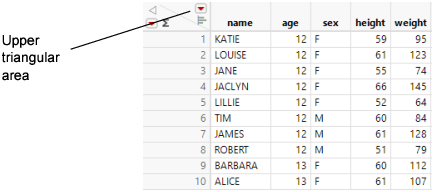
Press Shift and click the upper triangular area in the data grid above the row numbers to select. Click again in the same area to deselect all columns.
Figure 4.10 Upper Triangular Area
Tip: To clear all highlighted areas in the data table, press Esc.
To invert the column selection
Select Cols > Column Selection > Invert Column Selection. This option selects any column that is currently deselected and deselects any column that is currently selected.