Select Rows in Data Tables
To select one entire row
Click in the empty space that contains the row number.
To select a specific row number
Select Rows > Row Selection > Go to Row and enter the row number that you want to go to.
To select multiple rows
• For continuous selection:
– Click and drag the cursor over the row numbers.
– Press Shift and click the first and last rows of the desired range.
– Press Shift and press the up or down arrow key.
• For discontiguous selection:
– Press Ctrl and click each row.
To select or deselect all rows
• Select Rows > Row Selection > Select All Rows.
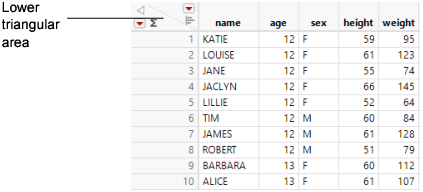
• Press Shift and click the lower triangular area in the data grid above the row numbers. Click again in the same area to deselect all rows (Figure 4.7).
• Press Esc to clear all highlighted areas in the data table.
Figure 4.7 Lower Triangular Area
To select random rows
1. Select Rows > Row Selection > Select Randomly.
2. You can randomly select either a specific number of rows or a proportion of the total number of rows:
– Enter a whole number to select that number of rows.
– Enter a value between 0 and 1 to select that proportion of rows.
For example, type 10 to select 10 rows. Type 0.1 to select 10% of the rows.
To invert the row selection
Select Rows > Row Selection > Invert Row Selection.
To select dominant rows
1. Select Rows > Row Selection > Select Dominant.
2. Choose the columns whose values you want to use to determine dominance.
3. Select the high or low values to dominate by for each column.
4. Click OK.
Note the following information about dominant values and rows:
• A value is dominant over another value if it is higher or lower (based on your specification).
• The Select Dominant option selects each row that is not dominated by any other row. A row dominates another row only if all of its values are dominating the other row’s values.
• The resultant set of rows is called the Pareto Frontier.
To save the current row selection in a new column
1. Select Rows > Row Selection > Name Selection in Column.
2. Enter a column name.
3. Label the selected and deselected rows.
4. Click OK.
Tip: If you repeat this process after you create the new column and indicate the same column name, the original column is overwritten. Changes that you made in the data table to Selected or Unselected values are lost. Avoid overwriting those values by clearing the corresponding box in the Name Selection in Column window. For example, to avoid overwriting the Unselected values, ensure that the Unselected box is cleared.
To select excluded, hidden, or labeled rows
1. Select Rows > Row Selection.
2. Select from the following options:
– Select Excluded
– Select Hidden
– Select Labeled
Note: For more information about excluded, hidden, or labeled rows, see Assign Characteristics to Rows and Columns.
To select rows that contain duplicate values
1. Select Rows > Row Selection > Select Duplicate Rows.
All duplicate rows except for the first are selected. If no columns are selected, duplicate rows are selected by using all the columns.
If columns are selected, duplicate values are found in the rows of those columns.
The match is case sensitive.